

Οδηγός χρήστη συσκευής παρακολούθησης ιχνών SpecFive
Υπερview
Αυτός ο οδηγός εξηγεί πώς να ρυθμίσετε και να χρησιμοποιήσετε τη συσκευή SpecFive Trace για την παρακολούθηση του σκύλου ή των μελών της ομάδας σας. Η συσκευή αξιοποιεί το GPS και το δίκτυο mesh για να παρέχει ενημερώσεις τοποθεσίας σε πραγματικό χρόνο. Το SpecFive Trace μπορεί να συνδεθεί σε ένα κολάρο σκύλου για την παρακολούθηση ενός σκύλου ή, χρησιμοποιώντας τη βάση Molle, σε τακτικό εξοπλισμό για την παρακολούθηση μιας ομάδας.
Ξεκινώντας
Τι Περιλαμβάνεται
- SpecFive Trace tracking device
- Καλώδιο φόρτισης USB
- Dog collar or Molle attachment
- Εγχειρίδιο χρήσης
Απαιτήσεις
- Smartphone or tablet with the Meshtastic app installed
- Access to Wi-Fi for initial setup and downloading offline maps
- Optional: Additional Meshtastic devices for network expansion
Ρύθμιση της συσκευής
Βήμα 1: Φόρτιση της συσκευής
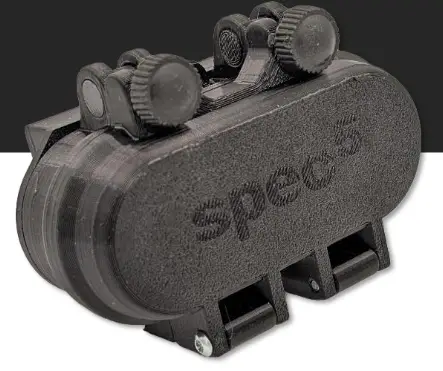
- Loosen the 2 Thumb screws on the housing enough to rotate them 90deg away from the housing. Open the housing to expose the radio and USB-C connector
- Use the provided USB cable to fully charge the device.
- An Orange LED indicates the device is charging. The Green LED will illuminate indicating the device is running. The Orange LED will turn off when the device is fully charged.
- Press and hold the USER button(closest to the hinge) for 6 seconds to turn off the device. The Green LED will switch to solid for a few seconds as the device shuts down and then remains off. If the Green LED is blinking the device is on.

Βήμα 2: Εγκαταστήστε την εφαρμογή Meshtastic
- Download the Meshtastic app from the Google Play Store or Apple App Store.
- Open the app and follow the prompts for general user instructions
Βήμα 3: Συνδέστε τη συσκευή με την εφαρμογή
- Turn on the device by pressing the RESET button. The Green LED will illuminate and begin flashing steadily.
- Open the Meshtastic app

- Select your device from the list of available devices. The Trace will show up as S5TC- ####(the last 4 digits are randomized).

- Enter the device’s pin when prompted, which is by default set to: 123456
- Your Device is now paired to the app for further configuration

Βήμα 4: Αλλαγή του ονόματος συσκευής
- If you’re tracking multiple devices, it’s recommended to change the default device name to easily distinguish between them.
- Find the Radio Configuration/Setting Tab on your app
a. Android: Click the 3 vertical dots on the top right and select Radio Configuration
b. iOS: Select the Settings tab

- Μεταβείτε στην καρτέλα Χρήστης
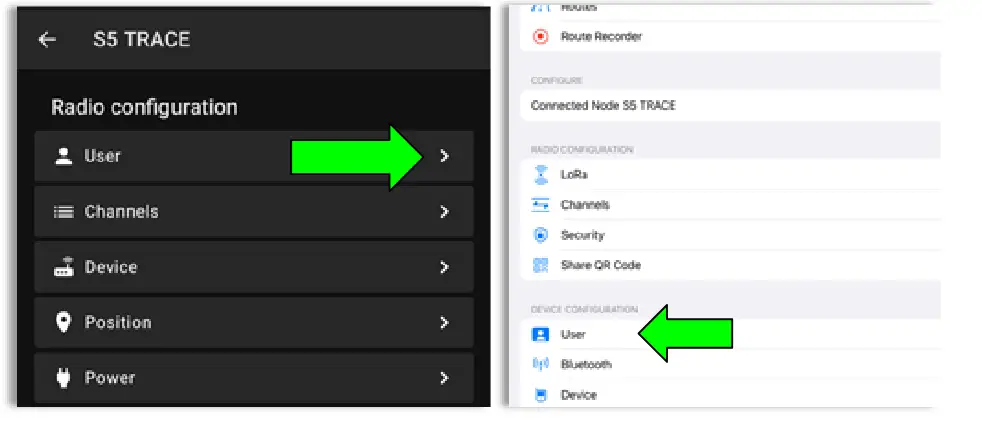
- Update the Long and Short name of your Trace to the name of your dog or Team Member. Long Name can be up to 30 characters including emojis. Short Name can be up to 4 characters, numbers and letters only.

- Once you have updated the device name to your desired name, click Send(Android) or Save(iOS) and the device will reboot.
Βήμα 5: Δημιουργήστε ένα ιδιωτικό κανάλι
The SpecFive Trace comes pre-programmed to communicate on Meshtastic’s public channel, “LongFast.” This means that any nearby Meshtastic user will be able to see your Trace’s location. If you intend to use your Trace within a mesh network with other Meshtastic users and want to share its location, you can keep the default LongFast channel.
However, if you prefer a private network, the instructions in the next section will guide you through creating a private channel for your Trace and sharing access with specific Meshtastic devices.
- Μεταβείτε στην καρτέλα Ρύθμιση παραμέτρων ραδιοφώνου και επιλέξτε Κανάλι.
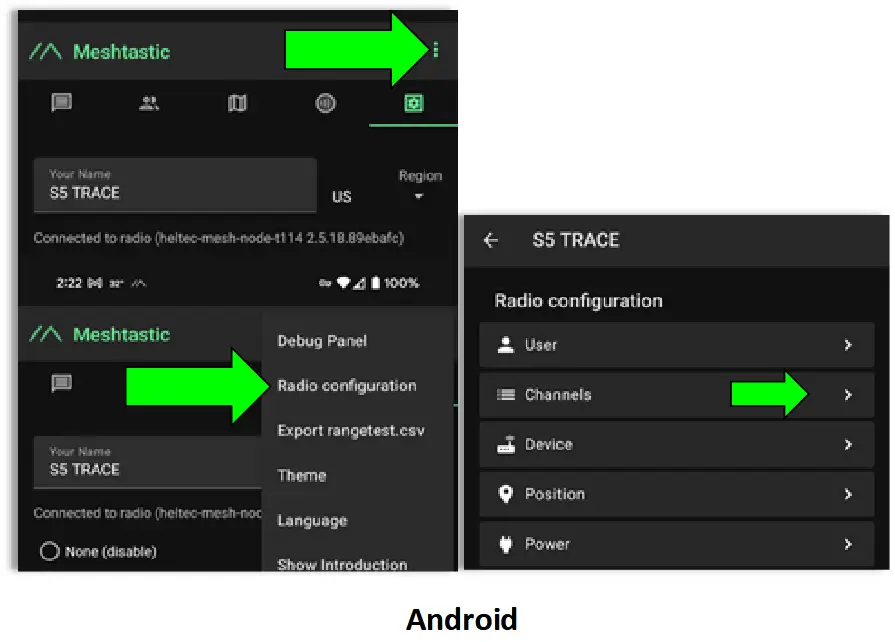
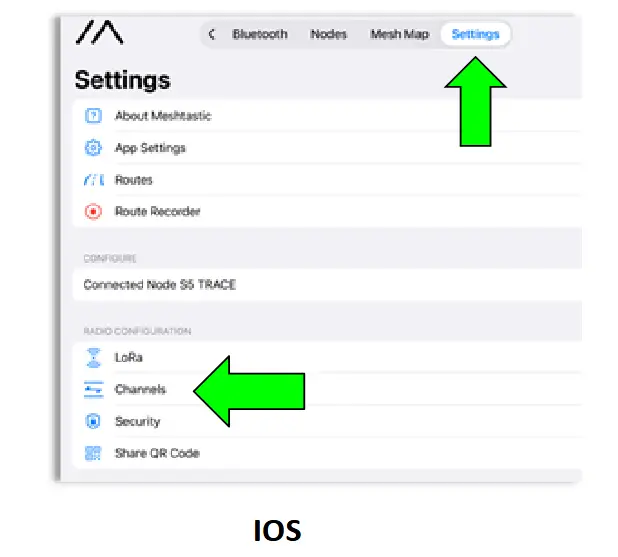
- On Android delete the public channel “LongFast”. On iOS you cannot delete the primary channel but you can edit it.

- Add a new Channel by clicking the “+” button

- Create the Custom Channel on Android. Edit the Primary channel on iOS.
α. Ονομάστε το νέο κανάλι όπως σας αρέσει.
b. Click the Refresh Button on the PSK to create a new randomized pre-shared key.
c. Turn on “Position Endabled” and “Precise Location”.
d. Click Save and then Send to update the channel on the device. The device will reboot.

Βήμα 6: Κοινή χρήση του Προσαρμοσμένου/Ιδιωτικού Καναλιού με τις άλλες συσκευές σας
- Navigate to the Channels tab on the Meshtastic app. Your phone needs to be connected via bluetooth to your Trace to share the channels
- Select your custom channel. The QR code and URL θα ενημερωθεί όταν αλλάξουν οι επιλογές.
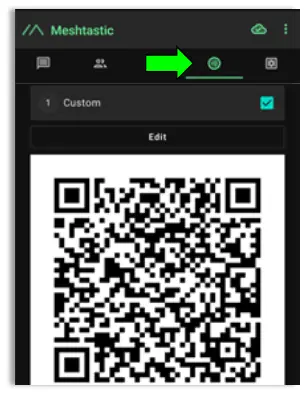
α. Εάν προσθέτετε αυτό το κανάλι σε άλλη συσκευή χρησιμοποιώντας το ίδιο τηλέφωνο/tablet, θα πρέπει να αντιγράψετε το URL και αποθηκεύστε το στο πρόχειρο ή σε κείμενο file.
β. Εάν κοινοποιείτε αυτό το κανάλι με μια συσκευή που είναι συνδεδεμένη σε άλλο τηλέφωνο ή tablet, απλώς σαρώστε τον κωδικό QR χρησιμοποιώντας την εφαρμογή Meshtastic στο δεύτερο τηλέφωνο/tablet.
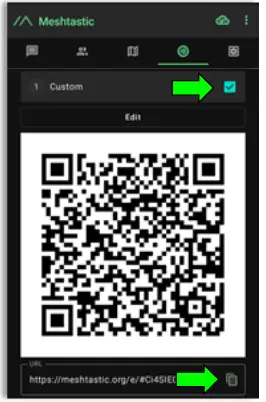
You are now done with the configuration of your Trace. Follow these same instructions for multiple Trace devices. - Add the Custom/Private Channel on your personal mesh radio.This will be the device you keep on your person while the Trace is attached to your dog/pet.
a. Connect your second device to the Meshtastic app.
b. Under the Channels tab on the app you will erase the hyperlink under “URL" και επικολλήστε τον υπερσύνδεσμο που αποθηκεύσατε στο προηγούμενο βήμα.
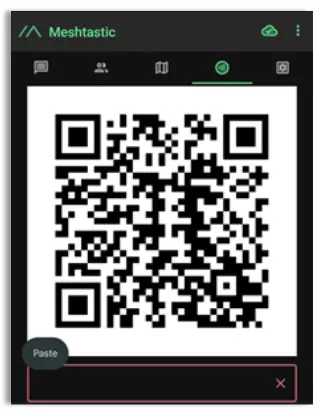
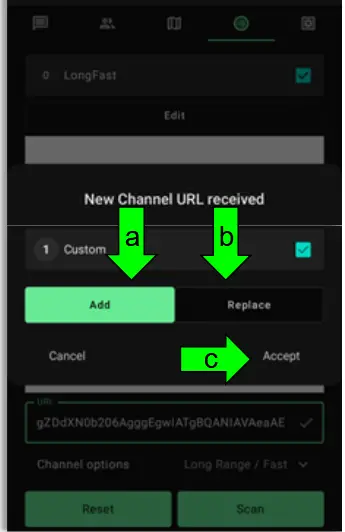
- A window will appear giving you 2 options
α. Προσθήκη: Αυτό θα προσθέσει το προσαρμοσμένο κανάλι ως δευτερεύον κανάλι στην προσωπική σας συσκευή. Αυτή είναι μια καλή επιλογή όταν θέλετε να διατηρήσετε το δημόσιο κανάλι "LongFast" στη συσκευή σας για να επικοινωνείτε με άλλους χρήστες Meshtastic.
β. Αντικατάσταση: Αυτή η ενέργεια θα αντικαταστήσει το προεπιλεγμένο δημόσιο κανάλι "Longfast" με το προσαρμοσμένο κανάλι σας, ώστε να μπορείτε να βλέπετε και να επικοινωνείτε μόνο με τις συσκευές στο προσαρμοσμένο κανάλι σας.
γ. Κάντε κλικ στην επιλογή Αποδοχή για να στείλετε το νέο κανάλι στη συσκευή.
Βήμα 7: Συνδέστε τη Συσκευή
- For Dog Tracking: Secure the device using the provided collar attachment. Ensure the Trace is on the back of the neck of your dog so that the internal GPS antenna faces the sky for optimal signal reception.
- For Team Tracking: Use the Molle mount to attach the device securely to tactical gear, with the “S” in “spec5” pointing up so that the internal GPS antenna faces towards the sky for optimal signal reception.
Χρήση των λειτουργιών παρακολούθησης
Λήψη Χαρτών για Χρήση Εκτός Σύνδεσης (Android)
- Open the Meshtastic app and navigate to the map tab while connected to WIFI or your Cellular network.
- Move your map to locate the area to anticipate needing offline maps for.
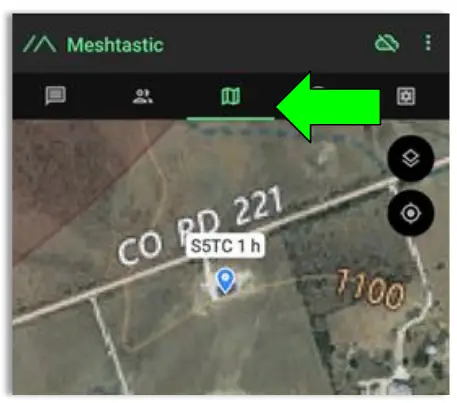
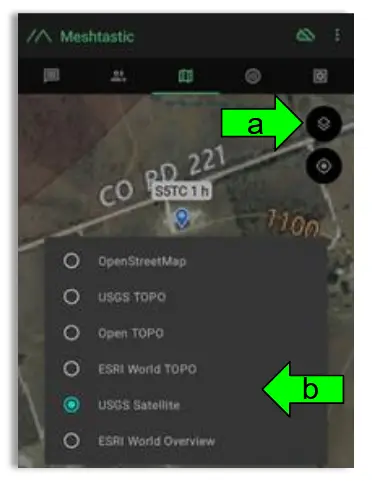
- Select the Map Type you wish to use
a. Click the Map options button
b. Select your preferred Map
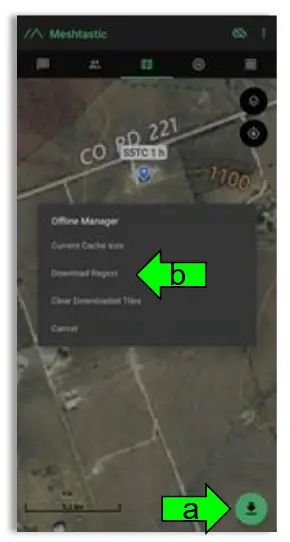
- Download the Map region
a. Click the Download Button
b. Click “Download Region” to download the current map region your map is zoomed to. Use the “Current Cache Size” to see how much storage your current offline maps are using. “Clear Downloaded Tiles” to remove map data for regions you are no longer using.
Παρακολούθηση τοποθεσίας σε πραγματικό χρόνο
- Open the Meshtastic app and connect to your personal device.
- Go to the map tab to see the locations of all of the devices in your mesh including your Trace.
- To see the present and past locations of your Trace
a. Go to the nodes list
b. Select you Trace by clicking on the Short name
c. Select More Details
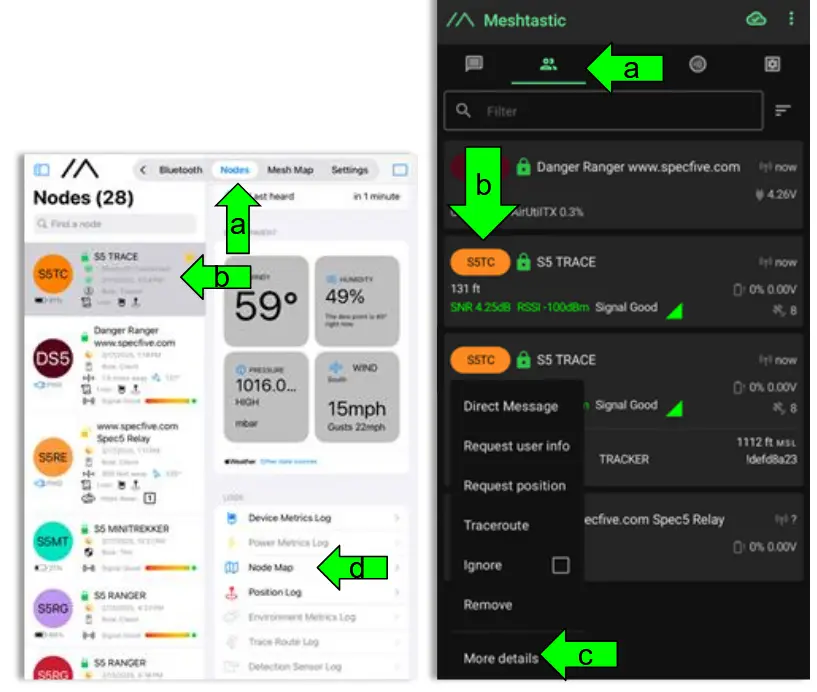
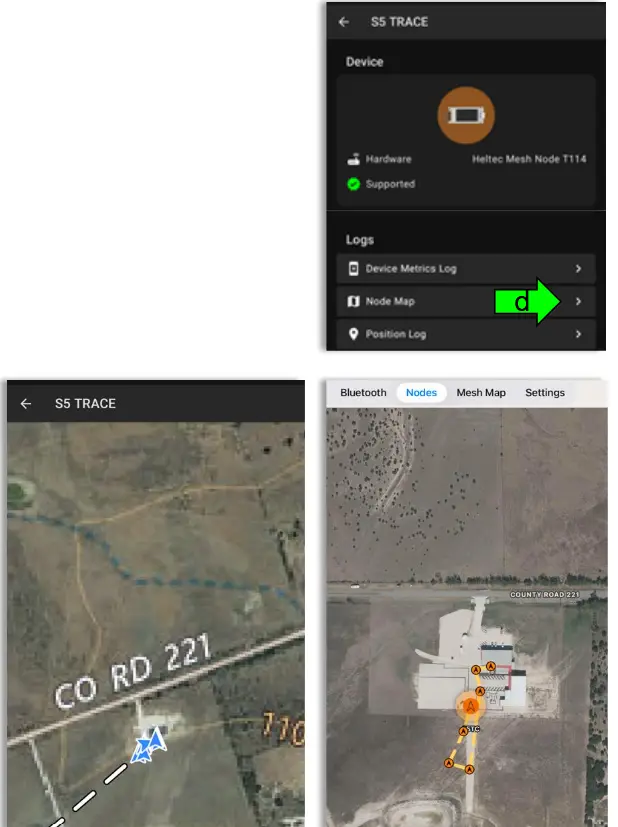
δ. Επιλέξτε «Χάρτης κόμβων» για να view προηγούμενες και τρέχουσες τοποθεσίες GPS του Trace σας
Στοιχεία υποστήριξης και επικοινωνίας
If you experience issues or have questions, contact us at:
• Email: general@specfive.com
• Webτοποθεσία: www.specfive.com
With your SpecFive Trace device, you can track your dog or team members confidently and stay connected no matter where your adventures take you!
© 2024, SpecFive LLC Με επιφύλαξη παντός δικαιώματος
specfive.com
Έγγραφα / Πόροι
 |
Συσκευή παρακολούθησης ιχνών SpecFive [pdf] Οδηγός χρήστη Συσκευή Παρακολούθησης Ιχνών, Συσκευή Παρακολούθησης, Συσκευή |