Εισαγωγή
Thank you for choosing the ProtoArc EM02 Trackball Mouse. This manual provides detailed instructions for setting up, operating, and maintaining your device to ensure a comfortable and efficient user experience. The EM02 features an ergonomic design with adjustable tilt, multi-device connectivity, silent click buttons, and a high-precision trackball for smooth cursor control.
Περιεχόμενα συσκευασίας
- Ποντίκι Trackball ProtoArc EM02
- Δέκτης USB
- Καλώδιο φόρτισης USB-C
- Εγχειρίδιο χρήστη
Χαρακτηριστικά προϊόντος
- Ergonomic Design with Adjustable Angle: The mouse features a 45° tilt and a 15° adjustable base, allowing for a natural wrist posture to reduce strain during prolonged use. This design is ideal for medium to large hands (palm length 17.5cm to 20cm).
- Συνδεσιμότητα πολλών συσκευών: Connects to up to three devices simultaneously via Bluetooth (2 devices) and 2.4GHz USB receiver (1 device). Easily switch between connected devices with a single button.
- Κουμπιά αθόρυβου κλικ: Left and right buttons utilize silent switches, reducing click noise by over 90%. Ideal for quiet environments like libraries, cafes, or offices. (Note: Scroll wheel and forward/back buttons are not silent.)
- Long-lasting Battery & USB-C Charging: Equipped with a 500mAh battery, providing approximately 150 hours of continuous use on a single full charge. Features a battery level indicator for convenience.
- Smooth Trackball & 5-Stage DPI: A 34mm diameter trackball combined with a high-precision sensor ensures smooth and accurate cursor tracking. DPI can be adjusted through 5 levels (200, 400, 800, 1200, 1600) to suit various tasks.
- Convenient Side Buttons: Includes 'Forward' and 'Back' buttons for enhanced browsing and work efficiency. (Note: These buttons may not function on macOS.)
Ρύθμιση
1. Ενεργοποίηση/Απενεργοποίηση
Locate the power switch on the underside of the mouse. Slide it to the 'ON' position to power on the device, and to 'OFF' to power it off.
2. Connecting via 2.4GHz USB Receiver
- Αφαιρέστε τον δέκτη USB από την υποδοχή αποθήκευσής του στο κάτω μέρος του ποντικιού.
- Τοποθετήστε το δέκτη USB σε μια διαθέσιμη θύρα USB στον υπολογιστή σας.
- The mouse will automatically connect. The 2.4GHz indicator light will illuminate.
3. Σύνδεση μέσω Bluetooth
- Press the mode switch button on the top of the mouse to select either Bluetooth 1 (BT1) or Bluetooth 2 (BT2). The corresponding indicator light will flash.
- Στη συσκευή σας (υπολογιστής, tablet, smartphone), μεταβείτε στις ρυθμίσεις Bluetooth και αναζητήστε νέες συσκευές.
- Επιλέξτε "ProtoArc EM02" από τη λίστα των διαθέσιμων συσκευών για σύζευξη.
- Μόλις ολοκληρωθεί η σύζευξη, η ενδεικτική λυχνία Bluetooth θα σταματήσει να αναβοσβήνει και θα παραμείνει σταθερά αναμμένη.
Οδηγίες Λειτουργίας
1. Βασικές λειτουργίες κουμπιών
- Αριστερό κουμπί: Κύρια λειτουργία κλικ.
- Δεξί κουμπί: Δευτερεύουσα λειτουργία κλικ (μενού περιβάλλοντος).
- Τροχός κύλισης: Κύλιση σελίδων προς τα πάνω/κάτω.
- Κουμπιά εμπρός/πίσω: Πλοήγηση προς τα εμπρός/πίσω μέσα web browsers or applications. (Functionality may vary by OS/application, not supported on macOS).
2. Προσαρμογή DPI
Press the DPI change button located near the scroll wheel to cycle through the 5 DPI settings (200, 400, 800, 1200, 1600). Select the sensitivity that best suits your task.

Image: DPI adjustment button and available sensitivity settings.
3. Εναλλαγή μεταξύ συσκευών
To switch between connected devices (Bluetooth 1, Bluetooth 2, or 2.4GHz), simply press the mode switch button on the top of the mouse. The corresponding indicator light will show which device is currently active.
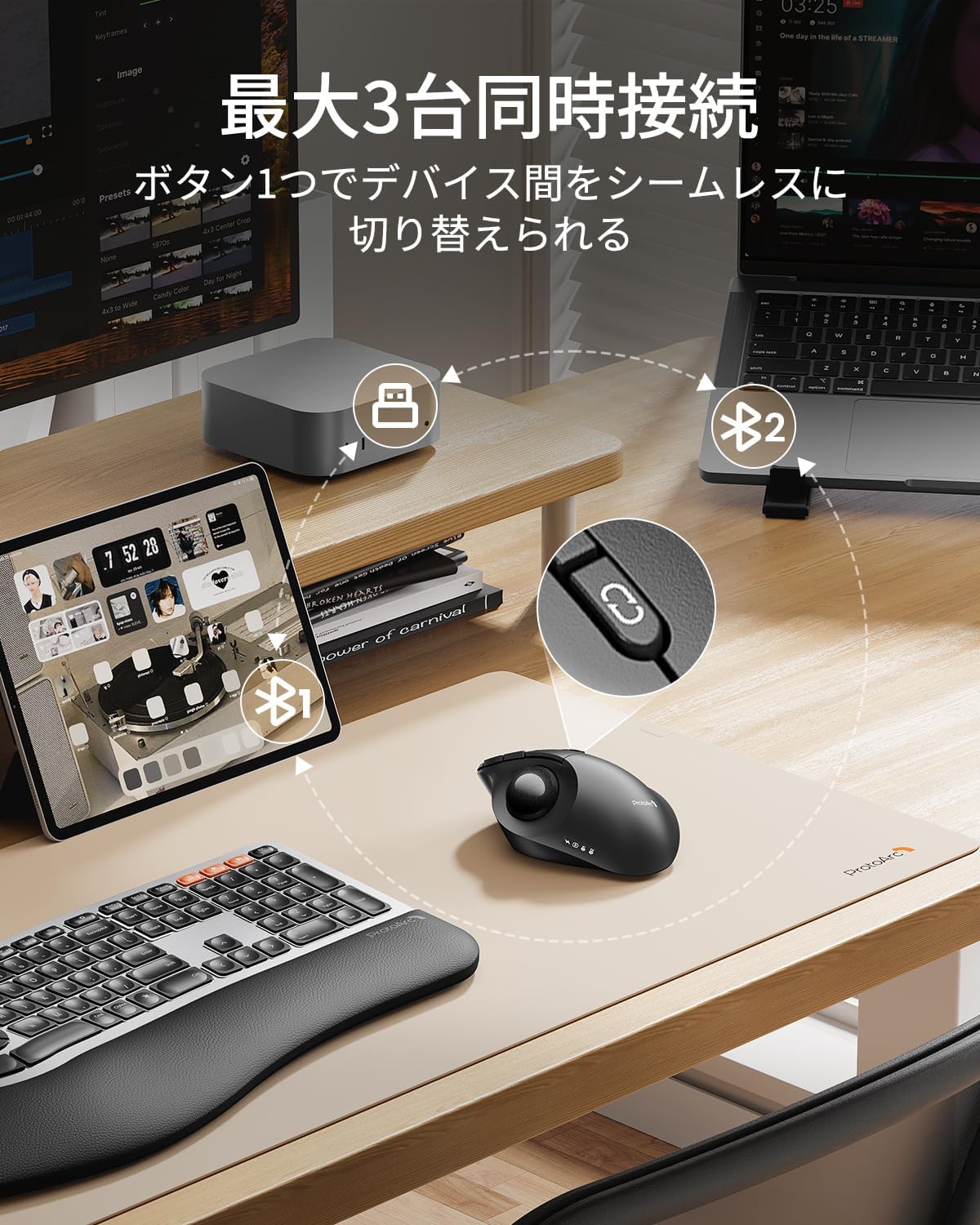
Image: Multi-device connectivity and mode switching.
Φόρτιση και μπαταρία
The ProtoArc EM02 Trackball Mouse features a built-in rechargeable 500mAh battery. Use the provided USB-C cable to charge the mouse. A full charge takes approximately 2-3 hours and provides up to 150 hours of continuous use or 90 days of standby time. The battery indicator lights will show the charging status and remaining battery level.

Image: USB-C charging port and battery life details.
Συντήρηση
Regular cleaning of the trackball is essential for optimal performance, as dust and debris can accumulate. We recommend cleaning 1-2 times per week.
Καθαρισμός του Trackball
- Turn off the mouse power switch.
- Gently push the trackball out from the small hole on the underside of the mouse using a thin stick (e.g., a cotton swab). Alternatively, you can hold the mouse upside down and use your index finger and thumb to grip both sides of the ball, then pull it out from the groove.
- Use a cleaning cloth to wipe away any dust or grime from the trackball and the inside of the trackball housing, especially around the contact points and sensor. For stubborn dirt, lightly dampen a cotton swab with a small amount of water. Ensure no water enters the mouse interior.
- Wipe the removed trackball clean with a cleaning cloth.
- Place the cleaned trackball back into its original position.

Image: Trackball removal and cleaning process.
Important Notes for Cleaning:
- Do not use alcohol or shampoo, as these can damage the ball's surface. If using a neutral detergent, rinse thoroughly with water and dry completely in a well-ventilated area.
- If the trackball movement is still poor after cleaning, apply a small amount of hand cream to a soft cloth and polish the entire ball evenly to distribute oil. Then, wipe off any excess oil.
- Handle with care to avoid damaging the optical sensor during cleaning.
Αντιμετώπιση προβλημάτων
1. Mouse not responding:
- Βεβαιωθείτε ότι το ποντίκι είναι ενεργοποιημένο.
- Ελέγξτε τη στάθμη της μπαταρίας και φορτίστε την εάν είναι απαραίτητο.
- For 2.4GHz connection, ensure the USB receiver is securely plugged into the computer.
- For Bluetooth connection, ensure Bluetooth is enabled on your device and the mouse is paired. Try re-pairing if necessary.
- Switch to a different connection mode (2.4GHz or Bluetooth) to see if the issue persists.
2. Cursor movement is erratic or sluggish:
- Καθαρίστε την ιχνόσφαιρα και την περιοχή του αισθητήρα όπως περιγράφεται στην ενότητα Συντήρηση.
- Adjust the DPI setting to a higher or lower value to see if it improves responsiveness.
- Ensure there are no obstructions between the mouse and the receiver (for 2.4GHz) or the Bluetooth device.
3. Forward/Back buttons not working on macOS:
- The forward/back buttons are not supported on macOS. This is a system limitation.
Προδιαγραφές
| Χαρακτηριστικό | Προσδιορισμός |
|---|---|
| Αριθμός μοντέλου | EM02 |
| Συνδεσιμότητα | Bluetooth, 2.4GHz USB |
| Επίπεδα DPI | 200, 400, 800, 1200, 1600 |
| Χωρητικότητα μπαταρίας | 500 mAh |
| Συνεχής χρόνος χρήσης | Περίπου 150 ώρα |
| Χρόνος Φόρτισης | Περίπου 2-3 ώρες |
| Χρόνος αναμονής | Περίπου 90 ημέρες |
| Θύρα φόρτισης | USB-C |
| Ρυθμιζόμενη γωνία | 0° και 15° |
| Συμβατό λειτουργικό σύστημα | Windows XP/7/8/10+, macOS X 10.12+, Android 5.0+, iOS 13+ |
| Διαστάσεις | 14.4 x 12.2 x 8.9 εκ |
| Βάρος | 230 γρ |
Εγγύηση και υποστήριξη
The ProtoArc EM02 Trackball Mouse comes with an 18-month manufacturer's warranty from the date of purchase. In the unlikely event of a defective or damaged product, please contact customer support for an exchange or refund.
Σημείωμα: The included instruction manual in the package is multilingual, with the Japanese explanation located at the end of the booklet. Please refer to that section when using the product.
Υποστήριξη πελατών:
- E-mail: support-jp@protoarc.com
- Αμαζόνα: Go to the seller page, click 'Ask a question', and send your inquiry.
Πρόσθετες Πληροφορίες
ProtoArc is dedicated to creating healthy and comfortable workspaces, aiming to provide professional service and support whether you are in the office, at home, or on a business trip. Our product design emphasizes comfort, health, convenience, and efficiency.