1. Εισαγωγή
Thank you for choosing the Pisichen 27-inch 4K UHD Touchscreen Monitor with Webcam. This manual provides essential information for the safe and efficient operation of your new monitor. Please read it thoroughly before use and retain it for future reference.
2. Πληροφορίες Ασφάλειας
- Πηγή ενέργειας: Χρησιμοποιήστε μόνο τον προσαρμογέα ρεύματος που παρέχεται με την οθόνη. Βεβαιωθείτε ότι η πρίζα ρεύματος πληροί τις προδιαγραφές τάσης.tagαπαιτήσεις.
- Αερισμός: Μην φράζετε τα ανοίγματα εξαερισμού. Αφήστε επαρκή χώρο γύρω από την οθόνη για σωστή ροή αέρα.
- Έκθεση σε υγρά: Κρατήστε την οθόνη μακριά από υγρά. Μην την εκθέτετε σε βροχή ή υγρασία.
- Καθάρισμα: Disconnect the power cable before cleaning. Use a soft, dry cloth. Avoid abrasive cleaners.
- Τοποθέτηση: Τοποθετήστε την οθόνη σε μια σταθερή, επίπεδη επιφάνεια για να αποτρέψετε την πτώση της.
- Εξυπηρέτηση: Μην επιχειρήσετε να κάνετε μόνοι σας σέρβις στην οθόνη. Αναθέστε όλες τις εργασίες σέρβις σε εξειδικευμένο προσωπικό.
3. Περιεχόμενα συσκευασίας
Παρακαλούμε ελέγξτε τα περιεχόμενα της συσκευασίας κατά την αποσυσκευασία. Εάν λείπουν ή έχουν υποστεί ζημιά κάποια αντικείμενα, επικοινωνήστε με τον αντιπρόσωπό σας.
- Pisichen 27-inch 4K UHD Touchscreen Monitor
- Βάση οθόνης (βάση και βραχίονας)
- Μετασχηματιστής ρεύματος
- Καλώδιο HDMI
- USB-B to USB-A Cable (for Touch Function)
- Εγχειρίδιο χρήστη
4. Το προϊόν τελείωσεview
4.1 Βασικά χαρακτηριστικά
- Ultra HD 4K Touchscreen Display: 27-inch 4K Ultra HD screen with vibrant colors, sharp details, and wide viewing angles. Features a responsive 10-point touchscreen for intuitive control.
- Built-in High-Definition Webέκκεντρο: Ολοκληρωμένος webcam for video calls, online meetings, and streaming, reducing desk clutter.
- Ευέλικτη συνδεσιμότητα: Multiple ports including HDMI, DisplayPort, and USB-C for easy connections to various devices. Supports both touch and traditional input.
- Optimized for Productivity and Creativity: Large 4K touch display for precise control and streamlined workflows, ideal for graphic designers, content creators, and multitasking.
- Sleek and Functional Design: Modern design with an adjustable stand for optimal viewing angles and comfort during extended use.
4.2 Θύρες οθόνης
The monitor features various ports for connecting to your devices. Refer to the image below for port identification.
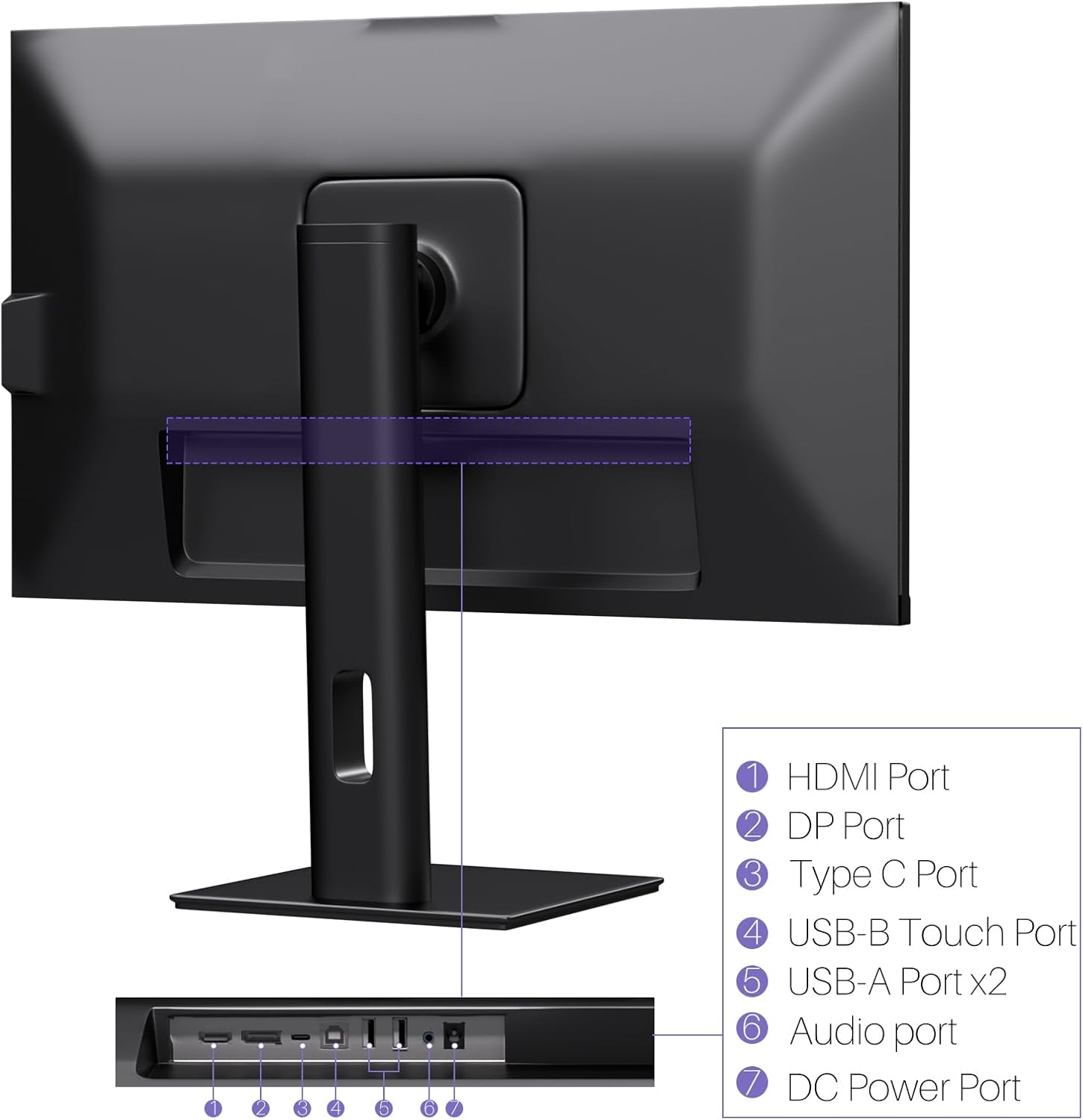
Εικόνα: Πίσω view of the monitor displaying the HDMI, DP, Type-C, USB-B Touch, USB-A, Audio, and DC Power ports.
- Θύρα HDMI: Connects to devices via HDMI cable for video and audio input.
- Λιμάνι DP: Connects to devices via DisplayPort cable for video and audio input.
- Θύρα τύπου C: Connects to devices via USB-C cable for video, audio, and power delivery. (Requires USB-C port on signal device to support DisplayPort Alternate Mode for touch functionality).
- USB-B Touch Port: Connects to your computer via USB-B to USB-A cable to enable touchscreen functionality.
- Θύρα USB-A (x2): Για τη σύνδεση περιφερειακών USB.
- Θύρα ήχου: Για σύνδεση εξωτερικών συσκευών ήχου.
- Θύρα DC Power: Συνδέεται στο τροφοδοτικό.
5. Οδηγίες εγκατάστασης
5.1 Συναρμολόγηση της βάσης
- Αφαιρέστε προσεκτικά την οθόνη και τα εξαρτήματα της βάσης από τη συσκευασία.
- Attach the stand arm to the monitor's VESA mounting points.
- Secure the stand base to the arm using the provided screws.
- Ensure all connections are tight and the monitor is stable.
5.2 Σύνδεση σε Συσκευή
The monitor supports various connection types. Choose the appropriate cable for your device.

Image: Connection diagrams illustrating how to connect the monitor as a secondary display (HDMI/DP + DC), a touchscreen monitor (HDMI/DP + USB-B + DC), or via USB-C (USB-C + DC).
- For Video and Audio (Non-Touch): Connect an HDMI or DisplayPort cable from your computer to the corresponding port on the monitor.
- For Video, Audio, and Touch (Windows PC): Connect an HDMI or DisplayPort cable for video/audio. Additionally, connect the USB-B to USB-A cable from the monitor's USB-B Touch Port to a USB-A port on your computer.
- For Video, Audio, and Touch (USB-C Compatible Device): Connect a USB-C cable from your device to the monitor's Type-C port. Ensure your device's USB-C port supports DisplayPort Alternate Mode for touch functionality.
5.3 Σύνδεση ρεύματος
- Connect the power adapter to the monitor's DC Power Port.
- Συνδέστε το τροφοδοτικό σε μια πρίζα τοίχου.
6. Οδηγίες λειτουργίας
6.1 Ενεργοποίηση/Απενεργοποίηση
Πατήστε το κουμπί λειτουργίας που βρίσκεται στην οθόνη για να την ενεργοποιήσετε ή να την απενεργοποιήσετε.
6.2 Μενού εμφάνισης στην οθόνη (OSD)
Use the control buttons (typically located on the back or bottom of the monitor) to navigate the OSD menu. This menu allows you to adjust settings such as brightness, contrast, color temperature, input source, and other display parameters.
6.3 Λειτουργικότητα οθόνης αφής
The monitor features a 10-point multi-touch screen. Ensure the USB-B to USB-A cable (or USB-C cable for compatible devices) is connected to enable touch functionality.
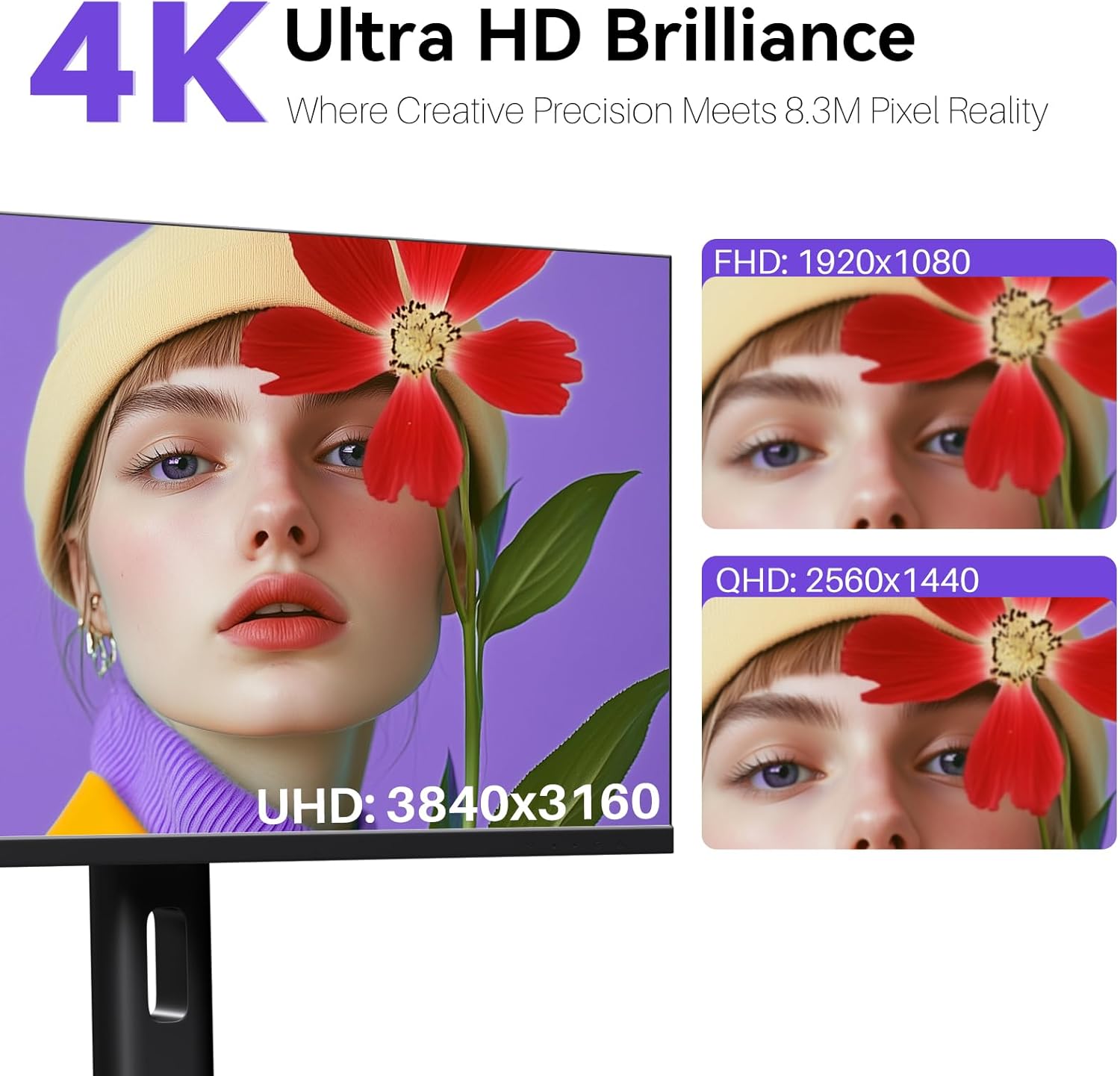
Image: A user's hand interacting with the monitor screen, highlighting the responsive 10-point touch experience.
- Basic Touch: Tap to click, swipe to scroll.
- Χειρονομίες πολλαπλής αφής: Use two fingers to zoom in/out, rotate, or pan, depending on the application.
- Touch Calibration (Windows Only): If the cursor does not align with your touch, calibration may be required. Go to Control Panel > Hardware and Sound > Tablet PC Settings > Calibrate. Follow the on-screen prompts.
6.4 Using the Built-in Webέκκεντρο
Το ολοκληρωμένο webcam is automatically detected by most operating systems and video conferencing applications. No additional drivers are typically required.

Image: The monitor displaying a video conference call, showcasing its integrated webcam for seamless communication.
- Open your preferred video conferencing software (e.g., Zoom, Microsoft Teams, Skype).
- Select the integrated webcam as your video input device in the application's settings.
6.5 Adjusting Display Resolution
To set the resolution of the monitor (Windows):
- Right-click on your desktop and select "Display Settings."
- Find your monitor (if multiple displays are connected).
- Under "Display resolution," select the recommended resolution of 3840 x 2160.
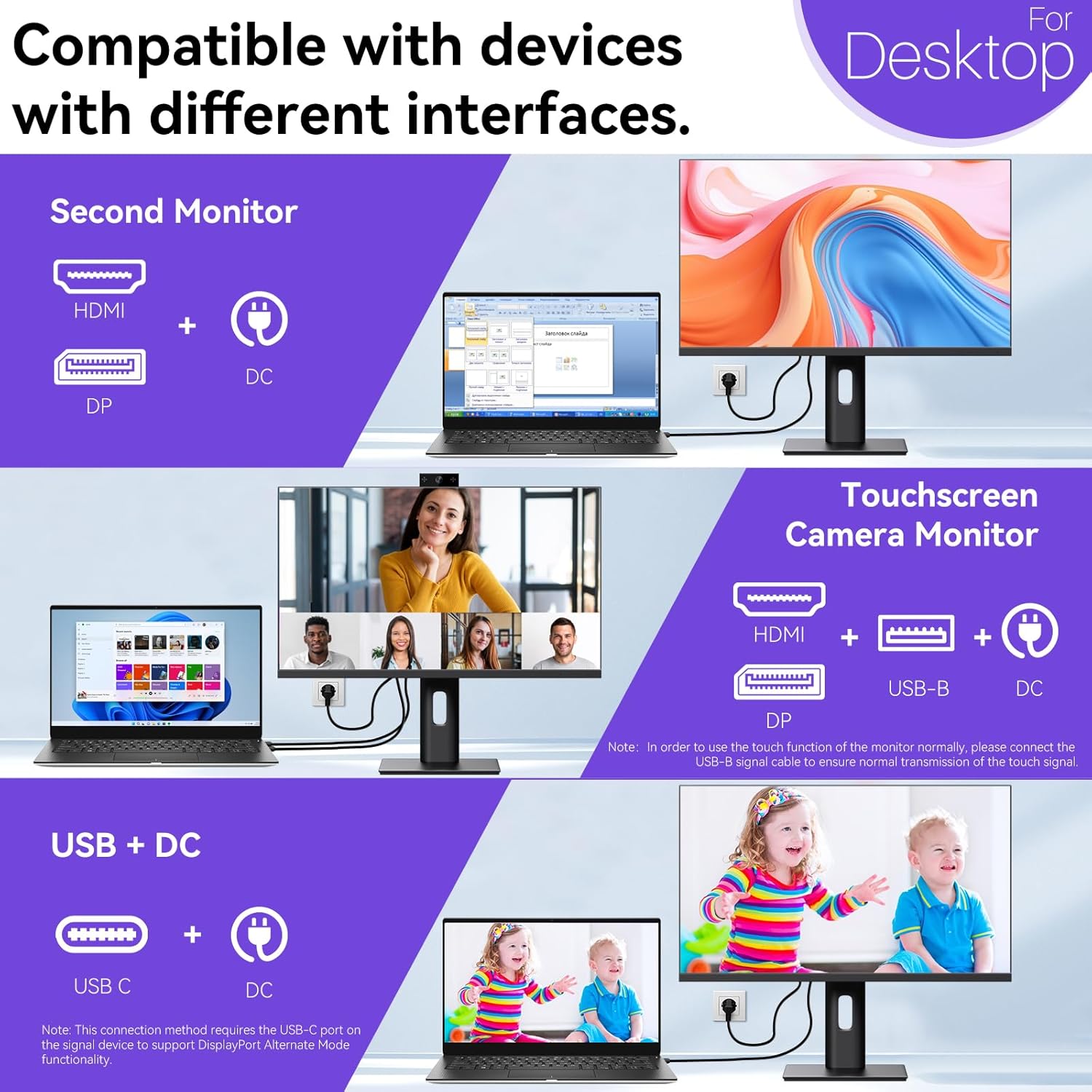
Image: A visual comparison demonstrating the superior clarity of 4K UHD (3840x2160) compared to FHD (1920x1080) and QHD (2560x1440) resolutions.
7. Συντήρηση
- Καθαρισμός της οθόνης: Σκουπίστε απαλά την οθόνη με ένα μαλακό πανί που δεν αφήνει χνούδι. Για επίμονα σημάδια, τρίψτε ελαφρά.ampΣκουπίστε το πανί με νερό ή με ένα ειδικό καθαριστικό διάλυμα για την οθόνη. Μην ψεκάζετε υγρό απευθείας στην οθόνη.
- Καθαρισμός του Casing: Χρησιμοποιήστε ένα μαλακό, στεγνό πανί για να καθαρίσετε την οθόνη casing.
- Αποθήκευση: Εάν αποθηκεύετε την οθόνη για μεγάλο χρονικό διάστημα, αποσυνδέστε την από την τροφοδοσία ρεύματος, συσκευάστε την στην αρχική της συσκευασία και φυλάξτε την σε δροσερό και ξηρό μέρος.
8. Αντιμετώπιση Προβλημάτων
If you encounter issues with your monitor, refer to the following troubleshooting guide. For problems not listed, please contact customer support.
| Πρόβλημα | Πιθανή αιτία | Διάλυμα |
|---|---|---|
| Δεν υπάρχει εικόνα στην οθόνη | Το καλώδιο τροφοδοσίας είναι αποσυνδεδεμένο. Το καλώδιο βίντεο είναι αποσυνδεδεμένο. Έχει επιλεγεί λανθασμένη πηγή εισόδου. | Ensure power cable is securely connected. Check video cable (HDMI/DP/USB-C) connections. Select correct input source via OSD menu. |
| Η οθόνη αφής δεν ανταποκρίνεται | USB-B cable not connected; USB-C port not supporting DisplayPort Alternate Mode; Device incompatibility (e.g., iPhone). | Ensure the USB-B to USB-A cable is connected from the monitor to your computer. If using USB-C, verify your device's USB-C port supports DisplayPort Alternate Mode. Note: Touch function is not supported when connected to an iPhone due to iOS system restrictions. |
| Cursor moves incorrectly (Windows) | Touchscreen calibration required. | Perform touchscreen calibration: Go to Control Panel > Hardware and Sound > Tablet PC Settings > Calibrate. |
| Webη κάμερα δεν εντοπίστηκε | USB connection issue; Software settings. | Ensure all necessary USB cables are connected. Check your application's settings to select the correct webέκκεντρο. |
9. Προδιαγραφές
| Χαρακτηριστικό | Λεπτομέρεια |
|---|---|
| Μάρκα | Pisichen |
| Αριθμός μοντέλου | 27INTSCMR-4K |
| Μέγεθος οθόνης | 27 ίντσες |
| Ψήφισμα | 3840 x 2160 pixel (4K UHD 2160p) |
| Αναλογία διαστάσεων | 16:9 |
| Φωτεινότητα εικόνας | 400 Candela |
| Περιγραφή επιφάνειας οθόνης | Λείος |
| Διαστάσεις προϊόντος | 14.37 x 24.21 x 16.54 ίντσες |
| Βάρος αντικειμένου | 16.59 λίρες |
| Κατασκευαστής | Shenzhen Konowa Electronics Co., LTD |
| Συνδεσιμότητα | HDMI, DisplayPort, USB-C, USB-B (for touch), USB-A (x2), Audio Port |
10. Εγγύηση και υποστήριξη
This product comes with a manufacturer's warranty. Please refer to the warranty card included in your package for specific terms and conditions. For technical support or inquiries, please contact Pisichen customer service at support_2308@163.com. When contacting support, please provide your model number and a detailed description of the issue, including any relevant pictures or videos.


