1. Εισαγωγή
1.1 Προϊόν Overview
The DBIT AC1200 Dual Band Gigabit WiFi Router (Model T18-21K) is designed to provide wireless internet connectivity for home and small office environments. It supports dual-band operation (2.4GHz and 5GHz) and offers Gigabit Ethernet ports for wired connections. The router includes features such as MU-MIMO, Beamforming, and multiple operating modes to enhance network performance and coverage.
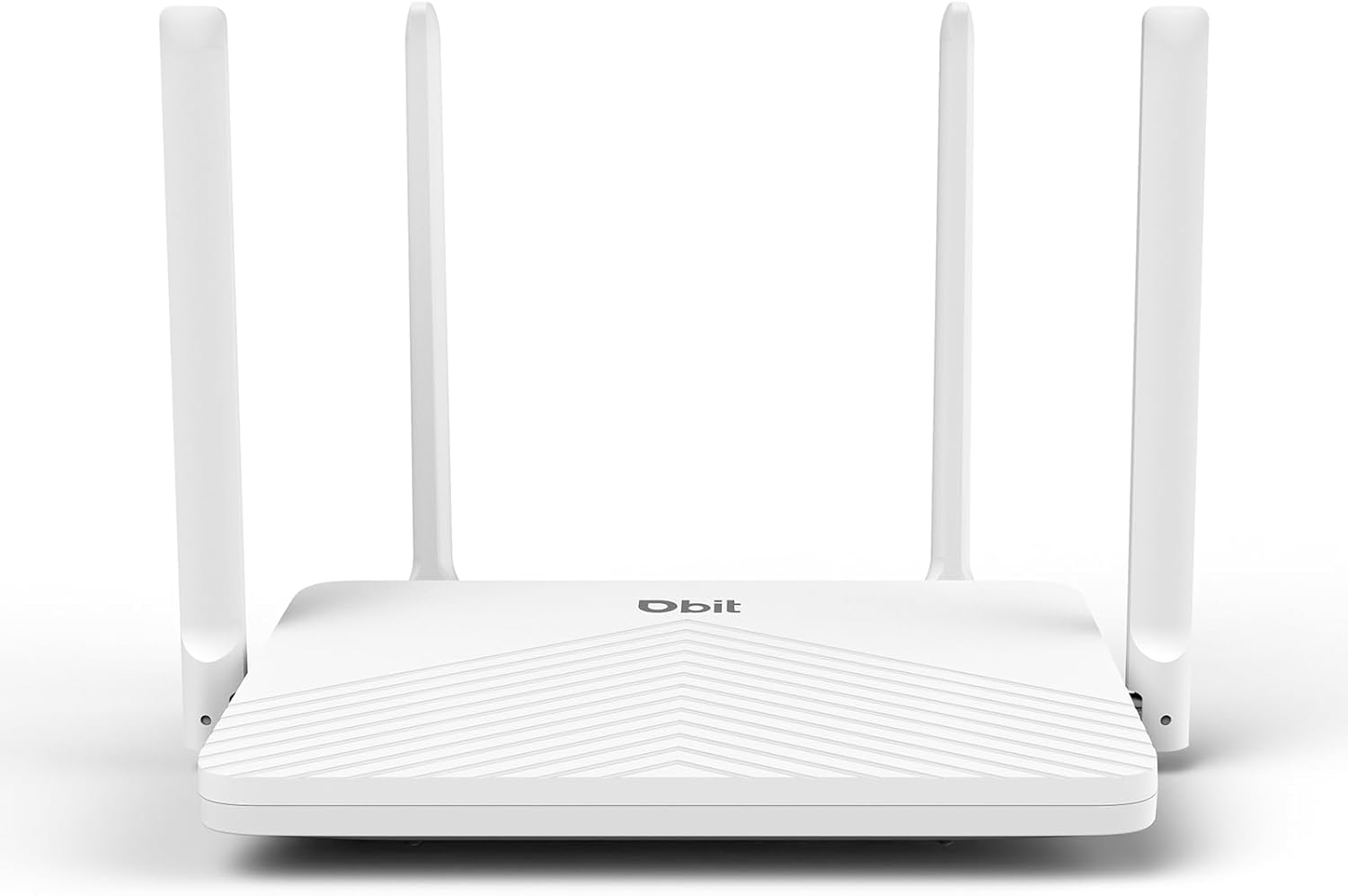
Figure 1: DBIT AC1200 WiFi Router
1.2 Βασικά χαρακτηριστικά
- AC1200 WiFi διπλής ζώνης: Provides wireless speeds up to 1200Mbps (300 Mbps on 2.4GHz and 867 Mbps on 5GHz). The 2.4GHz band handles general tasks, while the 5GHz band supports bandwidth-intensive activities like gaming or 4K video streaming.
- Πλήρεις θύρες Gigabit: Equipped with one Gigabit WAN port and three Gigabit LAN ports for high-speed internet plans and stable wired connections to devices such as smart TVs, gaming consoles, or PCs.
- Triple-Mode Flexibility: Functions as a Router, Repeater, or Bridge to suit various network requirements.
- Whole-Home Coverage with Beamforming: Four external 5dBi high-gain antennas and Beamforming technology focus Wi-Fi signals towards connected devices, improving coverage.
- Τεχνολογία MU-MIMO: Enables simultaneous communication with multiple devices, reducing network latency.
- Ισχυρή ασφάλεια: Features WPA2-PSK encryption and access control to protect the network and connected devices.
- Εύκολη εγκατάσταση: Configuration is managed through an intuitive web user interface. WPS button for quick device connection.
- Καθολική συμβατότητα: Compatible with major internet service providers (requires a functioning modem).
2. Περιεχόμενα συσκευασίας
Βεβαιωθείτε ότι όλα τα αντικείμενα υπάρχουν στη συσκευασία σας:
- DBIT AC1200 WiFi Router
- Μετασχηματιστής ρεύματος
- Καλώδιο Ethernet
- Οδηγός γρήγορης εκκίνησης
3. Το προϊόν τελείωσεview (Hardware)
3.1 Πρόσοψη
The front panel of the router typically features LED indicators that display the status of the power, internet connection, and wireless networks (2.4GHz and 5GHz).
3.2 Πίσω Πλαίσιο (Θύρες και Κουμπιά)
The rear panel contains all the physical connection ports and control buttons:
- Κουμπί επαναφοράς: Χρησιμοποιείται για την επαναφορά του δρομολογητή στις εργοστασιακές ρυθμίσεις. Πατήστε παρατεταμένα για περίπου 5-10 δευτερόλεπτα ενώ ο δρομολογητής είναι ενεργοποιημένος.
- Κουμπί WPS: For quickly connecting WPS-compatible devices to the wireless network without entering a password.
- Θύρες LAN (LAN1, LAN2, LAN3): Three Gigabit Ethernet ports for connecting wired devices such as computers, gaming consoles, or smart TVs.
- Θύρα WAN: One Gigabit Ethernet port for connecting to your modem or primary internet source.
- DC IN: Power input port for connecting the included power adapter.

Figure 2: Router Rear Panel with Ports and Buttons
4. Αρχική ρύθμιση
4.1 Σύνδεση του υλικού
- Απενεργοποιώ: Αποσυνδέστε την τροφοδοσία από το μόντεμ και το δρομολογητή σας (αν αντικαθιστάτε ένα παλιό).
- Σύνδεση θύρας WAN: Connect one end of the provided Ethernet cable to the WAN port of the DBIT router and the other end to your modem's Ethernet port.
- Σύνδεση τροφοδοσίας: Συνδέστε τον προσαρμογέα ρεύματος στην θύρα DC IN του δρομολογητή και συνδέστε τον σε μια πρίζα.
- Ενεργοποίηση: Power on your modem first, wait for it to fully boot up (usually indicated by stable lights), then power on the DBIT router.
- Ρύθμιση κεραίας: Ρυθμίστε τις τέσσερις εξωτερικές κεραίες για βέλτιστη λήψη σήματος.
4.2 Web Διαμόρφωση interface
Μετά τη σύνδεση υλικού, διαμορφώστε τον δρομολογητή μέσω του web διεπαφή:
- Σύνδεση στο Wi-Fi του δρομολογητή: On your computer or mobile device, connect to the default Wi-Fi network broadcast by the router. The default SSID and password are usually found on a label on the bottom of the router or in the Quick Start Guide.
- Πρόσβαση Web Διεπαφή: Ανοίξτε α web browser and enter the default login URL, συνήθως
192.168.10.1, into the address bar. - Ακολουθήστε τον Οδηγό Εγκατάστασης: Του ρούτερ web interface will guide you through the initial setup process, including setting up your internet connection type, Wi-Fi network name (SSID), and password.
- Επανασύνδεση: After configuration, reconnect your devices to the new Wi-Fi network using the updated SSID and password.

Εικόνα 3: Web Management Setup Steps
5. Τρόποι λειτουργίας
The DBIT AC1200 router supports multiple operating modes to adapt to different network setups.
5.1 Λειτουργία δρομολογητή
In Router Mode, the device acts as the primary internet gateway, connecting to your modem and distributing internet access to all connected wired and wireless devices. This is the default mode for most home networks.
5.2 Λειτουργία επαναλήπτη
Repeater Mode extends the coverage of an existing wireless network. The router connects wirelessly to your main router and re-broadcasts the signal, eliminating Wi-Fi dead zones.

Figure 4: Repeater Mode Configuration
5.3 Λειτουργία γέφυρας
Bridge Mode allows the router to convert a wired network connection into a wireless one, or to connect two separate networks. When configured as a bridge, the device can provide wireless access to devices connected to a wired network, or extend a network segment.
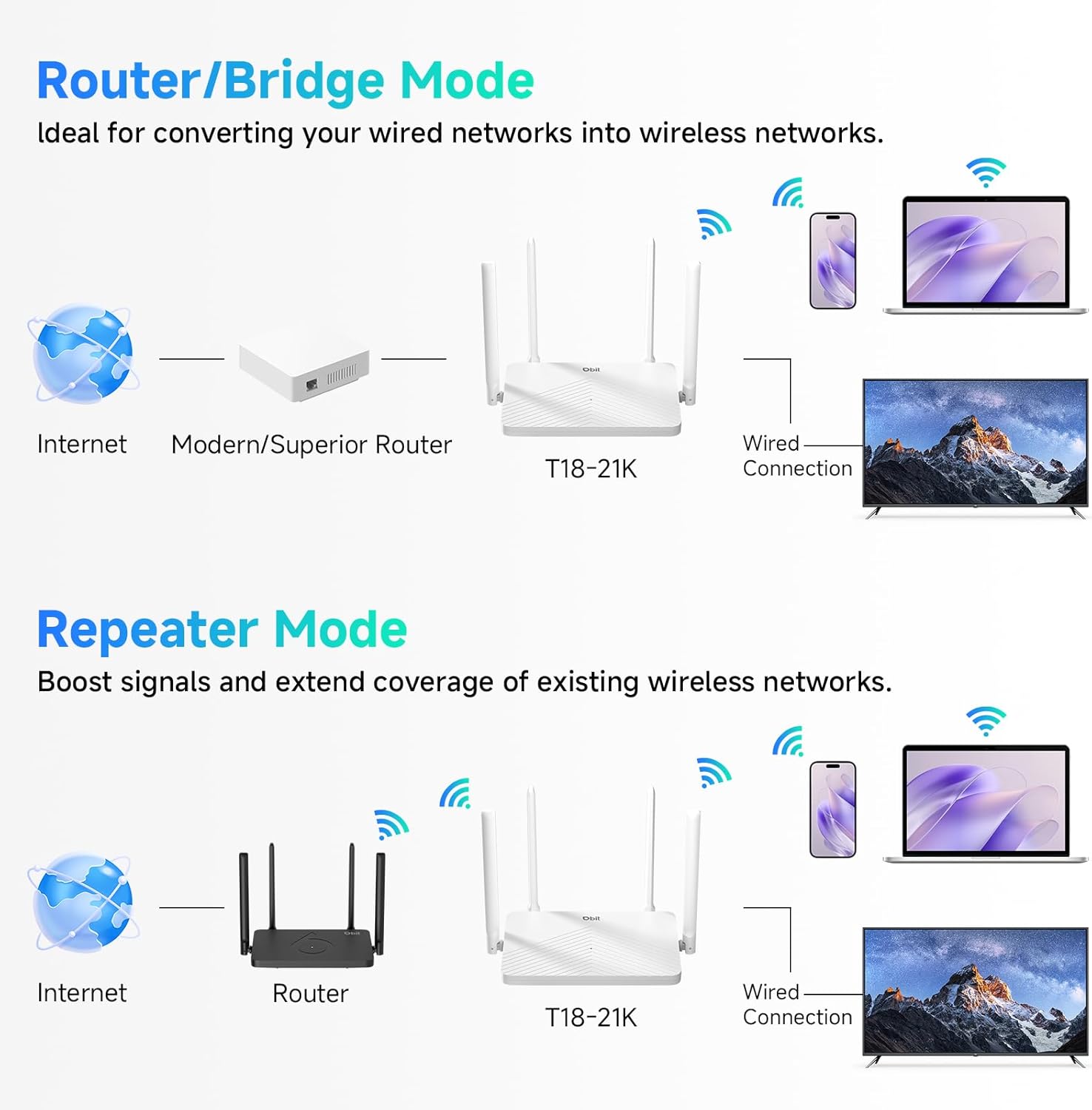
Figure 5: Router/Bridge Mode Setup
6. Προηγμένες δυνατότητες
6.1 Dual-Band Wireless
The router operates on two distinct frequency bands: 2.4GHz and 5GHz. The 2.4GHz band offers broader coverage and better penetration through obstacles, suitable for general internet use. The 5GHz band provides higher speeds and lower latency, ideal for online gaming and high-definition video streaming.

Figure 6: Dual-Band Speed Distribution
6.2 Τεχνολογία MU-MIMO
Multi-User, Multiple-Input, Multiple-Output (MU-MIMO) technology allows the router to transmit data to multiple devices simultaneously, rather than sequentially. This improves network efficiency and reduces buffering when multiple devices are active on the network.

Figure 7: MU-MIMO Operation
6.3 Beamforming and Antennas
The router is equipped with four 5dBi high-gain antennas and utilizes Beamforming technology. Beamforming directs the Wi-Fi signal directly towards connected devices, improving signal strength and coverage, particularly in areas further from the router.

Figure 8: Beamforming Coverage
6.4 EasyMesh Functionality
The EasyMesh function allows for the creation of a seamless whole-home network. When multiple EasyMesh-compatible devices are used, they automatically select the best connection as you move around your home, ensuring consistent Wi-Fi coverage.

Figure 9: EasyMesh Network Coverage
6.5 Ασφάλεια Δικτύου
The router supports WPA2-PSK encryption to secure your wireless network. Access control features allow you to manage which devices can connect to your network, enhancing overall security.
6.6 Δίκτυο επισκεπτών
A guest network feature allows you to provide separate Wi-Fi access for visitors, keeping your main network private and secure.
6.7 Γονικός έλεγχος
Parental control features enable you to manage internet access times and block specific websites for connected devices, promoting a safer online environment.
7. Αντιμετώπιση Προβλημάτων
- Χωρίς πρόσβαση στο Διαδίκτυο:
- Ensure your modem is working correctly and its internet indicator light is stable.
- Check that the Ethernet cable is securely connected between the modem's LAN port and the router's WAN port.
- Επανεκκινήστε τόσο το μόντεμ όσο και το δρομολογητή σας.
- Επαληθεύστε τις ρυθμίσεις σύνδεσης στο διαδίκτυο στο δρομολογητή web διεπαφή.
- Ασθενές σήμα Wi-Fi ή νεκρές ζώνες:
- Adjust the router's antennas for optimal positioning.
- Μετακινήστε το δρομολογητή σε μια κεντρική τοποθεσία στο σπίτι σας, μακριά από εμπόδια και πηγές παρεμβολών (π.χ., φούρνους μικροκυμάτων, ασύρματα τηλέφωνα).
- Consider using Repeater Mode or adding another EasyMesh compatible device to extend coverage.
- Δεν είναι δυνατή η πρόσβαση στον δρομολογητή Web Διεπαφή:
- Βεβαιωθείτε ότι η συσκευή σας είναι συνδεδεμένη στο δίκτυο Wi-Fi του δρομολογητή ή μέσω καλωδίου Ethernet σε μια θύρα LAN.
- Verify that you are entering the correct IP address (default is
192.168.10.1) στο πρόγραμμα περιήγησής σας. - Εκκαθαρίστε την προσωρινή μνήμη του προγράμματος περιήγησής σας ή δοκιμάστε ένα διαφορετικό πρόγραμμα περιήγησης.
- If you have changed the router's IP address, use the new address. If forgotten, a factory reset may be necessary.
- Ξεχάσατε τον κωδικό πρόσβασης Wi-Fi ή τον κωδικό πρόσβασης σύνδεσης:
- Perform a factory reset by pressing and holding the RESET button for 5-10 seconds while the router is powered on. This will revert all settings, including passwords, to their factory defaults.
8. Προδιαγραφές
| Χαρακτηριστικό | Λεπτομέρεια |
|---|---|
| Όνομα μοντέλου | Δρομολογητής WiFi AC1200 |
| Αριθμός μοντέλου είδους | Τ18-21Κ |
| Διαστάσεις προϊόντος | 8.99 x 5.78 x 6.89 ίντσες |
| Βάρος αντικειμένου | 1.12 λίρες |
| Μάρκα | DBIT |
| Κατασκευαστής | Shenzhen Dbit Network Equipment Co., Ltd. |
| Κατηγορία ζώνης συχνοτήτων | Διπλή ζώνη (2.4 GHz, 5 GHz) |
| Πρότυπο ασύρματης επικοινωνίας | 802.11a, 802.11ac, 802.11b, 802.11g, 802.11n |
| Τεχνολογία Συνδεσιμότητας | Ethernet, Wi-Fi |
| Θύρες Ethernet | 1 WAN, 3 LAN (Gigabit) |
| Κεραίες | 4 εξωτερικές κεραίες 5dBi |
| Ειδικά Χαρακτηριστικά | Beamforming, Guest Mode, Internet Security, MU-MIMO, Parental Control |
| Συμβατές Συσκευές | Gaming Console, Personal Computer, Tablet, Smart Television, Smartphone, Printer, Security Camera |
| Προτεινόμενες χρήσεις | Επιχειρήσεις, Σπίτι |
9. Εγγύηση και υποστήριξη
9.1 Πληροφορίες εγγύησης
Please refer to the warranty card included in your product packaging for detailed warranty terms and conditions. The warranty typically covers manufacturing defects for a specified period from the date of purchase.
9.2 Τεχνική Υποστήριξη
For technical assistance, troubleshooting, or further inquiries, please contact DBIT customer support. Contact information can usually be found on the manufacturer's official webστον ιστότοπο ή στον Οδηγό Γρήγορης Έναρξης.
Online resources, including FAQs and firmware updates, may also be available on the DBIT support page.


