1. Το προϊόν τελείωσεview
The Xprinter XP-420B is a high-speed direct thermal label printer designed for various applications, including shipping labels. It offers a maximum print speed of 152 mm/s (6 inches/second) and a resolution of 203 DPI, ensuring clear and precise prints. Its robust double-walled clamshell design enhances durability, and the intelligent print head temperature control system ensures stable output. This printer is compatible with both Windows and Mac operating systems, making it a versatile solution for your labeling needs.
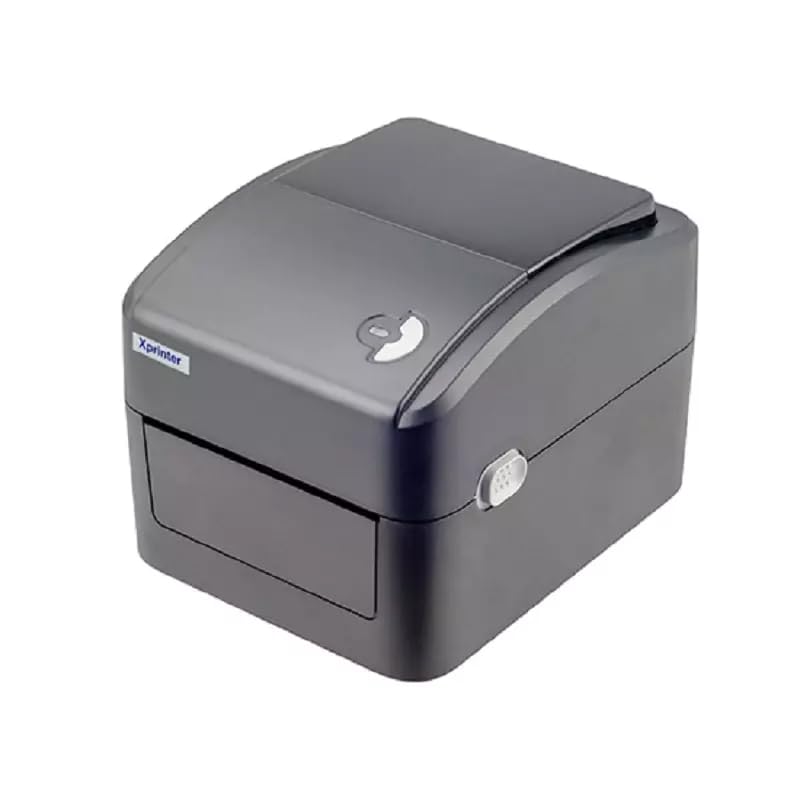
Εικόνα 1: Εμπρός view of the Xprinter XP-420B thermal label printer.
2. Οδηγός εγκατάστασης
2.1 Αποσυσκευασία και Αρχική Επιθεώρηση
- Αφαιρέστε προσεκτικά τον εκτυπωτή και όλα τα αξεσουάρ από τη συσκευασία.
- Verify that all components are present: printer unit, power adapter, USB cable, and user manual.
- Inspect the printer for any visible damage that may have occurred during transit.
2.2 Σύνδεση του εκτυπωτή
- Connect the power adapter to the printer's power port and then plug it into a power outlet.
- Connect one end of the provided USB cable to the printer's USB port and the other end to an available USB port on your computer.
- Power on the printer using the power switch, usually located on the side or rear.

Figure 2: Xprinter XP-420B showing USB connectivity.
2.3 Φόρτωση ετικετών
- Open the printer's top cover by pressing the release latches on both sides.
- Place the roll of thermal labels onto the label spindle, ensuring the labels feed from the bottom of the roll.
- Feed the leading edge of the labels through the label guide until it extends slightly past the print head.
- Adjust the movable label guides to fit the width of your labels snugly, without pinching them.
- Close the top cover firmly until it latches securely.
- The printer will automatically calibrate and detect the label size.
2.4 Εγκατάσταση προγράμματος οδήγησης
Before printing, you must install the appropriate printer drivers on your computer. Drivers are typically provided on a CD included with the printer or can be downloaded from the official Xprinter website. The XP-420B supports both Windows and Mac operating systems.
- Για Windows: Run the setup executable from the driver CD or downloaded file και ακολουθήστε τις οδηγίες που εμφανίζονται στην οθόνη.
- Για Mac: Download the Mac driver from the Xprinter website and follow the installation prompts.
3. Οδηγίες λειτουργίας
3.1 Βασική εκτύπωση
- Βεβαιωθείτε ότι ο εκτυπωτής είναι ενεργοποιημένος και συνδεδεμένος στον υπολογιστή σας.
- Open the document or application from which you wish to print (e.g., shipping software, word processor).
- Επιλέξτε "Εκτύπωση" από το μενού της εφαρμογής.
- Choose "Xprinter XP-420B" as your printer.
- In the printer settings or preferences, ensure the correct label size is selected. The printer supports adjustable label sizes.
- Κάντε κλικ στην επιλογή "Εκτύπωση" για να στείλετε την εργασία στον εκτυπωτή.
3.2 Adjusting Label Size
The XP-420B allows for adjustable label sizes. This adjustment is primarily done through the printer driver settings on your computer and by physically adjusting the label guides within the printer.
- Software Adjustment: In your printing application or printer driver settings, navigate to the "Page Setup" or "Paper Size" options. Select or define the custom dimensions for your labels (e.g., 4x6 inches for shipping labels).
- Φυσική Προσαρμογή: As described in Section 2.3, ensure the internal label guides are set correctly to the width of your loaded labels.
4. Συντήρηση
4.1 Καθαρισμός της κεφαλής εκτύπωσης
Regular cleaning of the print head is crucial for maintaining print quality and extending the printer's lifespan. It is recommended to clean the print head after every roll of labels or if print quality degrades.
- Απενεργοποιήστε τον εκτυπωτή και αποσυνδέστε το καλώδιο τροφοδοσίας.
- Ανοίξτε το επάνω κάλυμμα του εκτυπωτή.
- Περιμένετε λίγα λεπτά για να κρυώσει η κεφαλή εκτύπωσης εάν ο εκτυπωτής έχει χρησιμοποιηθεί πρόσφατα.
- Gently wipe the print head surface with an alcohol swab or a lint-free cloth lightly dampμε ισοπροπυλική αλκοόλη.
- Αφήστε την κεφαλή εκτύπωσης να στεγνώσει εντελώς πριν κλείσετε το κάλυμμα και επανασυνδέσετε την τροφοδοσία.
4.2 Γενικός καθαρισμός
- Χρησιμοποιήστε ένα μαλακό, στεγνό πανί για να σκουπίσετε το εξωτερικό του εκτυπωτή.
- Remove any dust or label debris from the inside of the printer using a soft brush or compressed air.
- Μη χρησιμοποιείτε λειαντικά καθαριστικά ή διαλύτες.
5. Αντιμετώπιση Προβλημάτων
| Πρόβλημα | Πιθανή αιτία | Διάλυμα |
|---|---|---|
| Ο εκτυπωτής δεν αποκρίνεται | Power off; USB cable disconnected; Driver issue. | Ensure power is on and connected. Check USB cable. Reinstall printer driver. |
| Κακή ποιότητα εκτύπωσης (ξεθωριασμένες γραμμές, ξεθωριασμένες εκτυπώσεις) | Dirty print head; Incorrect label type; Low print density setting. | Clean the print head (Section 4.1). Ensure you are using direct thermal labels. Adjust print density in driver settings. |
| Οι ετικέτες δεν τροφοδοτούνται σωστά | Labels improperly loaded; Label guides not adjusted; Sensor obstruction. | Reload labels correctly. Adjust label guides. Clean any dust or debris from sensors. |
| Printer prints blank labels | Labels loaded upside down; Not a direct thermal label. | Ensure labels are loaded with the printable side facing up. Verify labels are direct thermal. |
6. Προδιαγραφές προϊόντος
| Χαρακτηριστικό | Λεπτομέρεια |
|---|---|
| Μάρκα | Xprinter |
| Όνομα μοντέλου | XP-420B |
| Τεχνολογία Συνδεσιμότητας | USB |
| Τεχνολογία Εκτύπωσης | Άμεση Θερμική |
| Ψήφισμα | 203 DPI |
| Μέγιστη ταχύτητα εκτύπωσης | 152 mm/s (6 ίντσες/δευτερόλεπτο) |
| Μνήμη | 8MB SDRAM, 8MB Flash |
| Έξοδος εκτυπωτή | Μονόχρωμος |
| Βάρος αντικειμένου | 3 κιλά |
| Διαστάσεις προϊόντος | 20D x 6W x 10H εκατοστά |
| Αρμονία | Windows, Mac |
7. Εγγύηση και υποστήριξη
7.1 Πληροφορίες εγγύησης
The Xprinter XP-420B comes with a Εγγύηση 1 ετών από την ημερομηνία αγοράς. Η παρούσα εγγύηση καλύπτει κατασκευαστικά ελαττώματα και δυσλειτουργίες υπό κανονική χρήση. Παρακαλούμε φυλάξτε την απόδειξη αγοράς για τυχόν αξιώσεις εγγύησης.
7.2 Υποστήριξη πελατών
For technical assistance, troubleshooting beyond this manual, or warranty service, please contact Xprinter customer support. Refer to the contact information provided with your product packaging or visit the official Xprinter webιστότοπος για τις πιο ενημερωμένες λεπτομέρειες υποστήριξης.


