1. Εισαγωγή
The Innex DS200 is a professional USB book scanner designed for efficient digitization of various documents, including books, magazines, and loose papers. It features a 26MP camera, A3 scanning capability, and advanced software functions to enhance scanning quality and workflow. This manual provides detailed instructions for setting up, operating, and maintaining your DS200 scanner.

Figure 1.1: Innex DS200 Scanner in operation with an open book.
2. Περιεχόμενα συσκευασίας
Βεβαιωθείτε ότι όλα τα είδη που αναφέρονται παρακάτω περιλαμβάνονται στη συσκευασία σας. Εάν λείπουν ή έχουν υποστεί ζημιά κάποια είδη, επικοινωνήστε με την υποστήριξη πελατών.
- Innex DS200 Scanner Unit
- Επιφάνεια σάρωσης
- Καλώδιο USB
- Προσαρμογέας ρεύματος (Τύπος Α)
- Power Plugs (Type C, Type G)
- Κουμπί χειρός
- Πεντάλ ποδιού
- Adapter (USB-C to USB-A)
- Οδηγός γρήγορης εκκίνησης
- Κάρτα Υπηρεσίας
- Δήλωση GPSR
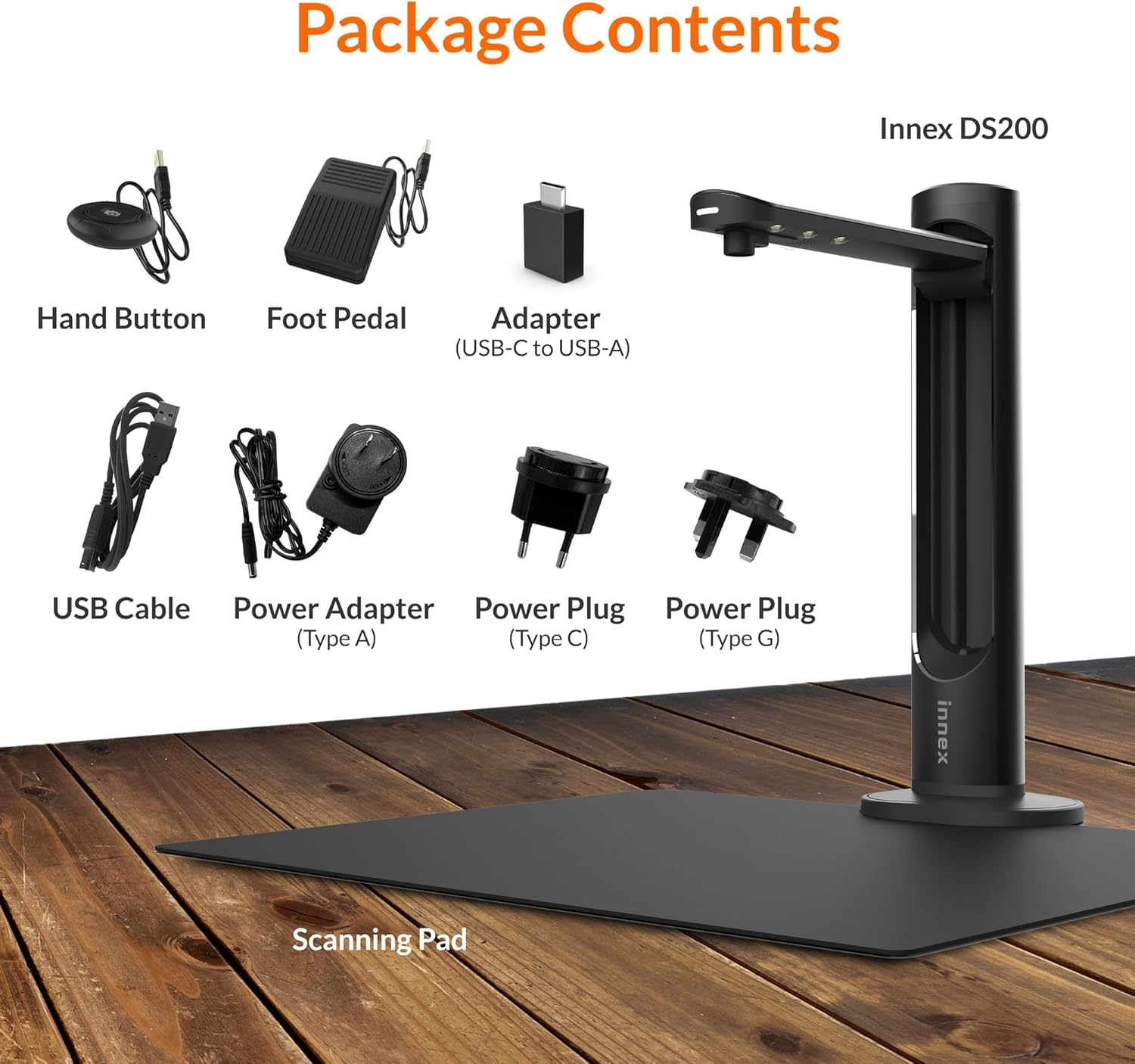
Figure 2.1: Contents of the Innex DS200 package.
3. Ρύθμιση
- Αποσυσκευάστε εξαρτήματα: Αφαιρέστε προσεκτικά όλα τα αντικείμενα από τη συσκευασία.
- Τοποθετήστε τον σαρωτή: Place the Innex DS200 scanner unit on a stable, flat surface.
- Place the Scanning Pad: Position the black scanning pad directly beneath the scanner head. Ensure it is centered and flat.
- Σύνδεση τροφοδοσίας: Connect the power adapter to the scanner and plug it into an electrical outlet. Use the appropriate power plug for your region.
- Σύνδεση στον υπολογιστή: Connect the scanner to your computer using the provided USB cable. If your computer only has USB-C ports, use the included USB-C to USB-A adapter.
- Εγκατάσταση λογισμικού: Download and install the Innex Scan software from the official Innex website. Follow the on-screen instructions for installation. The software is compatible with Windows and macOS.
- Σύνδεση εξαρτημάτων: Plug in the hand button and foot pedal to the designated ports on the scanner unit.
4. Οδηγίες λειτουργίας
4.1. Βασική διαδικασία σάρωσης
- Launch Innex Scan Software: Open the Innex Scan application on your computer.
- Εγγραφή Εγγράφου Τοποθέτησης: Place the document or book you wish to scan on the scanning pad. Ensure it is within the scanning area. The laser guide can assist with alignment.
- Προσαρμογή ρυθμίσεων: In the software, select your desired scanning mode (e.g., Document, Book, Photo) and adjust settings such as color mode, resolution, and output format.
- Έναρξη σάρωσης: Trigger the scan using one of the available methods: the software capture button, the hand button, or the foot pedal.
- Review και Αποθήκευση: Μετά τη σάρωση, επαναλάβετεview the image in the software. Apply any necessary corrections and save the file to your preferred location and format.

Figure 4.1: Using the laser guide for document alignment.

Figure 4.2: Multiple options for triggering a scan.
4.2. Χαρακτηριστικά λογισμικού
The Innex Scan software includes several features to optimize your scanning experience:
- Curve Flattening: Automatically corrects the curvature of book pages for flat, readable scans.
- OCR (Optical Character Recognition): Converts scanned images into editable and searchable text in over 120 languages.
- Auto-Cropping: Automatically detects and crops the document edges.
- Page-Turn Detection: For book scanning, the software can detect when a page has been turned and automatically initiate the next scan.
- Finger Removal: Intelligently removes images of fingers holding down pages during scanning.
- Multi Scan Mode: Allows scanning multiple small items simultaneously, such as business cards or photos, and separates them into individual files.
- Visualizer Mode: Enables the scanner to function as a document camera for presentations or live demonstrations.
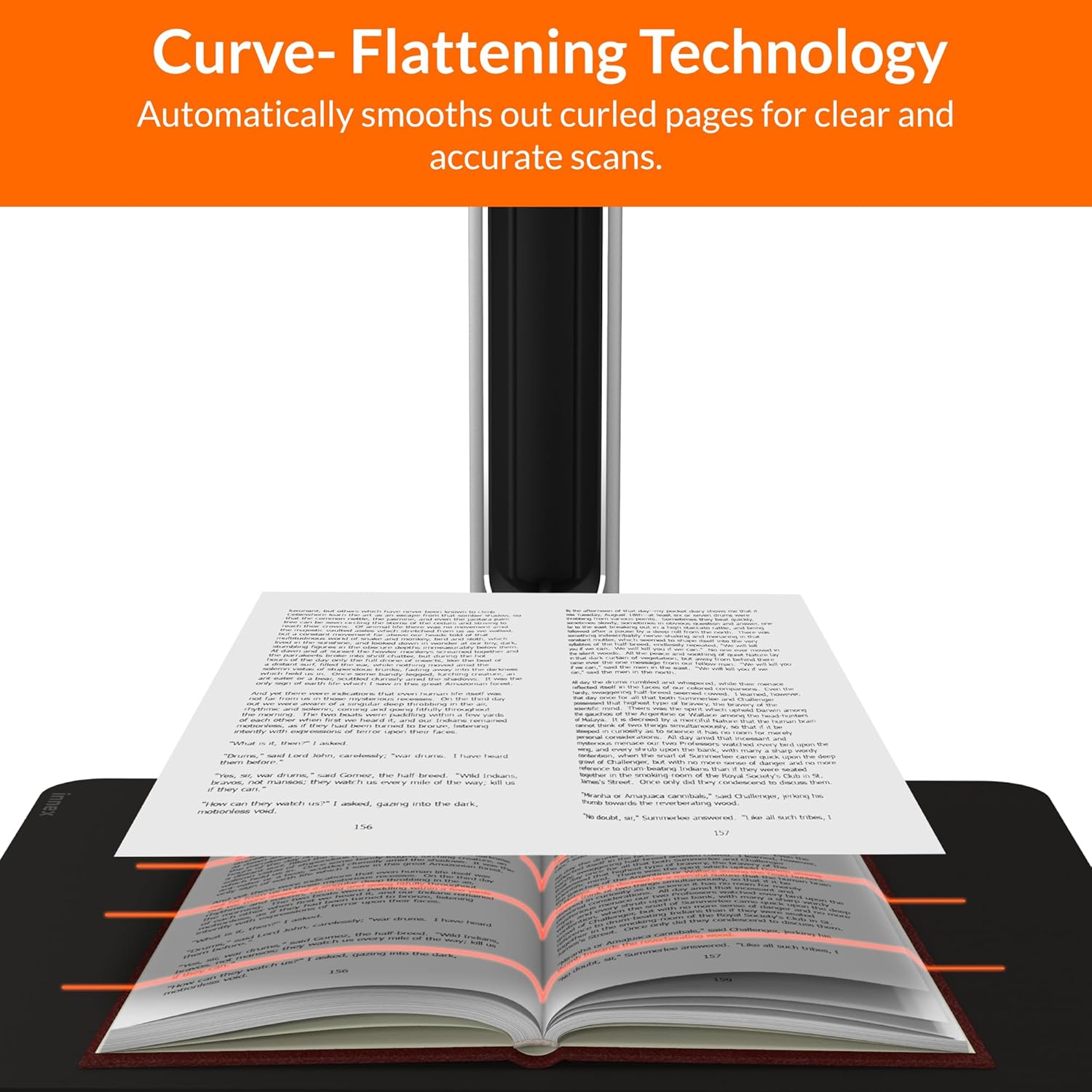
Figure 4.3: Curve Flattening Technology in use.

Figure 4.4: OCR Text Recognition and export options.

Εικόνα 4.5: Τέλοςview of Innex Scan software features.
4.3. Export Options
The Innex DS200 supports various export formats for both image and text files:
- Εικών Files: JPEG, PNG, BMP, TIFF
- Εγγραφο Files: PDF (searchable), DOC, EXCEL, TEXT
- Ηλεκτρονικό βιβλίο Files: EPUB
- Ήχος Files (Text-to-Speech): MP3, WAV
- Βίντεο Files (Visualizer Mode): MP4, AVI, FLV, WMV

Figure 4.6: Available export formats in Innex Scan software.
5. Συντήρηση
- Καθάρισμα: Regularly wipe the scanner lens and LED lamp with a soft, dry, lint-free cloth to ensure optimal scan quality. Clean the scanning pad with a damp ύφασμα εάν χρειάζεται.
- Ενημερώσεις λογισμικού: Periodically check the official Innex website for software updates to ensure you have the latest features and performance improvements.
- Αποθήκευση: Όταν δεν χρησιμοποιείται, αποθηκεύστε τον σαρωτή σε καθαρό, ξηρό περιβάλλον, μακριά από το άμεσο ηλιακό φως και ακραίες θερμοκρασίες.
6. Αντιμετώπιση Προβλημάτων
6.1. Συνήθη προβλήματα και λύσεις
| Ζήτημα | Πιθανή αιτία | Διάλυμα |
|---|---|---|
| Ο σαρωτής δεν εντοπίστηκε | Loose USB connection, driver issue, power issue | Ensure USB cable is securely connected. Check power connection. Reinstall scanner drivers or software. Try a different USB port. |
| Κακή ποιότητα σάρωσης | Dirty lens, insufficient lighting, incorrect settings, document not flat | Clean the scanner lens. Ensure adequate ambient lighting or use the built-in LED lamp. Adjust resolution and color settings in software. Ensure documents are flat on the scanning pad. |
| Το λογισμικό παρουσιάζει σφάλματα ή παγώνει | Outdated software, system incompatibility, insufficient system resources | Update Innex Scan software to the latest version. Ensure your computer meets minimum system requirements. Close other demanding applications. Restart the software and computer. |
| OCR not working correctly | Poor scan quality, incorrect language setting, complex font | Improve scan quality. Verify the correct OCR language is selected in the software. For highly stylized or handwritten text, OCR accuracy may vary. |
7. Προδιαγραφές
Detailed technical specifications for the Innex DS200 scanner:

Figure 7.1: Innex DS200 Technical Specifications.
- Μοντέλο: DS200
- Αισθητήρας εικόνας: Αισθητήρας CMOS
- Μέγ. Ψήφισμα: 5800 x 4522 pixel (26MP)
- Output DPI: Approx. 300 dpi (A3)
- Μέγιστη. Περιοχή Σκοποβολής: A3 (16.77" x 12.59" / 426 x 320mm)
- Βάθος χρώματος: 24-bit
- Lens Focus: Σταθερός
- Ταχύτητα σάρωσης: 1.5 sec per A3 page
- Ενεργοποίηση σάρωσης: Κουμπί χειρός, πεντάλ ποδιού, κουμπί λογισμικού, αυτόματη σάρωση
- Μορφές εξόδου: Picture (JPG, TIFF, BMP, PNG), Document (PDF, Image, PDF Searchable), Text (DOC, EXCEL, TEXT), E-book (EPUB), Audio (MP3, WAV), Video (AVI, MPEG, FLV, WMV)
- Προβολή λέιζερ: Ενσωματωμένο
- Πηγή φωτός: Ενσωματωμένη λυχνία LED υψηλής φωτεινότητας
- Διεπαφή: USB 2.0 Type B x 1 (for PC Connection), USB 2.0 Type-A x 1 (for USB Extension)
- Εξουσία: 5V/2A
- Ελάχιστες απαιτήσεις συστήματος: Windows 10, 11, macOS 11 or later; Intel i5 Processor or higher; 8GB RAM (Recommended 16GB or more); 20GB Available HDD Space; USB 2.0 Port
- Διαστάσεις προϊόντος (διπλωμένο): 4.33"Β x 5.91"Π x 15.75"Υ (110 x 150 x 400 χιλ.)
- Product Dimensions (In Use): 12.05"Β x 5.91"Π x 15.75"Υ (307 x 150 x 400 χιλ.)
- Καθαρό βάρος: Περίπου 2.64 λίβρες (1.2 κιλά)
8. Εγγύηση και υποστήριξη
For warranty information and technical support, please refer to the service card included in your package or visit the official Innex website. You can also contact FunTech Innovation, the manufacturer, for assistance.
Κατασκευαστής: FunTech Innovation
Webτοποθεσία: Innex Official Store on Amazon