1. Εισαγωγή
This manual provides comprehensive instructions for the installation, operation, and maintenance of your Stinger HORIZON10 10.1-inch touchscreen stereo system. Designed for Jeep Wrangler JL (2018-2023) and Gladiator JT (2020-2023) models, this system integrates advanced features such as wireless Apple CarPlay, Android Auto, and iGO Navigation, all presented on an IP65 water-resistant display. Please read this manual thoroughly before installation and use to ensure proper functionality and safety.

Image: Stinger HORIZON10 10.1-inch touchscreen stereo seamlessly integrated into a Jeep dashboard.
2. Τι περιλαμβάνεται
Your Stinger HORIZON10 system package includes the following components:
- 10.1-inch touchscreen display and infotainment system
- Antenna adapters for satellite and AM/FM radio
- RadioPro Interface for Jeep Wrangler JL and Gladiator JT (2018-2023)
- Link Adapter for Stinger Radio
- Jeep Wrangler JL and Gladiator JT radio dash kit (SRK-JW18EH)
- High-definition factory camera retention module
- Complete Plug-n-Play installation harness
- USB retention cables
- Οδηγός εγκατάστασης
- SiriusXM Adaptor (retains factory-installed SiriusXM antenna) - Tuner sold separately: SXV300V1
3. Βασικά Χαρακτηριστικά
The Stinger HORIZON10 offers a range of advanced features to enhance your driving experience:
- 10.1" IP65 Weather-Resistant Touchscreen: A large 1280x800 HD display with anti-glare and anti-fingerprint protection, designed to withstand dust and weather.
- Wireless Apple CarPlay/Android Auto/Bluetooth: Seamless smartphone integration for hands-free calling, navigation, messages, and music.
- Εγκατάσταση Plug-and-Play: Connects easily to your vehicle's existing wiring harness without complex modifications.
- On-Screen Vehicle Information & iGO Navigation: Customizable screens with off-road data (transfer case, altitude, steering angle) and reliable offline maps via an included iGO Navigation card.
- Multiple USB & HDMI Inputs: Includes 2 USB-A, 1 USB-C (with 3A fast charging), and 1 HDMI input for versatile connectivity.
- Είσοδοι κάμερας: Supports 2 AHD/CVBS camera inputs for front/rear dashcam, blind spot, and backup camera integration.
- Bluetooth 5.0 & Wi-Fi Connectivity: Supports dual phone connections for calling, music streaming, and Wi-Fi.
- SiriusXM-Ready & Built-In HD Radio Tuner: Access a wide variety of audio content (SiriusXM Tuner sold separately).
- Advanced Audio Features: On-screen control for AC DM Smart app, 4.5 Vrms & 8ch RCA outputs with subwoofer control, Toslink (optical) audio output, 15-band adjustable EQ, 6 user EQ presets, and built-in crossover.
- Fast Wake-Up & Custom Backgrounds: Quick and responsive system with personalized background images and customizable home screen icons.

Image: Close-up of the Stinger HORIZON10 display, detailing its anti-glare, weather-resistant features, and control elements.
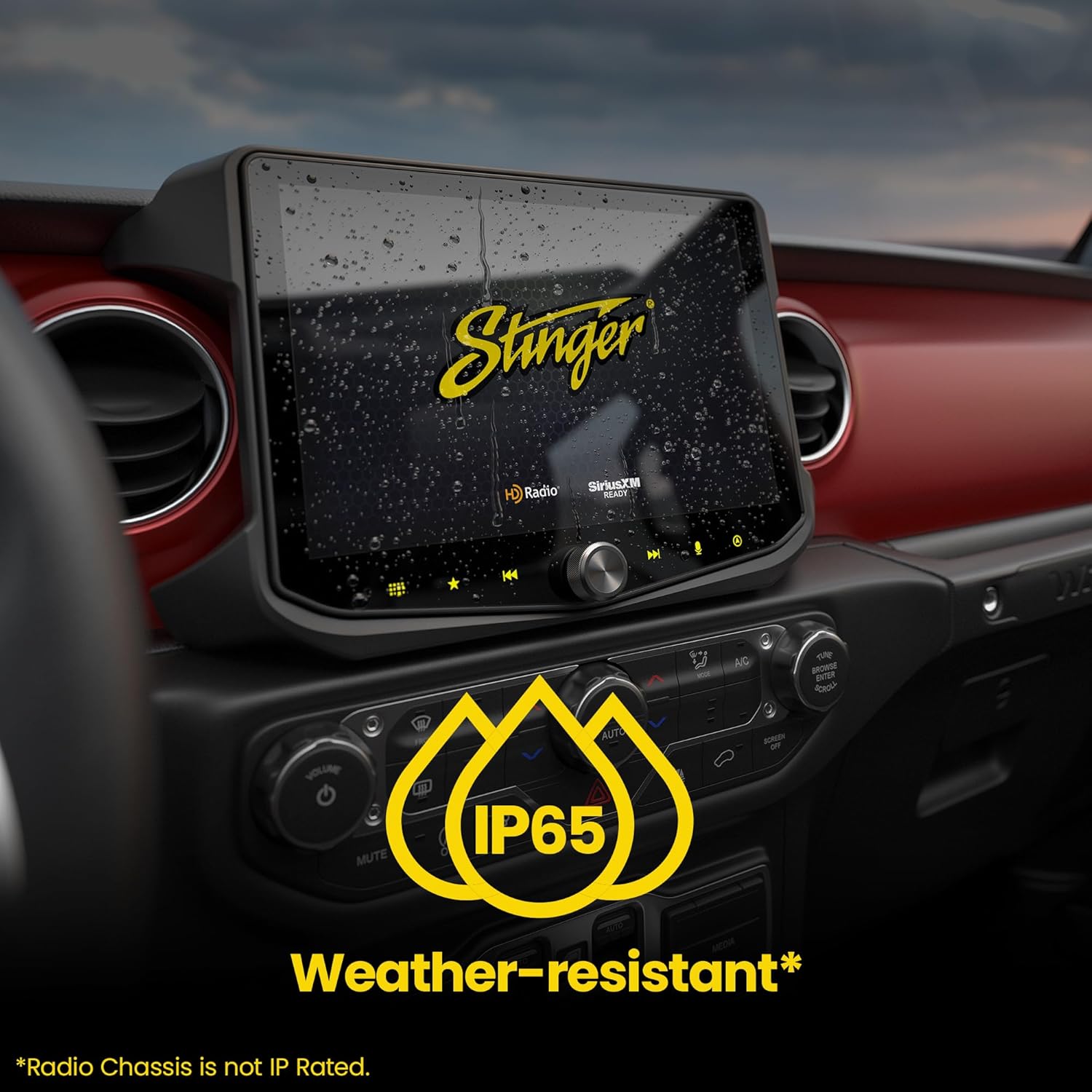
Image: The Stinger HORIZON10 display with water droplets, illustrating its IP65 weather-resistant design.
4. Ρύθμιση και εγκατάσταση
This section guides you through the assembly of the radio module and the disassembly/reassembly of your vehicle's dashboard for the Stinger HORIZON10 installation. For a visual guide, please refer to the official installation video below.
Video: Official installation guide for the Stinger HORIZON10 in Jeep Wrangler JL/Gladiator JT.
4.1. Radio Assembly
- Assemble Main Bracket: Attach the radio module mounting brackets (marked LH and RH) to the sides of the main bracket using the four #10x3/8 Phillips screws. Ensure the part number on the main bracket is at the top.
- Mount RadioPro Interface: Use four supplied zip ties to mount the RadioPro interface to the inner mounting tabs of the main bracket. Tighten and trim excess.
- Mount PAC-Link Module: Apply double-sided tape to the back of the PAC-Link module and attach it to the RadioPro module.
- Mount Stinger Radio Module: Secure the Stinger radio module to the assembly by passing four M5x10 Phillips screws through the side brackets into the module (two screws per side).
- Insert Navigation SD Card: If installing optional navigation software (sold separately), insert the micro SD card into the small slot on the front panel of the radio module.
- Connect Main Harness: Connect the 2-pin power harness, 8-pin speaker harness, and input/output harness from the main wiring harness to the adapter harness.
- Connect 26-pin Harness: Plug the 26-pin harness into the black port labeled 'Power' on the radio module.
- Connect PAC-Link: Pass the 3-pin connector labeled 'PAC-Link' behind the main frame and plug it into the PAC-Link module.
- Connect Vehicle Harness: Connect the vehicle harness to the RadioPro module. Use the first port if your Jeep is factory amplified, the second if non-ampζωντανός.
- Connect Audio Harness: Connect the audio harness connector into the RadioPro module.
- Connect 10-pin Harnesses: Route the radio harness under the main frame to the other side of the RadioPro module. Connect either end of the shorter 10-pin harness into the port labeled 'Expansion Port', then connect the other end into either of the 10-pin ports on the PAC-Link. The long 10-pin cable connects to the other port on the PAC-Link.
- Connect Data, Pre-out, AV Harnesses: Connect the data cable into the port labeled 'Data'. Connect the 12-pin pre-out harness into the port labeled 'Pre-out'. Connect the 16-pin AV harness into the port labeled 'AV In'.
- Connect Display Cable: Connect either end of the LVDS display cable into the port labeled 'Display'. Route the other end of the display cable between the radio module and the main frame, exiting the front.
- Σύνδεση κεραίας GPS: The GPS antenna will connect to its designated port on the radio module.
- Connect USB Extension: The USB extension from the center console will connect to the port labeled 'Phone'. The dash-mounted USB will connect to one of the other USB ports.
- Connect SiriusXM Tuner (Optional): If installing an optional SiriusXM tuner (sold separately), connect its cable into the port labeled 'SXM'. Connect the antenna adapter labeled 'SAT-01' into the antenna connector on the tuner. The blue Fakra connector will connect into the blue or mustard connector in the vehicle.
- Connect AM/FM Antenna: Connect the AM/FM antenna adapter into the port labeled 'ANT'.
- Connect OEM Aux Audio: Connect the white and red RCAs labeled 'OEM Aux Audio' from the main wiring harness into the white and red RCAs labeled 'Aux In' on the 16-pin AV harness.
- Accessory Power (Optional): If installing additional cameras or ENLIGHTEN lighting, use the red and black wires for accessory power connection. The blue wire with a white stripe is for turning on aftermarket ampφυλακιστές.
- Διαχείριση καλωδίων: Route excess wires from the radio harness up and in front of the main frame, securing them with a zip tie. Route some RCA connectors to the front of the radio module on the opposite side of the RadioPro module to reduce clutter in the dash cavity.
- Attach HDMI Module: With the HDMI module face down, pass two zip ties through the channels on the back of the housing. Loosely close the zip ties. Align the bracket with the back of the module, ensuring the blue camera connectors face down and the metal bracket faces the opposite direction. Tighten and trim the zip ties.
- Install Rubber Plugs: Install the six rubber plugs into the center-most holes on the back of the display to maintain weather resistance.
- Mount Display Panel: Align the display mounting panel with the back of the touchscreen display. Secure them together using the included four M4x12 screws.
- Περικοπή καρτελών: Trim off the semi-circular tabs from the opening in the panel and trim them flush so the cover door can be installed.
4.2. Vehicle Disassembly
- Ρύθμιση τιμονιού: Raise the steering wheel to its highest position for access to the knee bolster panel.
- Remove Knee Bolster Panel: Pull out the top of the knee bolster panel and work your way down the sides, releasinκλιπ g.
- Remove Climate Control Panel: Pull on the far left side of the climate control panel, behind the start button area, then work across the panel to release it.
- Disconnect Climate Control Harnesses: Disconnect the two harnesses by pressing in on their latching tabs and pulling to remove.
- Remove Trim Panel Screws: Remove the two 7mm screws from the trim panel below the radio display.
- Remove Radio Display Trim Panel: Carefully remove this trim panel by pulling up on the bottom edge and working your way up the sides.
- Remove Display Screws: Remove the four 7mm screws securing the display into the dash.
- Disconnect Display Harnesses: Disconnect all harnesses from the display by pressing in on their latching tabs and pulling to remove. Note the red connector is the factory backup camera connection, the USB cable will be connected to the HORIZON10, the white connector is the AM/FM antenna, and the blue connector is the SiriusXM antenna. The other pink and dark pink connectors will not be used.
- Remove Main Harness: Disconnect the main harness by pressing the button on the end and rotating the latch upward.
- Remove Window Control Switch Panel Screws: Remove the 7mm bolts securing the window control switch panel into the dash.
- Remove Window Control Switch Panel: Starting at the top, pull out to unclip the panel. Shifting the vehicle into neutral will allow more room.
- Open Glove Box: Open the glove box. Slide the soft opening lever toward you and release it from the glove box door. Push up on the glove box stop tab to remove it completely.
- Remove Armrest Screws: Inside the armrest, remove the two T20 Torx screws securing your center console's rear panel.
- Remove Driver Side Speaker Cover: Using a pry tool, carefully pry upward on the driver's side speaker cover to remove it. There are four clips.
- Remove Driver Side Grab Handle: Open the top and bottom covers to expose the two 10mm bolts. Remove these bolts. This handle is clipped in, so use a little force to remove it.
- Remove Sail Panel: Using a pry tool, carefully pry up on the sail panel on the side of the dash, starting at the bottom and working your way to the top.
- Remove Sound Bar Screws: Remove the two T25 Torx screws on the underside of the driver's side upper door seal trim. Remove the T25 Torx screw from the front of the sound bar panel, closest to the driver's side. Remove another T25 Torx screw by the edge of the Jeep, near the sound bar speaker. Remove the two T25 Torx screws from the top side of the trim panel.
4.3. Συνδέσεις καλωδίωσης
- Microphone & GPS Antenna Routing: If installing the optional external microphone, attach the adhesive mount bracket to the plastic trim panel by the rearview mirror. Tuck the cable up above the plastic trim panel and work your way to the A-pillar. Zip tie the microphone and GPS antenna cables to the factory wiring in the A-pillar. Route the cables down the opening on the side of the dash, around the bottom edge, and through the small opening slightly higher in the dash to the start/stop button opening. Pull the slack through. Route the cable back through the same opening and down through the opening behind the window switch panel. Pull the slack. Route the cables up through the opening into the radio opening.
- Chime Speaker Mounting: Below the steering wheel, remove the 10mm bolt on the horizontal support brace. This location will be used to mount the chime speaker. Remove the thumb screws on the sides of the chime speaker to remove it from the bracket. Mount the bracket to the support brace using the original 10mm bolt. Apply double-sided tape to the bottom of the speaker bracket. Reinstall the speaker into the bracket and reinstall the thumb screws. Route the 2-pin chime harness plug up through the dash, following the same path to the radio opening.
- USB-C Routing: From the back seat, pull the top of the rear panel towards the rear of the Jeep. Release the clips down the sides but leave harnesses connected. Unplug the USB connector. Tuck the OEM USB cable up and out of the way. Connect the USB-C UN2 adapter into the OEM USB port. Connect the USB-C end to a long zip tie and route it down through the back of the center console and out the passenger side. Route the USB-C cable up under the center console and dash trim panels to the glove box. Pass the cable up through the glove box to the radio opening.
- Σύνδεση διαύλου CAN: Plug the green connector into the white CAN bus connector. Plug the white connector into the green CAN bus connector. If no open connectors, remove an OEM connector, plug in our T-harness, then plug the OEM connector into the female end of our T-harness. Using a long zip tie, route this 4-pin harness to the radio opening.
- SiriusXM Antenna Connection: If installing an optional SiriusXM tuner, connect the connector from the SAT-01 cable into the blue Fakra connector.
- AM/FM Antenna Connection: The AM/FM antenna adapter connects into the white Fakra connector.
- USB UN1 Adapter: Connect the USB UN1 adapter to the factory USB connector, which was unplugged from the factory radio.
- Factory Camera Extension: Connect the 15-inch factory camera extension harness to the factory camera cable with the red or orange Fakra connector.
- Disconnect 10-pin from PAC-Link: Disconnect the long 10-pin to 10-pin cable from the PAC-Link temporarily.
- Route HDMI, 10-pin, Fakra Extension: Route the HDMI cable, the long 10-pin cable, and the Fakra extension cable down through the dash opening to the lower opening.
- Connect HDMI to HD1 Module: Remove the plastic protective cover from the HDMI cable and insert it into the port labeled 'HDMI Out' on the HD1 module.
- Connect Camera Extension to HD1 Module: Connect the camera extension cable into either port labeled 'Cam 1' or 'Cam 2'.
- Connect 10-pin to HD1 Module: Connect the 10-pin plug into either of the ports labeled 'PAC-Link'.
- Mount HD1 Module: Remove the Phillips screw from the center of the dash. Carefully position the HD1 module inside the dash with the metal bracket facing out. Reinstall the Phillips screw to secure the module. Ensure the HDMI cable is still connected for the factory reverse camera to display.
- Connect USB-C to Phone Port: Connect the USB-C end into the port labeled 'Phone'.
- Connect CAN Bus Harness: Connect the 4-pin CAN bus harness into the main harness connector.
- Σύνδεση μικροφώνου: Plug the 3.5mm connector from the end of the microphone into the port labeled 'External Mic'.
- Connect Vehicle Radio Harness: With the latch tab rotated out, plug the vehicle's radio harness into the main radio harness and rotate the latch in to engage the connectors.
- Route Chime Harness: Route the 2-pin chime harness plug up behind the main panel and connect it to the port on the RadioPro harness.
4.4. Vehicle Reassembly
- Install HORIZON10 Assembly: Carefully tuck the HORIZON10 wiring inside the dash, utilizing the spaces behind the air vents. Carefully slide the HORIZON10 assembly into the dash.
- Δοκιμή λειτουργικότητας: Temporarily install some of the 7mm screws to keep the assembly inside the dash. Start the Jeep and perform a functionality test. Verify steering wheel control functions (seek, volume), audio playback, and climate controls with the on-screen display. If vehicle gauges or climate control screens are not visible, a firmware update may be required.
- Install LVDS Cover Plate: Remove the display from the dash. The LVDS cover plate has tabs and the display has notches. Align the tabs with the notches and place the door onto the back of the display. Slide it down towards the bottom until the screw hole is visible. Insert the M2.6x6.5 screw to secure the cover.
- Reinstall Display: Reinstall the display into the dash. Reinstall the two 7mm bolts below the display.
- Reinstall Climate Control Panel: Snap the climate control panel into the dash.
- Reassemble Remaining Components: Reassemble the rest of the vehicle in the reverse order of how it was taken apart.
5. Οδηγίες λειτουργίας
Your Stinger HORIZON10 system is designed for intuitive operation. Here are key functions:
- Διεπαφή οθόνης αφής: Navigate through menus and applications using the responsive 10.1-inch HD touchscreen.
- Wireless Apple CarPlay / Android Auto: Connect your smartphone wirelessly for access to navigation, music, messages, and hands-free calls. Simply pair your device via Bluetooth and follow the on-screen prompts.
- Πλοήγηση iGO: Utilize the pre-loaded iGO Navigation system for reliable offline maps. Insert the iGO Navigation card into the designated slot on the radio module.
- Στοιχεία ελέγχου ήχου: Access the 15-band adjustable EQ, 6 user EQ presets, and built-in crossover settings through the 'Audio Settings' menu to customize your sound.
- Κάμερα Views: Access connected cameras (front, rear, blind spot) via the 'Cameras' application on the home screen.
- Πληροφορίες οχήματος: Monitor real-time vehicle data such as tire pressure, engine temperature, and off-road gauges through dedicated vehicle-specific screens and apps.
- Συνδεσιμότητα Bluetooth: Pair your phone for hands-free calling and music streaming. The system supports dual phone connections.
- Συνδεσιμότητα USB: Use the USB-A and USB-C ports for wired Apple CarPlay/Android Auto, media playback, and fast 3A phone charging.

Image: The Stinger HORIZON10 display showcasing the Wireless Apple CarPlay interface.

Image: The Stinger HORIZON10 display showcasing the Wireless Android Auto interface.

Image: The Stinger HORIZON10 display showing the iGO Offline Navigation map.
6. Συντήρηση
To ensure the longevity and optimal performance of your Stinger HORIZON10 system, follow these maintenance guidelines:
- Καθαρισμός οθόνης: Use a soft, lint-free cloth to clean the touchscreen. For stubborn marks, lightly dampΚαθαρίστε το πανί με νερό ή με ένα καθαριστικό κατάλληλο για οθόνες. Αποφύγετε σκληρές χημικές ουσίες ή λειαντικά υλικά.
- Ενημερώσεις λογισμικού: Ελέγχετε περιοδικά το Stinger website or your dealer for available software and firmware updates. Keeping your system updated ensures access to the latest features and performance improvements.
- Συνδέσεις καλωδίων: Ensure all cables and connectors remain securely attached. Loose connections can lead to intermittent functionality.
- Αντοχή στις καιρικές συνθήκες: While the display is IP65 weather-resistant, avoid prolonged exposure to extreme conditions or direct high-pressure water sprays.
7. Αντιμετώπιση Προβλημάτων
If you encounter issues with your Stinger HORIZON10, refer to the following troubleshooting tips:
- Χωρίς ισχύ: Check all power connections to ensure they are secure. Verify vehicle's fuse box for any blown fuses related to the stereo system.
- Χωρίς ήχο: Confirm speaker connections are correct. Check audio settings (volume, mute, balance, fader) on the display. Ensure the correct audio source is selected.
- Το CarPlay/Android Auto δεν συνδέεται: Ensure your phone's Bluetooth and Wi-Fi are enabled. Try forgetting the device on both your phone and the stereo, then re-pair. For wired connections, try a different USB cable.
- Προβλήματα πλοήγησης: Verify the iGO Navigation SD card is properly inserted. Ensure GPS antenna has a clear line of sight to the sky.
- Πάγωμα/μη απόκριση οθόνης: Try restarting the vehicle. If the issue persists, a system reset may be necessary (refer to the full user manual for reset procedures).
- Vehicle Gauges/Climate Controls Not Displaying: This often indicates a firmware issue with the RadioPro interface. A firmware update may be required.
- Η κάμερα οπισθοπορείας δεν εμφανίζεται: Ensure the HDMI cable is securely connected to the HD1 module and the correct camera input is selected.
For further assistance, please contact Stinger customer support.
8. Προδιαγραφές
| Αριθμός μοντέλου | JW18RB12 |
| Μέγεθος οθόνης | 10.1 ίντσες |
| Ανάλυση οθόνης | 1280x800 HD |
| Αντοχή στο νερό | IP65 (Display) |
| Τεχνολογία Συνδεσιμότητας | Bluetooth 5.0, HDMI, USB (Type-A, Type-C), Wi-Fi |
| Ειδικά Χαρακτηριστικά | Wireless Android Auto, Wireless Apple CarPlay, Built-In Bluetooth, Equalizer, Touchscreen, iGO Navigation |
| Συμβατές Συσκευές | iPhone, Android |
| Συνολικές θύρες HDMI | 1 |
| Λειτουργία εξόδου ήχου | Στέρεο |
| Διαμόρφωση καναλιού ήχου surround | 5.1.2 ή 7.1.2 |
| Βάρος αντικειμένου | 11.92 λίβρες (5.42 κιλά) |
| Διαστάσεις συσκευασίας | 15 x 14.5 x 12 ίντσες |
9. Εγγύηση και υποστήριξη
Your Stinger HORIZON10 system is covered by a manufacturer's warranty. For specific warranty terms and conditions, please refer to the warranty card included in your product packaging or visit the official Stinger website. For technical support, troubleshooting assistance, or service inquiries, please contact Stinger customer service directly. Keep your purchase receipt and product model number handy when contacting support.


