Εισαγωγή
The Logitech Signature M550 Wireless Mouse is designed for enhanced productivity and comfort. Featuring an adaptive SmartWheel for precise and fast scrolling, SilentTouch technology for quiet clicks, and versatile connectivity options, this mouse is compatible with multiple operating systems and devices. This manual will guide you through its setup, operation, and maintenance.
Ρύθμιση
1. Εγκαταστήστε την μπαταρία
Το ποντίκι Logitech Signature M550 απαιτεί μία μπαταρία AA, η οποία περιλαμβάνεται. Για να εγκαταστήσετε την μπαταρία:
- Εντοπίστε τη θήκη της μπαταρίας στην κάτω πλευρά του ποντικιού.
- Σύρετε το κάλυμμα για να το αφαιρέσετε.
- Τοποθετήστε την μπαταρία AA, φροντίζοντας για τη σωστή πολικότητα (+/-).
- Επανατοποθετήστε το κάλυμμα της θήκης μπαταριών.

Εικόνα: Κάτω πλευρά view of the Logitech Signature M550 mouse, highlighting the battery compartment, on/off switch, and the Logi Bolt USB receiver storage slot.
2. Connect Your Mouse
The Signature M550 offers two connection methods: Bluetooth Low Energy or the Logi Bolt USB receiver.
Χρήση του δέκτη USB Logi Bolt:
- Remove the Logi Bolt USB receiver from the battery compartment.
- Συνδέστε τον δέκτη USB Logi Bolt σε μια διαθέσιμη θύρα USB-A στον υπολογιστή σας.
- Turn on the mouse using the on/off switch on the bottom. The mouse should connect automatically.
Χρήση Bluetooth Χαμηλής Ενέργειας:
- Turn on the mouse using the on/off switch on the bottom.
- Press and hold the Easy-Switch button on the bottom of the mouse until the LED light starts blinking rapidly. This indicates pairing mode.
- On your device (computer, tablet, etc.), open Bluetooth settings and search for available devices.
- Select "Logi M550" from the list to complete the pairing process.
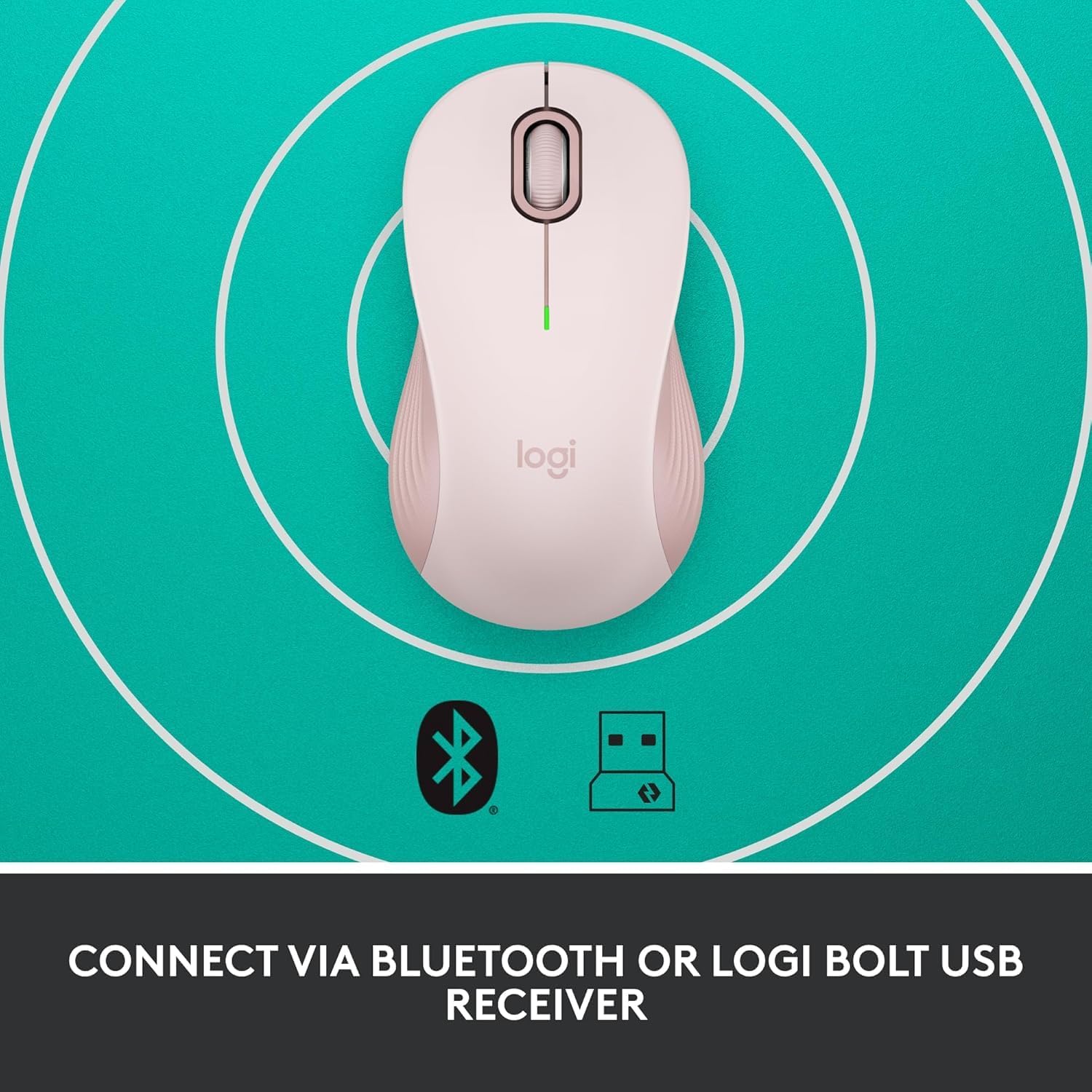
Image: The Logitech Signature M550 mouse on a teal background with icons for Bluetooth and the Logi Bolt USB receiver, illustrating its dual connectivity options.
Video: A demonstration of installing the battery and connecting the Logitech Signature M550 Wireless Mouse via Bluetooth or USB receiver.
Video: A user demonstrating the easy setup process of the Logitech Signature M550, including battery insertion and connectivity.
Οδηγίες Λειτουργίας
Κύλιση SmartWheel
The Signature M550 features an adaptive SmartWheel that allows for two modes of scrolling:
- Ακρίβεια γραμμή προς γραμμή: Για λεπτομερή πλοήγηση σε έγγραφα και υπολογιστικά φύλλα.
- Υπερταχεία δωρεάν περιστροφή: Flick the wheel for rapid scrolling through long web σελίδες ή έγγραφα.

Image: A close-up of the Logitech Signature M550 mouse, highlighting the SmartWheel for precision and speed scrolling.
Video: A demonstration of the Logitech Signature M550's SmartWheel functionality, showcasing both precise and super-fast scrolling modes.
Silent Clicks with SilentTouch Technology
Experience a quieter workspace with Logitech's SilentTouch technology, reducing click noise by 90% compared to traditional mice. This allows for focused work without distractions.

Image: A woman using the Logitech Signature M550 mouse at a desk, illustrating the benefit of 90% less clicking noise for a focused work environment.
Multi-Device and OS Compatibility
The Signature M550 offers seamless compatibility across various platforms:
- Windows (including Windows 11)
- macOS
- Linux
- Chrome OS
- iPadOS
- Android
Image: The Logitech Signature M550 mouse displayed with a message confirming its full compatibility with Windows 11.
Συντήρηση
Αντικατάσταση μπαταρίας
The mouse operates on a single AA battery with an average life of 24 months. When the battery is low, the LED indicator on the mouse will blink. To replace the battery, follow the steps outlined in the 'Install Battery' section.
Καθάρισμα
To maintain optimal performance, regularly clean your mouse with a soft, dry cloth. Avoid using harsh chemicals or abrasive materials.
Αντιμετώπιση προβλημάτων
Θέματα Σύνδεσης
- Το ποντίκι δεν αποκρίνεται: Ensure the mouse is turned on and the battery is correctly installed or replaced.
- Αποτυχία σύζευξης Bluetooth: Make sure your device's Bluetooth is enabled and the mouse is in pairing mode (blinking LED). Try restarting both the mouse and your device.
- USB receiver not detected: Ensure the Logi Bolt USB receiver is securely plugged into a working USB-A port. Try a different USB port.
- Παρέμβαση: Μετακινήστε το ποντίκι πιο κοντά στη συσκευή σας και μακριά από άλλες ασύρματες συσκευές που ενδέχεται να προκαλέσουν παρεμβολές.
Προδιαγραφές
| Μάρκα | Logitech |
| Σειρά | M550 |
| Αριθμός μοντέλου είδους | 910-006593 |
| Τεχνολογία Συνδεσιμότητας | Bluetooth, USB |
| Τεχνολογία ανίχνευσης κίνησης | Οπτικός |
| Ειδικά Χαρακτηριστικά | Lightweight, Portable, Soundless, Wireless |
| Πηγή ισχύος | Τροφοδοτείται από μπαταρία |
| Απαιτούνται μπαταρίες | 1 μπαταρία ΑΑ (περιλαμβάνεται) |
| Μέση διάρκεια ζωής μπαταρίας | 24 μηνών |
| Βάρος αντικειμένου | 3.44 ουγγιές |
| Διαστάσεις συσκευασίας | 5.55 x 3.54 x 1.73 ίντσες |
| Πλατφόρμα υλικού | Linux, Mac, PC |
| Υποστηριζόμενα λειτουργικά συστήματα | Windows, macOS, Linux, Chrome OS, iPadOS, Android |
Πληροφορίες εγγύησης
For detailed warranty information regarding your Logitech Signature M550 Wireless Mouse, please refer to the official Logitech website or the warranty card included with your product. Logitech typically offers a limited hardware warranty for its products.
Υποστήριξη
If you encounter any issues or have questions about your Logitech Signature M550 Wireless Mouse, please visit the official Logitech support webιστότοπος για συχνές ερωτήσεις, οδηγούς αντιμετώπισης προβλημάτων και στοιχεία επικοινωνίας για την εξυπηρέτηση πελατών.