1. Εισαγωγή
Thank you for choosing the typecase Touch iPad Keyboard Case. This manual provides detailed instructions for setting up, operating, and maintaining your keyboard case to ensure optimal performance and longevity. Please read this manual thoroughly before use.
2. Αρμονία
This keyboard case is designed for specific iPad models. Please verify your iPad model number to ensure compatibility.
- iPad 10th Generation (10.9-inch, 2022): Μοντέλα A2696, A2757, A2777
- iPad A16 (11th Generation, 2025): Μοντέλα A3354, A3355, A3356
To verify your iPad model:
- Μέθοδος 1: Check the back of your iPad for the model number (e.g., A2696).
- Μέθοδος 2: Go to iPad Settings > General > About > Model Number. Tap the model number to display the A-number.
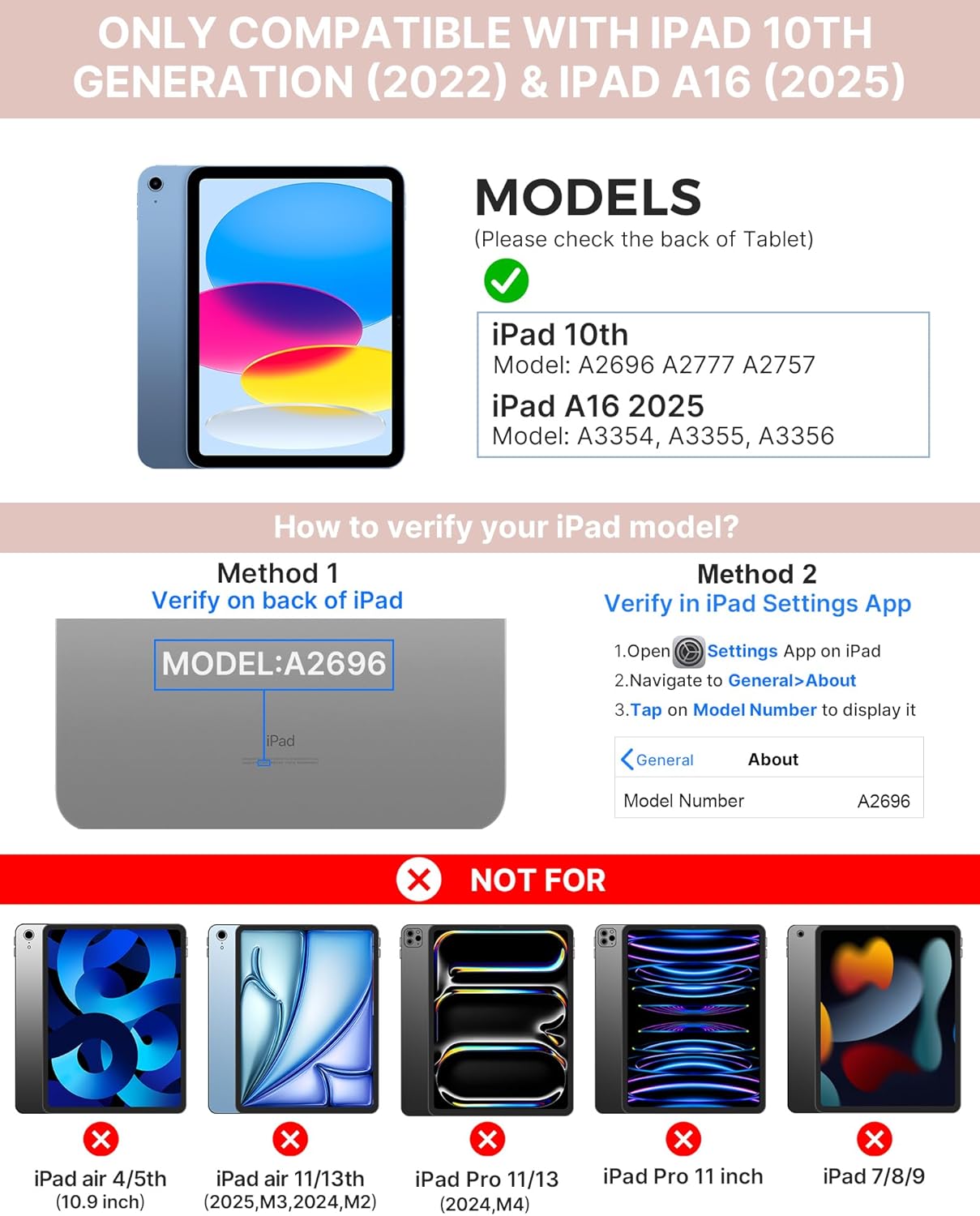
Image: Visual guide for identifying compatible iPad models and verifying the model number on the device or through settings.
3. Περιεχόμενα συσκευασίας
Το πακέτο περιλαμβάνει:
- 1 x typecase Touch iPad Keyboard Case
- 1 x Καλώδιο φόρτισης USB-C
- 1 x Εγχειρίδιο χρήστη
4. Οδηγίες εγκατάστασης
4.1 Φόρτιση του πληκτρολογίου
Before initial use, fully charge the keyboard. Connect the provided USB-C charging cable to the keyboard's charging port and a power source. The charging indicator light will show the charging status.
- Αναμονή: Έως 1 Έτος
- Daytime use (2 hours/day with backlight off): Έως 3 Μήνες
- Nighttime use (2 hours/day with backlight on): Έως 2 Εβδομάδες

Image: Close-up of the keyboard's USB-C charging port and battery life specifications.
4.2 Pairing with iPad
- Βεβαιωθείτε ότι το πληκτρολόγιο είναι φορτισμένο.
- Turn on the keyboard by pressing the power button. The Bluetooth indicator light will flash.
- Στο iPad σας, μεταβείτε στο Ρυθμίσεις > Bluetooth.
- Ενεργοποιήστε το Bluetooth. Το iPad σας θα αναζητήσει διαθέσιμες συσκευές.
- Select "typecase Keyboard" from the list of devices.
- Ακολουθήστε τυχόν οδηγίες στην οθόνη για να ολοκληρώσετε τη διαδικασία σύζευξης. Η ενδεικτική λυχνία Bluetooth στο πληκτρολόγιο θα ανάψει σταθερά όταν η σύζευξη ολοκληρωθεί με επιτυχία.
5. Οδηγίες λειτουργίας
5.1 Εγκατάσταση του iPad σας
Gently insert your iPad into the case, ensuring all edges are securely seated. The case provides full protection for your device.
5.2 Λειτουργίες πληκτρολογίου
The keyboard features a standard 78-key layout with a dedicated row of iPadOS shortcut keys for enhanced productivity.

Εικόνα: Υπέργεια view of the keyboard layout, highlighting the 78-key design and iPadOS shortcuts.
Πλήκτρα με οπίσθιο φωτισμό
The keyboard features 11-color RGB LED backlighting with adjustable brightness levels. This allows for comfortable typing in various lighting conditions.
- Πατήστε το κλειδί λάμπας to cycle through backlight colors.
- Τύπος Πλήκτρο Fn + λάμπας για να ρυθμίσετε τη φωτεινότητα του οπίσθιου φωτισμού.
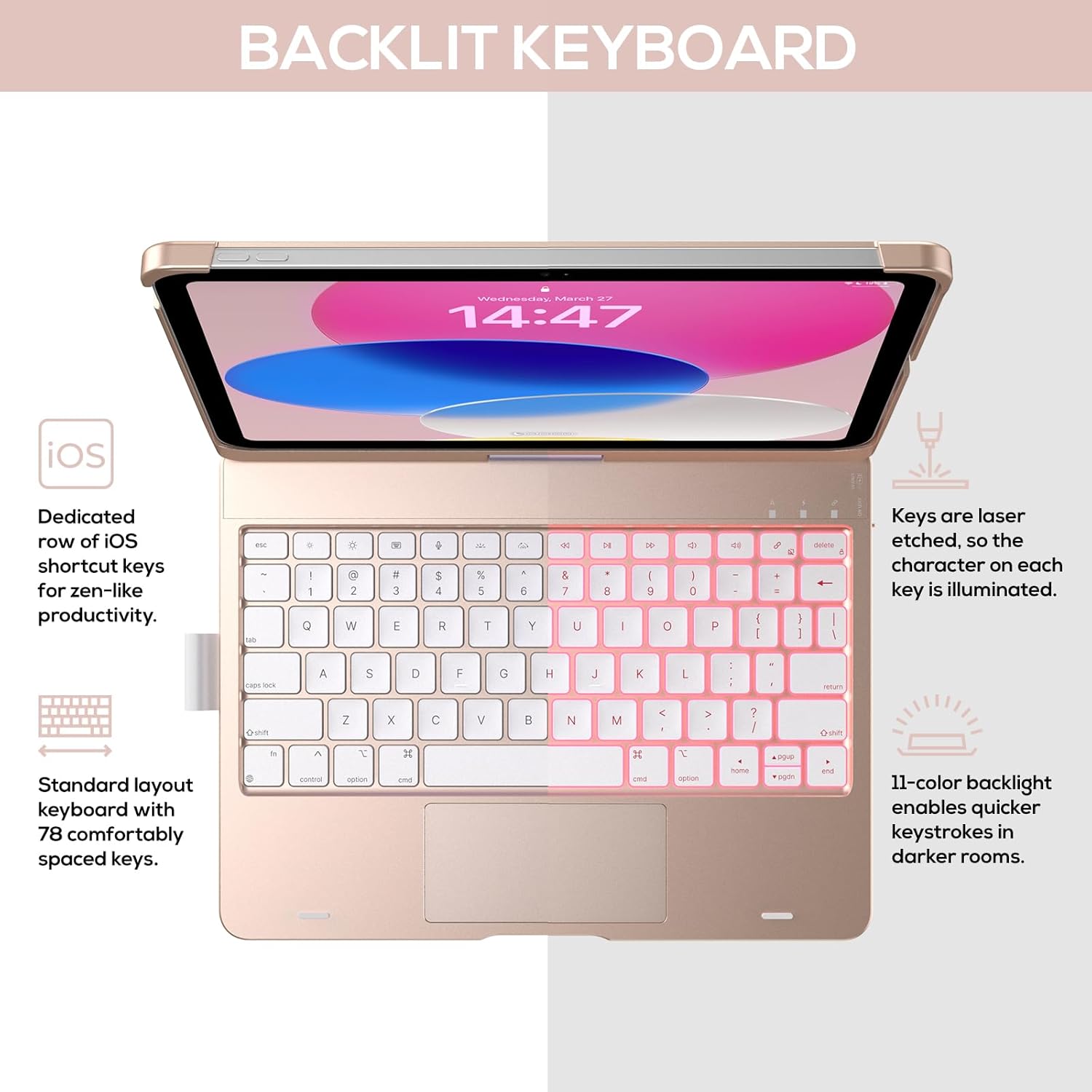
Image: The keyboard with illuminated keys, demonstrating the 11-color backlight and dedicated iOS shortcut keys.
5.3 Trackpad πολλαπλής αφής
The integrated precision trackpad supports multi-gesture controls, enhancing productivity for tasks like document editing, web browsing, and presentation building.
- Πάτημα με ένα δάχτυλο: Κάντε κλικ/Επιλογή
- Κύλιση με δύο δάχτυλα: Κύλιση προς τα πάνω/κάτω ή αριστερά/δεξιά
- Τσίμπημα για μεγέθυνση: Μεγέθυνση/σμίκρυνση
- Σάρωση με τρία δάχτυλα προς τα πάνω: Άνοιγμα Εναλλαγής Εφαρμογών
- Σάρωση με τρία δάχτυλα προς τα κάτω: Επιστροφή στην αρχική οθόνη

Image: Diagram showing common multi-touch gestures for the trackpad, including managing files, web περιήγηση και εναλλαγή εφαρμογών.
5.4 360° Rotatable Hinge and Use Modes
The patented 360° hinge allows for versatile use of your iPad in 7 unique modes, adapting to various tasks from typing to viewing.
- Λειτουργία φορητού υπολογιστή: Traditional laptop setup for typing.
- Λειτουργία βάσης: Ιδανικό για viewτου περιεχομένου.
- Λειτουργία σκηνής: Stable for touch interaction or presentations.
- Λειτουργία tablet: Fold the keyboard behind the iPad for tablet use. Keys are protected in this mode.
- Corner Mode: Angled for comfortable drawing or writing.
- Λειτουργία κοινής χρήσης: Rotate the screen to share content with others.
- Λειτουργία προστασίας: Close the case to fully protect the iPad.
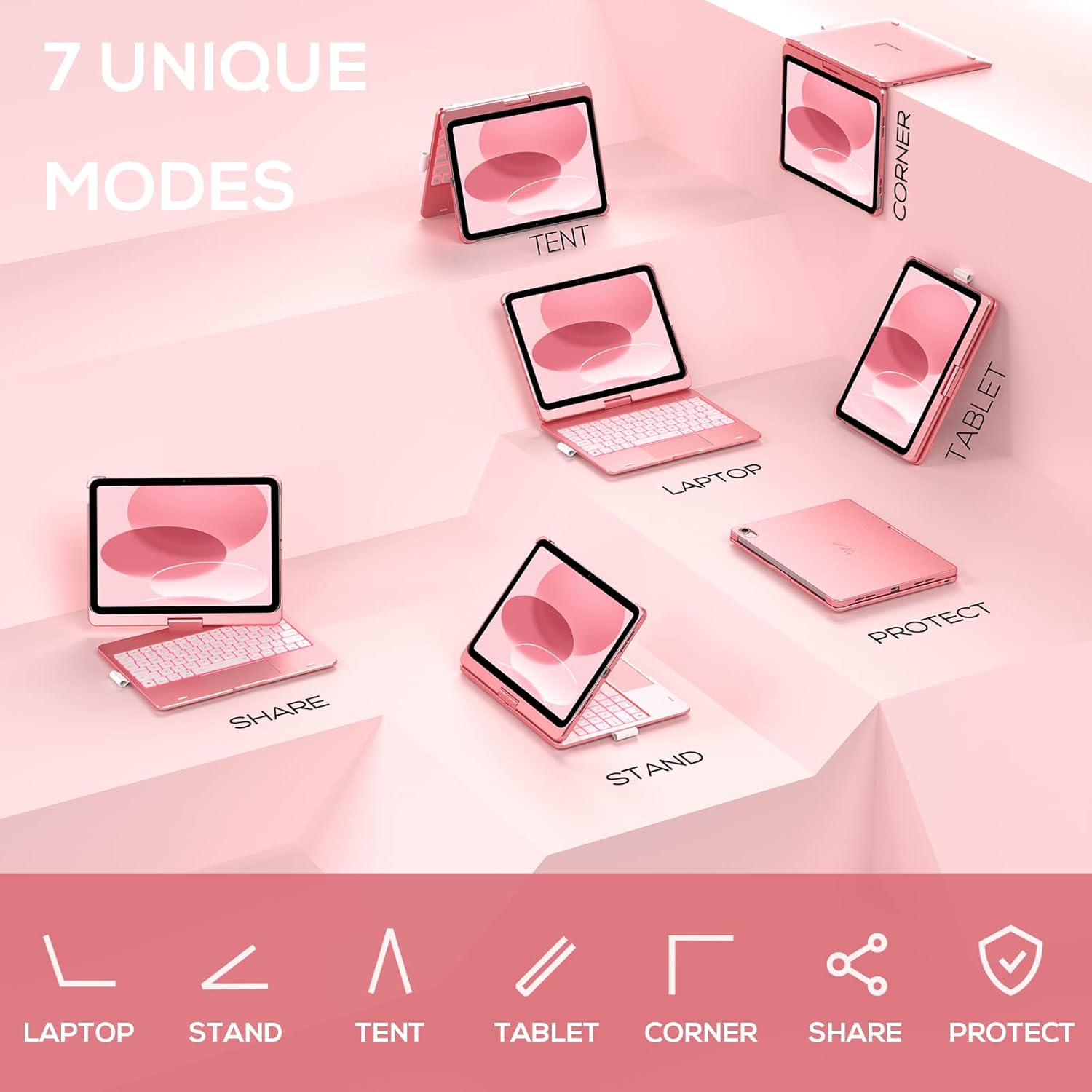
Image: A visual representation of the seven different configurations the keyboard case can be used in, including laptop, stand, and tablet modes.
5.5 Λειτουργία αυτόματης αναστολής/αφύπνισης
The case features an auto sleep/wake function. Opening the case will wake your iPad, and closing it will put your iPad to sleep, helping to conserve battery life for both the iPad and the keyboard.

Image: A user's hand on the trackpad, illustrating the built-in trackpad and the auto sleep/wake feature that activates when the case is opened or closed.
5.6 Θήκη για μολύβια Apple
An integrated holder is provided for your Apple Pencil, ensuring it is securely stored and easily accessible.
6. Συντήρηση
6.1 Καθαρισμός
To clean the keyboard case, use a soft, damp cloth. Avoid using harsh chemicals or abrasive materials, as these may damage the surface. Ensure the charging port is dry before charging.
6.2 Αποθήκευση
Όταν δεν το χρησιμοποιείτε για μεγάλα χρονικά διαστήματα, φυλάξτε τη θήκη του πληκτρολογίου σε δροσερό και ξηρό μέρος. Συνιστάται να φορτίζετε πλήρως το πληκτρολόγιο πριν από τη μακροχρόνια αποθήκευση για να διατηρήσετε την καλή λειτουργία της μπαταρίας.
7. Αντιμετώπιση Προβλημάτων
7.1 Το πληκτρολόγιο δεν συνδέεται
- Βεβαιωθείτε ότι το πληκτρολόγιο είναι ενεργοποιημένο και φορτισμένο.
- Ελέγξτε ότι το Bluetooth είναι ενεργοποιημένο στο iPad σας.
- Ξεχάστε τη συσκευή από τις ρυθμίσεις Bluetooth του iPad σας και προσπαθήστε να τη συνδέσετε ξανά.
- Επανεκκινήστε τόσο το iPad όσο και το πληκτρολόγιο.
7.2 Τα πλήκτρα δεν ανταποκρίνονται
- Βεβαιωθείτε ότι το πληκτρολόγιο είναι σωστά συνδεδεμένο μέσω Bluetooth.
- Ελέγξτε τη στάθμη της μπαταρίας του πληκτρολογίου.
- Καθαρίστε τυχόν υπολείμματα γύρω από τα πλήκτρα.
7.3 Το Trackpad δεν λειτουργεί
- Βεβαιωθείτε ότι το πληκτρολόγιο είναι συνδεδεμένο.
- Check iPad settings for trackpad functionality (Settings > General > Trackpad).
- Επανεκκινήστε το πληκτρολόγιο και το iPad.
7.4 Ο οπίσθιος φωτισμός δεν λειτουργεί
- Βεβαιωθείτε ότι το πληκτρολόγιο είναι ενεργοποιημένο.
- Press the backlight control keys (light bulb key, Fn + light bulb key) to activate or adjust.
- Check battery level; low battery may disable backlighting.
8. Προδιαγραφές
| Αριθμός μοντέλου | KB201T-100 |
| Διαστάσεις προϊόντος | 11 x 8.6 x 1.5 ίντσες (11"Μ x 8.6"Π x 1.5"Υ) |
| Βάρος αντικειμένου | 1.43 λίρες |
| Τεχνολογία Συνδεσιμότητας | Bluetooth |
| Περιγραφή πληκτρολογίου | Flexible, 78-key layout with iPadOS shortcuts |
| Ειδικά Χαρακτηριστικά | 360° Rotatable, 11-Color Backlit, Ergonomic, Lightweight, Multi-Touch Trackpad, Auto Sleep/Wake, Apple Pencil Holder |
| Οπίσθιος φωτισμός πληκτρολογίου | RGB (11 χρώματα) |
| Τύπος μπαταρίας | 1 μπαταρία πολυμερούς λιθίου (περιλαμβάνεται) |
9. Εγγύηση και υποστήριξη
typecase is committed to product quality and customer satisfaction. This product comes with the following support:
- Υπηρεσία αντικατάστασης: Εντός 1 έτους από την αγορά.
- Πολιτική επιστροφής χρημάτων: Εντός 30 ημερών από την αγορά.
For any issues or inquiries, please contact typecase customer support for quick feedback and assistance.

Image: Information on typecase's after-sales service, including replacement, refund, and customer support.


