Εισαγωγή
This manual provides essential information for the Dell Latitude 5421 Laptop. It covers initial setup, operational guidelines, maintenance procedures, troubleshooting tips, and detailed product specifications. Please read this manual thoroughly to ensure optimal performance and longevity of your device.
Ρύθμιση
1. Αποσυσκευασία και αρχικός έλεγχος
Carefully remove the laptop and all accessories from the packaging. Inspect for any signs of damage. Ensure all components are present: laptop, power adapter, and documentation.
2. Σύνδεση του τροφοδοτικού
Connect the power adapter to the power connector on the laptop and then plug the power cable into a wall outlet. The battery will begin charging automatically.
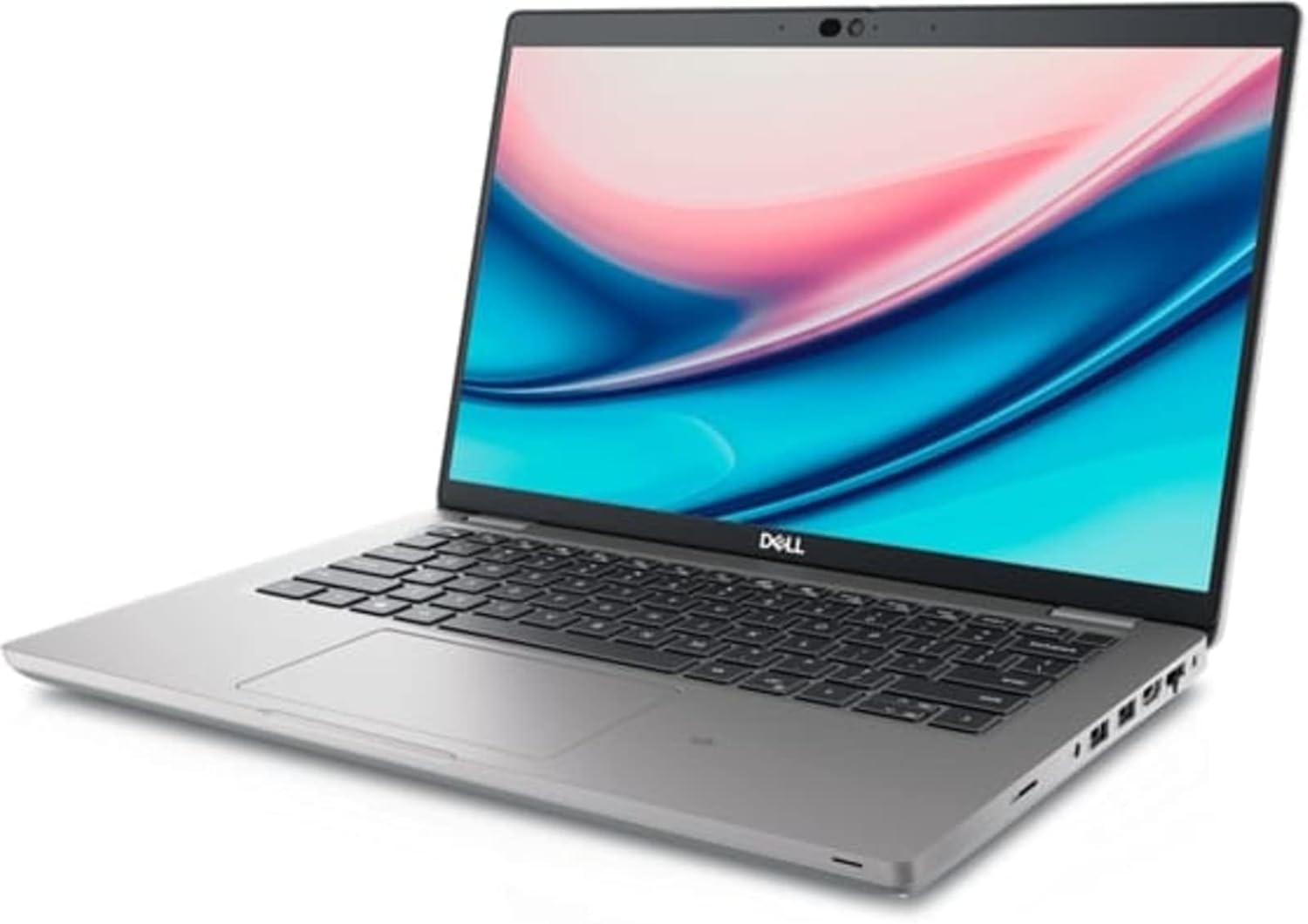
Image: Left side of the Dell Latitude 5421 Laptop, showing the power input, USB ports, HDMI port, and Ethernet port.
3. Αρχική ενεργοποίηση και ρύθμιση λειτουργικού συστήματος
Open the laptop lid and press the power button. Follow the on-screen instructions to complete the Windows 11 Pro setup. This includes selecting your region, connecting to a network, and creating a user account.
4. Σύνδεση περιφερειακών
Connect external devices such as a mouse, keyboard, or external monitor to the available ports. The Dell Latitude 5421 features various ports for connectivity:
- Θύρες αριστεράς πλευράς: SD card reader, Headset jack, USB 3.2 Gen 1 port, USB 3.2 Gen 1 port with PowerShare, HDMI 2.0 port, RJ45 Ethernet port.
- Θύρες δεξιάς πλευράς: Wedge-shaped lock slot, USB 3.2 Gen 1 port, USB 3.2 Gen 2 Type-C Thunderbolt 4 port with Power Delivery and DisplayPort, Smart card reader (optional).
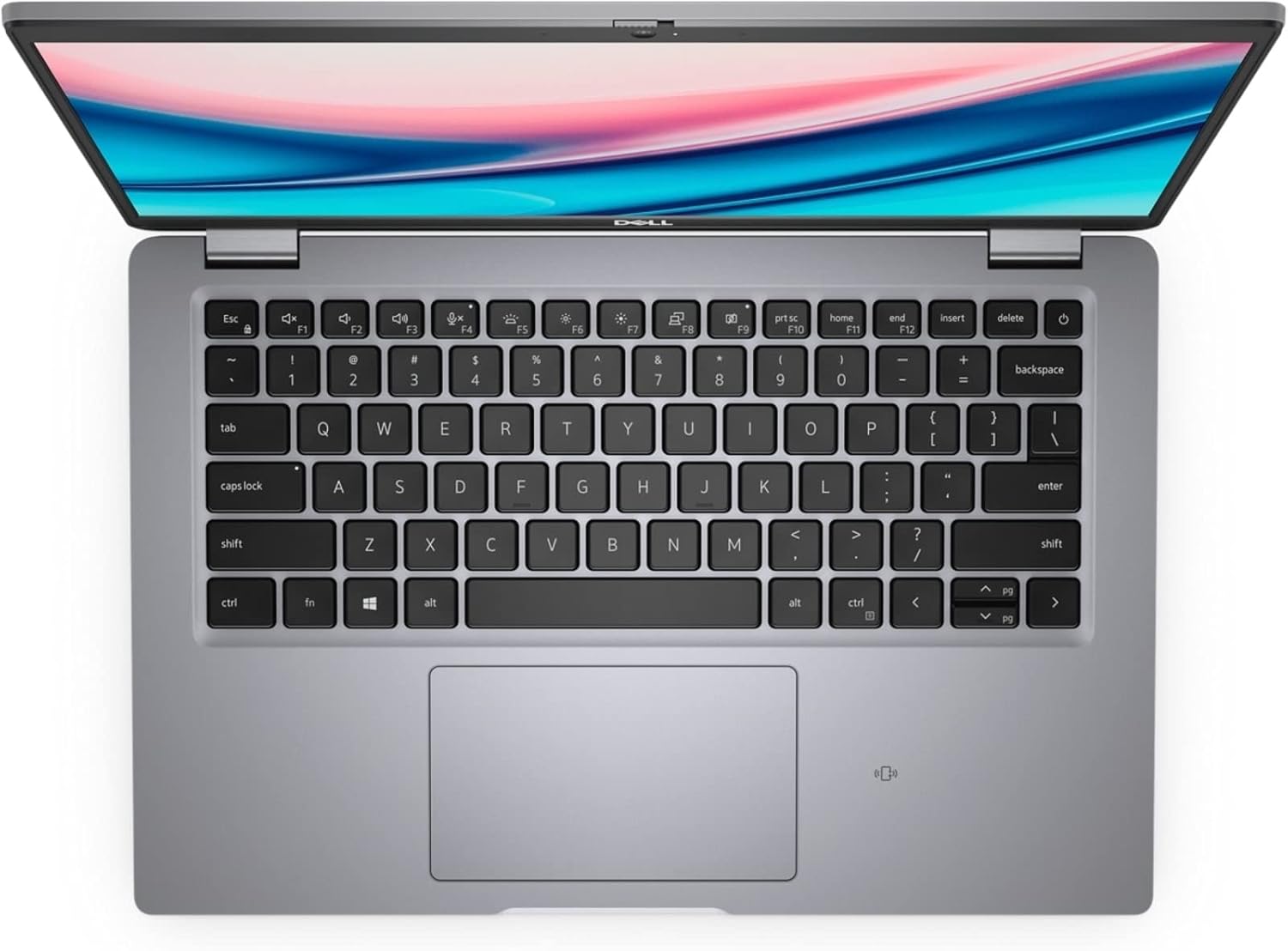
Image: Right side of the Dell Latitude 5421 Laptop, showing the USB-C Thunderbolt 4 port, USB-A port, and lock slot.
Λειτουργία του φορητού υπολογιστή σας
1. Χρήση πληκτρολογίου και touchpad
The laptop features a full-sized keyboard and a precision touchpad. Use the touchpad for navigation and gestures. Refer to Windows 11 settings for customizing touchpad sensitivity and gestures.

Εικόνα: Από πάνω προς τα κάτω view of the Dell Latitude 5421 Laptop keyboard and touchpad.
2. Ασύρματη συνδεσιμότητα
- Wi-Fi: Για να συνδεθείτε σε ένα ασύρματο δίκτυο, κάντε κλικ στο εικονίδιο Wi-Fi στη γραμμή εργασιών, επιλέξτε το δίκτυο που επιθυμείτε και εισαγάγετε τον κωδικό πρόσβασης, εάν σας ζητηθεί.
- Bluetooth: To pair Bluetooth devices, go to Ρυθμίσεις > Bluetooth και συσκευές, turn on Bluetooth, and select "Add device."
3. Display and External Monitors
The laptop features a 14-inch Full HD (1920x1080) display. You can connect an external monitor using the HDMI port or the USB-C Thunderbolt 4 port (with a compatible adapter) for extended or mirrored display modes.

Εικόνα: Μπροστά view of the Dell Latitude 5421 Laptop with the screen displaying content.
Συντήρηση
1. Καθαρισμός του φορητού υπολογιστή σας
- Χρησιμοποιήστε ένα μαλακό πανί που δεν αφήνει χνούδι δampξεπλυμένο με νερό ή με καθαριστικό οθόνης.
- Για το πληκτρολόγιο και το πλαίσιο, χρησιμοποιήστε ένα μαλακό πανί. Αποφύγετε τις σκληρές χημικές ουσίες.
- Χρησιμοποιήστε πεπιεσμένο αέρα για να καθαρίσετε τη σκόνη από τους αεραγωγούς και τις σχισμές του πληκτρολογίου.
2. Ενημερώσεις λογισμικού
Ελέγχετε και εγκαθιστάτε τακτικά ενημερώσεις των Windows μέσω Ρυθμίσεις > Ενημέρωση των Windows. Also, ensure Dell drivers and firmware are up-to-date using the Dell SupportAssist application or Dell's official webτοποθεσία.
3. Φροντίδα μπαταρίας
To prolong battery life, avoid extreme temperatures. For long-term storage, charge the battery to about 50% and store the laptop in a cool, dry place.
4. Διαχείριση αποθήκευσης
Καθαρίζετε περιοδικά τα περιττά files and applications to maintain optimal performance of the 512GB SSD. Use Windows built-in tools like Disk Cleanup or Storage Sense.
Αντιμετώπιση προβλημάτων
1. Ο φορητός υπολογιστής δεν ενεργοποιείται
- Βεβαιωθείτε ότι ο προσαρμογέας ρεύματος είναι συνδεδεμένος με ασφάλεια τόσο στον φορητό υπολογιστή όσο και σε μια πρίζα που λειτουργεί.
- Βεβαιωθείτε ότι η πρίζα λειτουργεί συνδέοντας μια άλλη συσκευή.
- Δοκιμάστε να κρατήσετε πατημένο το κουμπί λειτουργίας για 15-20 δευτερόλεπτα για να πραγματοποιήσετε μια πλήρη επαναφορά.
2. Προβλήματα οθόνης
- If the screen is blank, try connecting an external monitor to check if the issue is with the laptop's display.
- Ρυθμίστε τη φωτεινότητα της οθόνης χρησιμοποιώντας τα πλήκτρα λειτουργιών (Fn + F11/F12).
- Ενημέρωση προγραμμάτων οδήγησης γραφικών.
3. Προβλήματα συνδεσιμότητας Wi-Fi ή Bluetooth
- Βεβαιωθείτε ότι το Wi-Fi/Bluetooth είναι ενεργοποιημένο στις ρυθμίσεις των Windows.
- Επανεκκινήστε τον δρομολογητή/μόντεμ σας για προβλήματα Wi-Fi.
- Εκτελέστε το Πρόγραμμα αντιμετώπισης προβλημάτων δικτύου των Windows.
- Update wireless drivers.
4. Αργή απόδοση
- Κλείστε τις περιττές εφαρμογές που εκτελούνται στο παρασκήνιο.
- Ελέγξτε για κακόβουλο λογισμικό ή ιούς χρησιμοποιώντας λογισμικό προστασίας από ιούς.
- Βεβαιωθείτε ότι υπάρχει επαρκής ελεύθερος χώρος στον SSD.
- Εκτελέστε επανεκκίνηση συστήματος.
Προδιαγραφές
Below are the detailed technical specifications for the Dell Latitude 5421 Laptop:
| Χαρακτηριστικό | Προσδιορισμός |
|---|---|
| Όνομα μοντέλου | Φορητός υπολογιστής Latitude 5421 |
| Επεξεργαστής | Intel Core i7-11850H (8 Cores, 2.5 GHz base, up to 4.8 GHz Turbo) |
| ΕΜΒΟΛΟ | 64 GB DDR4 |
| Αποθήκευση | 512 GB SSD |
| Επίδειξη | 14-inch FHD (1920 x 1080) Non-Touch |
| Γραφικά | Intel Integrated Graphics |
| Λειτουργικό σύστημα | Windows 11 Pro |
| Ασύρματη Συνδεσιμότητα | Wi-Fi, Bluetooth |
| λιμάνια | USB 3.2 Gen 1, USB 3.2 Gen 1 with PowerShare, USB 3.2 Gen 2 Type-C Thunderbolt 4, HDMI 2.0, RJ45 Ethernet, Headset jack, SD card reader, Wedge-shaped lock slot |
| Διαστάσεις (ΜxΠxΥ) | 8.35 x 12.65 x 0.82 ίντσες |
| Χρώμα | Μαύρος |
Εγγύηση και υποστήριξη
This Dell Latitude 5421 Laptop is a renewed product. Please refer to the specific warranty terms provided by the seller at the time of purchase. For technical assistance, driver downloads, or further support, visit the official Dell Support website or contact your seller directly.
Υποστήριξη Dell Webτοποθεσία: www.dell.com/support