1. Εισαγωγή
This user manual provides detailed instructions for the Waveshare Raspberry Pi 4 Model B Display Kit. It covers the assembly, setup, operation, and maintenance of your 7-inch capacitive touch LCD display kit designed for the Raspberry Pi 4. Please read this manual thoroughly before use to ensure proper functionality and to maximize your experience with the product.
2. Περιεχόμενα συσκευασίας
Βεβαιωθείτε ότι όλα τα είδη που αναφέρονται παρακάτω περιλαμβάνονται στη συσκευασία σας. Εάν λείπουν ή έχουν υποστεί ζημιά κάποια εξαρτήματα, επικοινωνήστε με την υποστήριξη πελατών.

Image: All components included in the Waveshare Raspberry Pi 4 Display Kit.
- 7-inch Capacitive Touch LCD
- Acrylic Case (Black/White)
- Καλώδιο HDMI
- USB-A to Micro-USB Cable (for touch and power)
- Μετασχηματιστής ρεύματος
- Micro SD Card (16GB)
- Αναγνώστης καρτών Micro SD
- Screws and Standoffs for assembly
3. Το προϊόν τελείωσεview
The Waveshare Raspberry Pi 4 Model B Display Kit combines a high-resolution 7-inch capacitive touch screen with essential accessories, allowing you to build a compact, all-in-one computer solution with your Raspberry Pi 4.
3.1 Raspberry Pi 4 Model B Features (Raspberry Pi board sold separately)
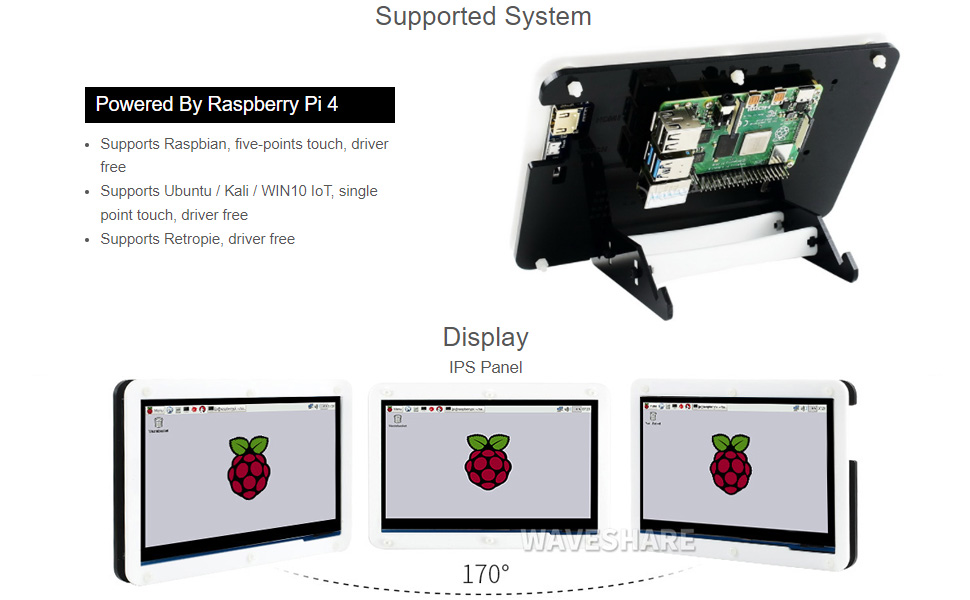
Image: Raspberry Pi 4 Model B board layout with key components labeled.
- Επεξεργαστής: Broadcom BCM2711, Quad core Cortex-A72 (ARM v8) 64-bit SoC @ 1.5 GHz
- Μνήμη: LPDDR4-2400 SDRAM (available in 1GB, 2GB, 4GB, or 8GB options)
- Συνδεσιμότητα: 2.4 GHz and 5.0 GHz IEEE 802.11ac wireless, Bluetooth 5.0, Gigabit Ethernet
- Θύρες USB: 2 × θύρες USB 3.0, 2 × θύρες USB 2.0
- Βίντεο & Ήχος: 2 × micro-HDMI ports (up to 4Kp60 supported), 2-lane MIPI DSI display port, 2-lane MIPI CSI camera port, 4-pole stereo audio and composite video port
- GPIO: Κεφαλίδα GPIO 40 ακίδων
- Εξουσία: 5V DC via USB-C connector (minimum 3A recommended)
4. Οδηγός εγκατάστασης
Follow these steps to assemble and set up your Waveshare Raspberry Pi 4 Display Kit.
4.1 Hardware Assembly

Image: Fully assembled Waveshare Raspberry Pi 4 Display Kit.
- Prepare the Raspberry Pi: Ensure your Raspberry Pi 4 Model B board is ready.
- Mount the Raspberry Pi: Attach the Raspberry Pi 4 board to the designated mounting points on the back panel of the acrylic case using the provided screws and standoffs.
- Connect the Display: Connect the 7-inch LCD to the Raspberry Pi 4. Typically, this involves connecting the HDMI cable from the display to one of the micro-HDMI ports on the Raspberry Pi, and the USB-A to Micro-USB cable for touch functionality and power.
- Συναρμολογήστε την θήκη: Secure the front panel of the acrylic case around the display and then attach it to the back panel, enclosing the Raspberry Pi and display. Ensure all cables are properly routed and not pinched.
- Συνδέστε τη βάση: Assemble and attach the included stand to the bottom of the case for stable positioning. The stand often allows for adjustable viewing angles (e.g., 45° or 60°).
4.2 Διαμόρφωση λογισμικού
The Waveshare 7-inch capacitive touch LCD is designed for driver-free operation with several popular operating systems.
- Εγκατάσταση Λειτουργικού Συστήματος: Install your preferred operating system (e.g., Raspbian, Ubuntu, Kali, WIN10 IoT, Retropie) onto the provided 16GB Micro SD card using a suitable imaging tool (e.g., Raspberry Pi Imager).
- Εισαγωγή κάρτας SD: Insert the prepared Micro SD card into the Raspberry Pi's Micro SD card slot.
- Ενεργοποίηση: Connect the power adapter to the display kit. The Raspberry Pi and display should power on automatically.
- Λειτουργία χωρίς οδηγό: For most supported systems, the display and touch functionality will work automatically without additional driver installation.
5. Οδηγίες λειτουργίας
5.1 Λειτουργικότητα αφής

Image: User interacting with the capacitive touch screen.
- The 7-inch display features a capacitive touch panel, supporting up to five-point touch input.
- Ensure the USB touch cable is securely connected between the display and the Raspberry Pi for touch input to function.
- Touch gestures and multi-touch capabilities will depend on the operating system and applications running on your Raspberry Pi.
5.2 Υποστηριζόμενα λειτουργικά συστήματα
The display kit offers broad compatibility with various Raspberry Pi operating systems:
- Raspbian: Supports five-point touch, driver-free.
- Ubuntu / Kali / WIN10 IoT: Supports single-point touch, driver-free.
- Retropie: Supports driver-free operation.
6. Προδιαγραφές
| Χαρακτηριστικό | Προσδιορισμός |
|---|---|
| Μέγεθος οθόνης | 7 ίντσες |
| Αγγίξτε Τύπος | Capacitive, up to 5-points |
| Διασύνδεση | HDMI for display, USB for touch |
| Αρμονία | Raspberry Pi 4 Model B |
| Υποστήριξη Λειτουργικού Συστήματος | Raspbian, Ubuntu, Kali, WIN10 IoT, Retropie |
| Memory Storage Capacity (SD Card) | 16 GB |
| Βάρος αντικειμένου | 1.28 λίρες |
| Αριθμός μοντέλου | PI4B Display Acce |
| Κατασκευαστής | Waveshare |
7. Συντήρηση
- Καθάρισμα: Χρησιμοποιήστε ένα μαλακό πανί που δεν αφήνει χνούδι για να σκουπίσετε απαλά την οθόνη. Για επίμονους λεκέδες, τρίψτε ελαφρά.ampΚαθαρίστε το πανί με νερό ή με ένα καθαριστικό κατάλληλο για οθόνες. Αποφύγετε σκληρές χημικές ουσίες ή λειαντικά υλικά.
- Αποθήκευση: When not in use, store the kit in a cool, dry place away from direct sunlight and extreme temperatures.
- Χειριζόμενος: Handle the display and Raspberry Pi board with care to avoid physical damage. Avoid applying excessive pressure to the screen.
8. Αντιμετώπιση Προβλημάτων
8.1 Δεν υπάρχει έξοδος οθόνης
- Ελέγξτε την ισχύ: Ensure the power adapter is securely connected to the display kit and plugged into a working power outlet.
- Σύνδεση HDMI: Verify that the HDMI cable is firmly connected between the display and the Raspberry Pi's micro-HDMI port. Try a different micro-HDMI port if available.
- Κάρτα SD: Confirm that the Micro SD card with a properly installed operating system is inserted correctly into the Raspberry Pi.
- Τροφοδοτικό: Ensure your Raspberry Pi is receiving adequate power (a 5V/3A USB-C power supply is recommended for Raspberry Pi 4).
8.2 Η λειτουργία αφής δεν λειτουργεί
- Σύνδεση USB: Check that the USB-A to Micro-USB cable is securely connected from the display to a USB port on the Raspberry Pi.
- Υποστήριξη λειτουργικού συστήματος: Confirm that your operating system supports the touch functionality of this display. While most are driver-free, some configurations might require specific settings.
- Επανεκκίνηση: Try rebooting the Raspberry Pi.
8.3 Τρεμοπαίξιμο ή αστάθεια οθόνης
- Τροφοδοτικό: Ensure a stable and sufficient power supply is used for both the display and the Raspberry Pi.
- Ακεραιότητα καλωδίου: Check the HDMI and USB cables for any damage or loose connections.
9. Εγγύηση και υποστήριξη
Για πληροφορίες σχετικά με την εγγύηση, τεχνική υποστήριξη ή περαιτέρω βοήθεια, ανατρέξτε στην επίσημη ιστοσελίδα της Waveshare. webή επικοινωνήστε με τον αντιπρόσωπό σας. Κρατήστε την απόδειξη αγοράς ως απόδειξη αγοράς για τυχόν αξιώσεις εγγύησης.


