1. Εισαγωγή
This user manual provides comprehensive instructions for the Waveshare 4.3-inch Capacitive Touch Screen LCD. This display is designed for versatility, offering compatibility with various devices including Raspberry Pi, Jetson Nano, and Windows PCs. It features an 800x480 resolution IPS panel with capacitive touch functionality, making it suitable for a wide range of applications from embedded systems to desktop extensions.

Image: The Waveshare 4.3-inch Capacitive Touch Screen LCD, showcasing its compact size and touch interface.
2. Περιεχόμενο συσκευασίας
Verify that all items listed below are included in your package. If any items are missing or damaged, please contact Waveshare support.

Image: Contents of the Waveshare 4.3-inch LCD package, including the display, HDMI cable, USB cable, and adapters.
- 4.3inch HDMI LCD (B)
- Καλώδιο HDMI
- USB Type A to Micro B Cable
- HDMI to Micro HDMI Adapter
- Προσαρμογέας HDMI σε HDMI
- Screws pack (for mounting)
3. Προδιαγραφές και χαρακτηριστικά
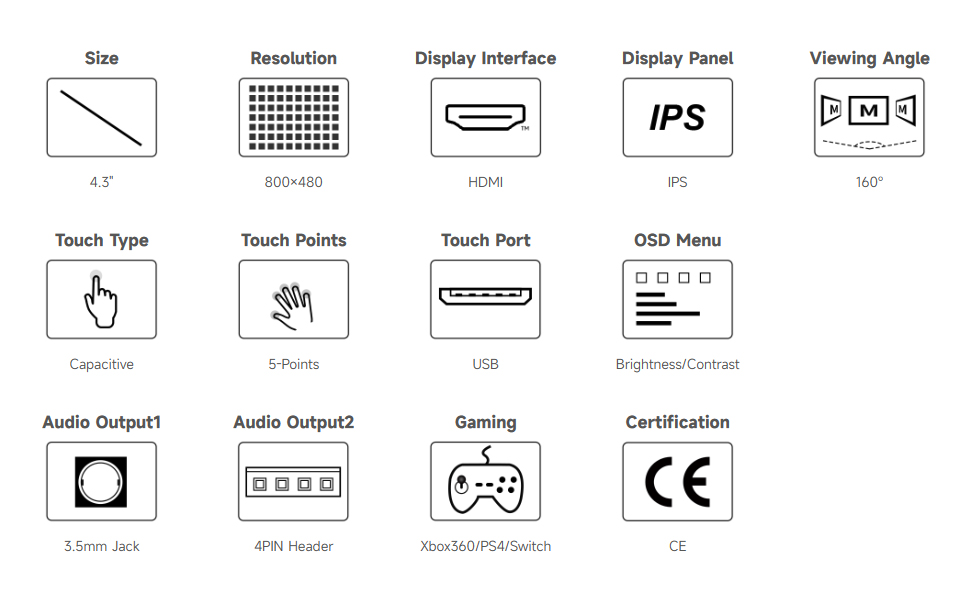
Image: Detailed specifications and features of the 4.3-inch HDMI Touch Display.
| Χαρακτηριστικό | Περιγραφή |
|---|---|
| Μέγεθος οθόνης | 4.3 ίντσες |
| Ψήφισμα | 800 × 480 hardware resolution |
| Πίνακας εμφάνισης | IPS |
| Viewγωνιά | 160° |
| Αγγίξτε Τύπος | Capacitive, 5-points touch (depending on OS) |
| Αγγίξτε Θύρα | USB |
| Διεπαφή οθόνης | HDMI |
| Έξοδος ήχου | 3.5mm Jack, 4PIN Header (for speaker connection) |
| Μενού OSD | Multi-language, for power management, brightness/contrast adjustment, etc. |
| Είσοδος ισχύος | 5V DC |
4. Device and System Support
The display offers broad compatibility with various computing platforms:

Εικόνα: Πάνωview of compatible devices and operating systems, including Raspberry Pi, Jetson Nano, and Windows PCs.
- Raspberry Pi: Supports all versions of Raspberry Pi.
- Supports Raspberry Pi OS, 5-points touch, driver free.
- Supports Ubuntu / Kali / WIN10 IoT, single point touch, driver free.
- Supports Retropie, driver free.
- Jetson Nano: Supports Ubuntu, single point touch, driver free.
- Η/Υ: Supports Windows 11 / 10 / 8.1 / 8 / 7, 5-points touch, driver free.
- Κονσόλα παιχνιδιού: Supports Xbox360, PS4, Switch (Display and Sound Only).
5. Ρύθμιση και σύνδεση
Follow these steps to connect your Waveshare 4.3-inch LCD to your device. Connection methods may vary slightly depending on your host device.
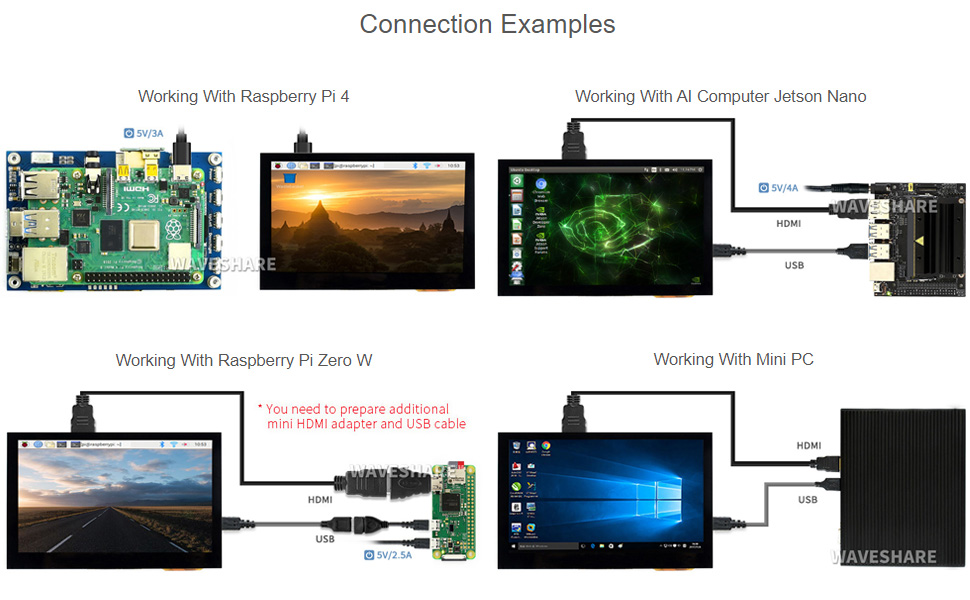
Εικόνα: Οπτική απεικόνισηamples of connecting the display to Raspberry Pi 4, Raspberry Pi Zero W, Jetson Nano, and a Mini PC.
5.1. General Connection Steps
- Connect the HDMI port of the display to the HDMI output of your host device using the provided HDMI cable or adapter.
- Connect the USB touch port of the display to a USB port on your host device using the provided USB cable. This provides power to the display and enables touch functionality.
- Ensure your host device is powered on. The display should automatically detect the video signal and power on.
5.2. Specific Connection Notes
- Για το Raspberry Pi 4: Use the provided HDMI to HDMI cable and USB cable. The display can be powered directly from the Raspberry Pi's USB port.
- For Raspberry Pi Zero W: An additional Mini HDMI to HDMI adapter and USB cable may be required (not included in standard package).
- For Jetson Nano / Mini PC: Connect via HDMI for video and USB for touch and power. Ensure adequate power supply for the Jetson Nano (e.g., 5V/4A).
6. Οδηγίες λειτουργίας
6.1. Αγγίξτε Control
The display features a capacitive touch screen supporting up to 5-points touch, depending on the operating system. No additional drivers are typically required for touch functionality on supported systems.
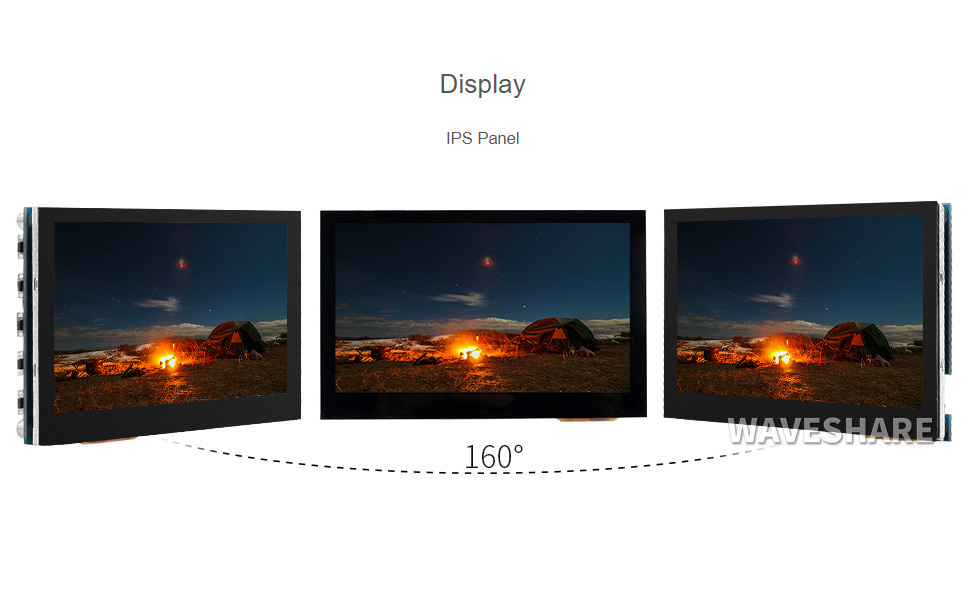
Image: Demonstration of touch control on the display, showing interaction with a graphical user interface.
6.2. Πλοήγηση στο μενού OSD
The On-Screen Display (OSD) menu allows for various adjustments to the display settings. Use the physical buttons on the side of the display to navigate the OSD menu.
- Κουμπί μενού: Εισέρχεται στο μενού OSD ή επιβεβαιώνει μια επιλογή.
- Up/Left Button: Navigates up or left in the menu, or increases a value.
- Down/Right Button: Navigates down or right in the menu, or decreases a value.
- Κουμπί Επιστροφής/Έξοδου: Goes back to the previous menu or exits the OSD menu.
- Κουμπί λειτουργίας: Ενεργοποιεί/απενεργοποιεί την οθόνη.
Οι συνήθεις ρυθμίσεις OSD περιλαμβάνουν τη φωτεινότητα, την αντίθεση, τη θερμοκρασία χρώματος, την αναλογία διαστάσεων και την επιλογή πηγής εισόδου.
6.3. Παιχνίδι
The display can be used with game consoles like Xbox360, PS4, and Nintendo Switch for display and sound output. Connect the console via HDMI.
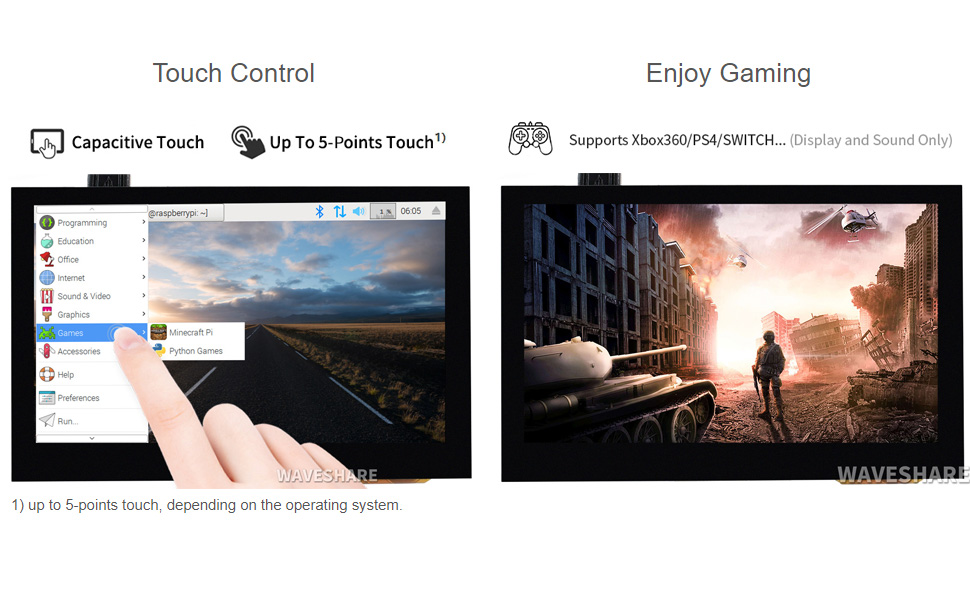
Image: The display showing a game, demonstrating its capability for gaming applications.
7. Εμφάνιση και Διαστάσεις
Refer to the diagram below for the physical layout and dimensions of the display board, including port locations and button functions.

Image: Technical diagram showing the dimensions (in mm) and labeled components of the 4.3-inch HDMI LCD (B) board.
| Οχι. | Συστατικό |
|---|---|
| 1 | Θύρα αφής |
| 2 | Κεφαλίδα ηχείου |
| 3 | Audio jack (HP) |
| 4 | Θύρα HDMI |
| 5 | Είσοδος ισχύος |
| 6 | Κουμπί λειτουργίας |
| 7 | Κουμπί μενού |
| 8 | Up/Left button |
| 9 | Down/Right button |
| 10 | Κουμπί Επιστροφή/Έξοδος |
Dimensions: Approximately 106.1mm (width) x 67.8mm (height).
8. Αντιμετώπιση Προβλημάτων
- Δεν υπάρχει οθόνη / Μαύρη οθόνη:
- Ensure the HDMI cable is securely connected to both the display and the host device.
- Verify the host device is powered on and outputting video.
- Check the power connection to the display. The display requires 5V power, typically supplied via the USB connection.
- If using Raspberry Pi, ensure the
config.txtfile is correctly configured for the display resolution (800x480). Refer to Waveshare's online user manual for specificconfig.txtρυθμίσεις.
- Touch Not Working:
- Ensure the USB cable is connected from the display's touch port to a USB port on your host device.
- For some Linux distributions (e.g., older versions of Ubuntu/Kali), specific drivers or calibration might be needed, though it's generally driver-free. Refer to Waveshare's online resources.
- On Windows, ensure touch screen drivers are correctly installed (usually automatic).
- Flickering / Unstable Display:
- Ensure the power supply to the host device and the display is stable and sufficient.
- Δοκιμάστε ένα διαφορετικό καλώδιο HDMI.
- Χωρίς ήχο:
- Ensure the 3.5mm audio jack or speaker header is correctly connected.
- Verify that the audio output is selected correctly on your host device (e.g., HDMI audio output).
- Note that the display's built-in audio output quality may be basic; external speakers are recommended for better sound.
For more detailed troubleshooting and specific software configurations, please refer to the official Waveshare online user manual: Οδηγός χρήσης (PDF).
9. Εγγύηση και υποστήριξη
Waveshare products are designed for reliability and performance. For warranty information and technical support, please visit the official Waveshare webιστότοπο ή επικοινωνήστε απευθείας με την εξυπηρέτηση πελατών τους.
- Official Waveshare Store: Visit Waveshare Store on Amazon
- Ηλεκτρονικό εγχειρίδιο χρήστη: Λήψη Οδηγού Χρήσης σε PDF
- Επαφή: Refer to the Waveshare website for contact details for technical support and customer service.
10. Product Certification
This product is HDMI Certified, ensuring compliance with HDMI standards for high-definition multimedia interfacing.

Image: Certificate indicating HDMI certification for the adapter, issued to Shenzhen Weixue Electronics Co. Ltd.
For verification of the HDMI certification, please visit the official HDMI Licensing Administrator website and use the provided QR code or link: HDMI Certification Verification.