1. Εισαγωγή
The NETGEAR CM700 High Speed Cable Modem provides a reliable connection to high-speed cable Internet. Engineered with DOCSIS 3.0 technology and 32x8 channel bonding, it supports cable internet plans up to 800Mbps. This modem is designed to be compatible with major cable internet providers, offering a cost-effective alternative to renting equipment from your service provider.
2. Περιεχόμενα συσκευασίας
Βεβαιωθείτε ότι όλα τα αντικείμενα υπάρχουν στη συσκευασία σας:
- High Speed Cable Modem (CM700)
- Καλώδιο Ethernet
- Οδηγός γρήγορης εγκατάστασης
- Μετασχηματιστής ρεύματος
3. Το προϊόν τελείωσεview
3.1 Πρόσοψη
The front panel of the CM700 modem features several LED indicators that provide status information about your connection and device operation.

Εικόνα 1: Εμπρός view of the NETGEAR CM700 cable modem with indicator lights for power, internet, upstream, downstream, and Ethernet activity.
3.2 Πίσω πίνακας
The rear panel contains all the necessary ports for connecting the modem to your internet service and other devices.

Εικόνα 2: Πίσω view of the NETGEAR CM700 cable modem, highlighting the Ethernet port, Reset button, Cable/Internet coaxial connector, Power input, and On/Off switch.
4. Ρύθμιση και εγκατάσταση
4.1 Έλεγχος Συμβατότητας
Before installation, verify that your internet service provider (ISP) supports the NETGEAR CM700 modem. This modem is compatible with major cable internet providers including Xfinity by Comcast, COX, and Spectrum. It is not compatible with Verizon, AT&T, CenturyLink, DSL providers, DirecTV, DISH, or any bundled voice service.
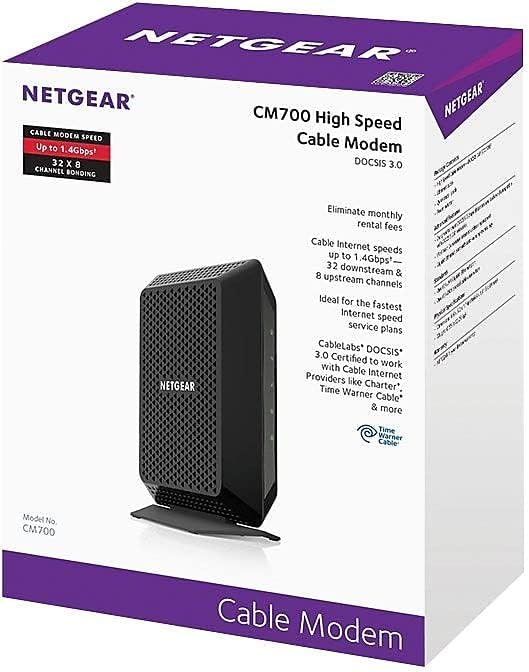
Figure 3: Compatibility logos for Xfinity, Cox, and Spectrum, confirming support for the CM700 modem.
4.2 Φυσική σύνδεση
- Power Off Existing Equipment: Disconnect power from your existing modem and router (if applicable).
- Συνδέστε ομοαξονικό καλώδιο: Connect a coaxial cable from the wall outlet to the Cable/Internet port on the rear of your CM700 modem. Ensure the connection is secure.
- Σύνδεση καλωδίου Ethernet: Connect one end of the provided Ethernet cable to the Ethernet port on the rear of your CM700 modem. Connect the other end to your computer or to the WAN/Internet port of your Wi-Fi router.
- Σύνδεση μετασχηματιστή ρεύματος: Plug the power adapter into the Power port on the modem and then into an electrical outlet. Press the On/Off button if present.
- Περιμένετε τα φώτα: Allow the modem several minutes to power on and establish a connection. The Power, Downstream, Upstream, and Internet LEDs on the front panel should turn solid green or blue, indicating a successful connection.
4.3 Activate Your Internet Service
After connecting the modem, you will need to activate your internet service. The activation process varies by ISP:
- Xfinity: For Xfinity customers, fast web self-activation is often available. Open a web browser on a connected device and follow the on-screen instructions. If self-activation fails, call Xfinity customer support.
- Other ISPs (Cox, Spectrum, etc.): Contact your ISP directly to activate the modem. You will typically need to provide the modem's serial number and MAC address, which are located on a label on the modem.
5. Λειτουργία του μόντεμ
5.1 Ενδείξεις LED
The LED lights on the front of your CM700 modem provide important status information:
| LED | Κατάσταση | Περιγραφή |
|---|---|---|
| Εξουσία | Συμπαγές πράσινο | Το μόντεμ είναι ενεργοποιημένο. |
| Κατάντια | Συμπαγές μπλε | Downstream channel is locked (DOCSIS 3.0). |
| Συμπαγές πράσινο | Downstream channel is locked (DOCSIS 2.0). | |
| Αναβοσβήνει πράσινο | Σάρωση για ένα κανάλι κατάντη. | |
| Αντίθετα στο ρεύμα | Συμπαγές μπλε | Upstream channel is locked (DOCSIS 3.0). |
| Συμπαγές πράσινο | Upstream channel is locked (DOCSIS 2.0). | |
| Αναβοσβήνει πράσινο | Σάρωση για ένα ανοδικό κανάλι. | |
| Internet | Συμπαγές πράσινο | Το μόντεμ είναι συνδεδεμένο στο διαδίκτυο και σε λειτουργία. |
| Αναβοσβήνει πράσινο | IP address is being acquired. | |
| Ethernet | Συμπαγές πράσινο | Μια συσκευή είναι συνδεδεμένη στη θύρα Ethernet. |
| Αναβοσβήνει πράσινο | Τα δεδομένα μεταδίδονται ή λαμβάνονται. |
6. Συντήρηση
- Τοποθέτηση: Place the modem in a well-ventilated area to prevent overheating. Avoid placing it in enclosed spaces or near heat sources.
- Καθάρισμα: Use a soft, dry cloth to clean the modem. Do not use liquid or aerosol cleaners.
- Ενημερώσεις υλικολογισμικού: Firmware updates are typically managed by your cable internet provider. Ensure your modem is always connected to the internet to receive these updates.
- Τακτικές επανεκκινήσεις: Occasionally restarting your modem (power cycling) can help resolve minor connectivity issues and improve performance. To do this, unplug the power adapter, wait 10-15 seconds, and then plug it back in.
7. Αντιμετώπιση Προβλημάτων
7.1 Χωρίς σύνδεση στο Διαδίκτυο
- Ελέγξτε τα καλώδια: Ensure all cables (coaxial, Ethernet, power) are securely connected to the modem and wall outlets.
- Ελέγξτε την κατάσταση της λυχνίας LED: Refer to the LED indicator table in Section 5.1. If the Downstream, Upstream, or Internet LEDs are not solid, there may be an issue with your cable signal or ISP connection.
- Μόντεμ κύκλου ισχύος: Unplug the modem's power adapter, wait 10-15 seconds, and plug it back in. Allow several minutes for the modem to restart and reconnect.
- Επικοινωνήστε με τον πάροχο υπηρεσιών Διαδικτύου (ISP): If the issue persists after checking connections and power cycling, contact your internet service provider. There might be an outage in your area or a problem with your service.
7.2 Slow Internet Speeds
- Verify Plan Speed: Confirm that your internet plan speed matches the capabilities of your modem. The CM700 supports plans up to 800Mbps.
- Test Directly: Connect a computer directly to the modem's Ethernet port (bypassing your router) and perform a speed test. This helps determine if the modem or your router is the bottleneck.
- Έλεγχος για παρεμβολές: If using a Wi-Fi router, ensure it's placed optimally and not experiencing interference from other devices.
- Επικοινωνήστε με τον πάροχο υπηρεσιών Διαδικτύου (ISP): If speeds remain consistently low, contact your ISP to check your line quality and service provision.
8. Προδιαγραφές
| Χαρακτηριστικό | Λεπτομέρεια |
|---|---|
| Αριθμός μοντέλου | CM700-100NAS |
| Πρότυπο DOCSIS | DOCSIS 3.0 |
| Σύνδεση καναλιού | 32x8 (32 downstream, 8 upstream) |
| Μέγιστη ταχύτητα λήψης | Έως 800 Mbps (εξαρτάται από τον ISP) |
| Θύρες Ethernet | 1 θύρα Ethernet Gigabit |
| Διαστάσεις (ΜxΠxΥ) | 6.6 x 5.2 x 1.7 ίντσες |
| Βάρος | 8.8 ουγγιές |
| Τομtage | 100-240 βολτ |
| Συμβατότητα λειτουργικού συστήματος | Microsoft Windows |
9. Εγγύηση και υποστήριξη
For warranty information and technical support, please visit the official NETGEAR website. You can find detailed warranty terms and contact information for customer support at www.netgear.com/warranty.