Εισαγωγή
This manual provides essential information for setting up, operating, maintaining, and troubleshooting your Microsoft Surface Pro 3. The Surface Pro 3 is a versatile device designed to function as both a tablet and a laptop, powered by the Windows 10 operating system.
It features a 12-inch high-resolution screen, ample internal storage, dual HD cameras, and robust connectivity options, including a full-size USB 3.0 port. Its integrated kickstand allows for comfortable viewing in various positions, and the magnesium frame ensures a lightweight and durable design.
Πληροφορίες Ασφάλειας
- Μην εκθέτετε τη συσκευή σε ακραίες θερμοκρασίες, άμεσο ηλιακό φως ή υψηλή υγρασία.
- Αποφύγετε την πτώση ή την έκθεση της συσκευής σε σοβαρά χτυπήματα.
- Use only Microsoft-approved power adapters and accessories.
- Keep the device away from liquids. In case of liquid contact, power off immediately and seek professional assistance.
- Μην επιχειρήσετε να αποσυναρμολογήσετε ή να επισκευάσετε τη συσκευή μόνοι σας. Αυτό μπορεί να ακυρώσει την εγγύηση και να προκαλέσει ζημιά.
- Βεβαιωθείτε ότι υπάρχει σωστός αερισμός κατά τη χρήση της συσκευής για να αποτρέψετε την υπερθέρμανση.
Ρύθμιση
1. Αποσυσκευασία και αρχική επιθεώρηση
Carefully remove the Surface Pro 3 and all accessories from the packaging. Inspect the device for any visible damage. Retain the packaging for future transport or service needs.
2. Ενεργοποίηση και Αρχική Ρύθμιση
- Connect the power supply to the Surface Pro 3 and a power outlet.
- Πατήστε το κουμπί λειτουργίας που βρίσκεται στο πάνω άκρο της συσκευής.
- Follow the on-screen prompts to complete the Windows 10 initial setup, including language selection, network connection, and user account creation.
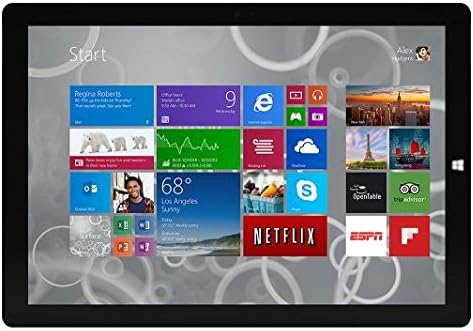
Figure 1: Windows 10 Start Screen during initial setup.
This image shows the Microsoft Surface Pro 3 screen displaying the Windows 10 Start menu, characterized by a grid of live tiles representing various applications and services. This is typically seen during the initial setup or when navigating the operating system.
3. Attaching Accessories (Sold Separately)
The Surface Pro 3 is compatible with various accessories, such as the Surface Type Cover keyboard and the Surface Pen, which are sold separately.
- Τύπος επιφάνειας Κάλυψη: Align the magnetic connector of the Type Cover with the bottom edge of the Surface Pro 3 until it clicks into place.
- Στυλό επιφάνειας: The Surface Pen can be magnetically attached to the side of the Surface Pro 3 for storage. For initial pairing, follow the instructions provided with the pen.
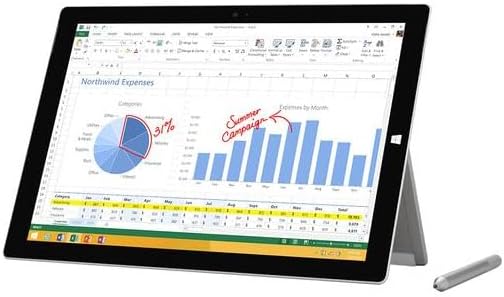
Figure 2: Surface Pro 3 with optional Surface Pen.
This image illustrates the Microsoft Surface Pro 3 in use, displaying an Excel spreadsheet on its screen. A Surface Pen is positioned next to the device, highlighting its compatibility for precise input and navigation.
4. Expanding Storage with a MicroSD Card
You can expand the internal storage of your Surface Pro 3 using a microSD card (sold separately).
- Locate the microSD card slot on the side of the Surface Pro 3, typically behind the kickstand.
- Τοποθετήστε την κάρτα microSD στην υποδοχή μέχρι να ασφαλίσει στη θέση της.
- The device will automatically detect the card. You may need to format it if it's a new card or if prompted by the system.

Figure 3: MicroSD card slot.
This close-up image shows the microSD card slot on the side of the Microsoft Surface Pro 3, with a microSD card partially inserted, demonstrating how to expand the device's storage.
Οδηγίες Λειτουργίας
1. Πλοήγηση στα Windows 10
- Μενού Έναρξη: Κάντε κλικ στο εικονίδιο των Windows στην κάτω αριστερή γωνία για να αποκτήσετε πρόσβαση σε εφαρμογές, ρυθμίσεις και επιλογές παροχής ενέργειας.
- Οθόνη αφής: Χρησιμοποιήστε χειρονομίες για πλοήγηση, ζουμ και κύλιση.
- Edge Browser: Utilize the pre-installed Edge browser for web browsing, which includes features for marking up web σελίδες.

Figure 4: Using the Surface Pro 3 for productivity.
This image depicts the Microsoft Surface Pro 3 in an active use scenario, showcasing a note-taking application open on its screen. The display features handwritten notes, diagrams, and sketches, illustrating the device's capability for creative and productive tasks.
2. Using the Integrated Kickstand
The multi-position kickstand allows you to adjust the viewing angle for optimal comfort, whether you are typing, watching videos, or drawing.
- Gently pull the kickstand out from the back of the device.
- Adjust it to your desired angle. The kickstand offers a wide range of positions for versatility.
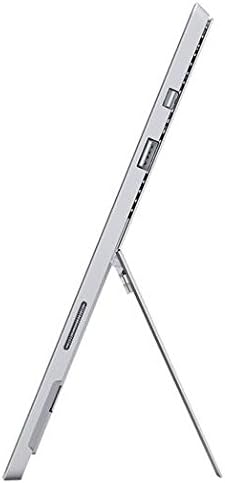
Figure 5: Adjustable kickstand.
Αυτή η εικόνα παρέχει μια πλευρά view of the Microsoft Surface Pro 3, clearly showing its integrated kickstand extended to support the device at an angle, demonstrating its versatile viewδυνατότητες.
3. Λειτουργικότητα κάμερας
The Surface Pro 3 is equipped with 5.0MP front and rear cameras.
- Open the Camera application from the Start Menu.
- Switch between front and rear cameras as needed for photos or video calls.

Figure 6: Front camera.
This close-up image focuses on the front-facing camera and associated sensors located at the top edge of the Microsoft Surface Pro 3 screen.
4. Συνδεσιμότητα
The full-size USB 3.0 port allows for connecting various peripherals and transferring data.
- Insert USB devices (e.g., flash drives, external hard drives, printers) into the USB 3.0 port.
- The device also supports Wi-Fi (802.11a/b/g/n/ac) for wireless internet connectivity.
Συντήρηση
1. Cleaning Your Surface Pro 3
- Χρησιμοποιήστε ένα μαλακό πανί που δεν αφήνει χνούδι δampμε νερό ή με καθαριστικό οθόνης ειδικά σχεδιασμένο για ηλεκτρονικά.
- Αποφύγετε τη χρήση σκληρών χημικών ουσιών, λειαντικών καθαριστικών ή σπρέι αεροζόλ.
- Σκουπίστε απαλά την οθόνη και τις εξωτερικές επιφάνειες.
2. Ενημερώσεις λογισμικού
Ελέγχετε και εγκαθιστάτε τακτικά ενημερώσεις των Windows για να διασφαλίζετε ότι η συσκευή σας διαθέτει τις πιο πρόσφατες ενημερώσεις ασφαλείας και βελτιώσεις απόδοσης.
- Μεταβείτε στο Ρυθμίσεις > Ενημέρωση & Ασφάλεια > Windows Update.
- Click "Check for updates" and install any available updates.
3. Διαχείριση αποθήκευσης
To maintain optimal performance, manage your device's storage space.
- Διαγράφετε τακτικά τα περιττά files και εφαρμογές.
- Utilize cloud storage services or external drives for large files.
- Consider using the Disk Cleanup tool in Windows to remove temporary files.
Αντιμετώπιση προβλημάτων
Αυτή η ενότητα εξετάζει συνηθισμένα προβλήματα που ενδέχεται να αντιμετωπίσετε με το Surface Pro 3.
Η συσκευή δεν ενεργοποιείται
- Βεβαιωθείτε ότι η παροχή ρεύματος είναι σταθερά συνδεδεμένη τόσο στη συσκευή όσο και σε μια πρίζα που λειτουργεί.
- Δοκιμάστε μια διαφορετική πρίζα.
- Πατήστε παρατεταμένα το κουμπί λειτουργίας για 10-15 δευτερόλεπτα για να εκτελέσετε αναγκαστικό τερματισμό λειτουργίας και, στη συνέχεια, πατήστε το ξανά για επανεκκίνηση.
Προβλήματα συνδεσιμότητας Wi-Fi
- Ελέγξτε αν το Wi-Fi είναι ενεργοποιημένο στις ρυθμίσεις των Windows.
- Επανεκκινήστε τον δρομολογητή Wi-Fi.
- Ξεχάστε το δίκτυο και επανασυνδεθείτε, εισάγοντας ξανά τον κωδικό πρόσβασης.
- Εκτελέστε το Πρόγραμμα αντιμετώπισης προβλημάτων δικτύου των Windows.
Αργή απόδοση
- Κλείστε τις περιττές εφαρμογές που εκτελούνται στο παρασκήνιο.
- Ελέγξτε και εγκαταστήστε τυχόν εκκρεμείς ενημερώσεις των Windows.
- Βεβαιωθείτε ότι έχετε επαρκή ελεύθερο χώρο αποθήκευσης.
- Εκτελέστε μια σάρωση για ιούς.
For more detailed troubleshooting or issues not covered here, please refer to the official Microsoft Support webιστότοπο ή επικοινωνήστε με την εξυπηρέτηση πελατών.
Προδιαγραφές
| Χαρακτηριστικό | Λεπτομέρεια |
|---|---|
| Μοντέλο | Microsoft Surface 1631 Pro 3 |
| Λειτουργικό σύστημα | Windows 10 |
| Μέγεθος οθόνης | 12 ίντσες |
| Ανάλυση οθόνης | 2160 x 1440 |
| Επεξεργαστής | Intel Core i3 1.5 GHz |
| ΕΜΒΟΛΟ | 4 GB |
| Εσωτερική αποθήκευση | 128 GB Flash Storage |
| Συνεπεξεργαστής γραφικών | Γραφικά Intel HD |
| Κάμερες | 5.0MP Front and Rear |
| Ασύρματος τύπος | 802.11b, 802.11a, 802.11g |
| λιμάνια | Full-size USB 3.0 |
| Βάρος αντικειμένου | 1.8 λίρες |
| Διαστάσεις προϊόντος | 11.5 x 0.36 x 7.93 ίντσες |
| Χρώμα | Ασήμι |
Εγγύηση και υποστήριξη
Your Microsoft Surface Pro 3 comes with a standard manufacturer's warranty. For detailed warranty terms and conditions, please refer to the documentation included with your purchase or visit the official Microsoft support webτοποθεσία.
For technical assistance, troubleshooting guides, driver downloads, and service requests, please visit the Υποστήριξη Microsoft Surface σελίδα.


