1. Το προϊόν τελείωσεview
The Gioteck EX-05S High Definition Headset is designed to deliver superior stereo game sound and crystal-clear voice communication. It is compatible with multiple platforms including PS4, PS3, Xbox 360, PC, and Mac. This headset features 40mm high-quality stereo drivers, a noise-isolating microphone, and breathable micro-fibre ear cups for extended comfort.
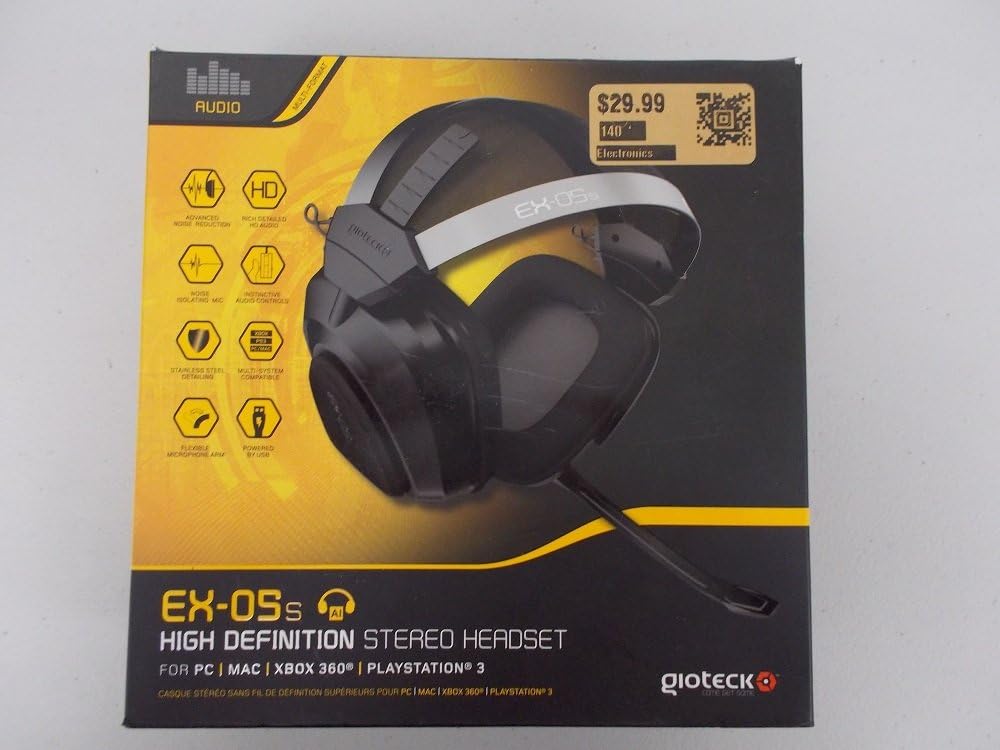
Figure 1.1: Gioteck EX-05S Headset packaging, highlighting key features and compatibility.

Εικόνα 1.2: Πλευρά view of the Gioteck EX-05S Headset, showing the ear cup and microphone arm.
2. Χαρακτηριστικά
- 40mm High Quality Stereo Drivers: Delivering rich, detailed audio for an immersive gaming experience.
- Noise Isolating Microphone: Designed to eliminate echo and external noise for clear communication.
- Breathable Micro-Fibre Ear Cups: Ensures comfort during long gaming sessions.
- Προηγμένη μείωση θορύβου: Minimizes game sound interference from external speakers.
- Flexible and 180-Degree Rotating Microphone Arm: Allows for optimal microphone positioning.
- Instinctive and Accessible Controls: Conveniently located controls for voice and game sound adjustments.
- Stainless Steel Detailing: Provides durability and a premium finish.
- Συμβατότητα πολλαπλών πλατφορμών: Works with PS4, PS3, Xbox 360, PC, and Mac.
3. Περιεχόμενα συσκευασίας
Βεβαιωθείτε ότι όλα τα ακόλουθα στοιχεία υπάρχουν στη συσκευασία σας:
- Gioteck EX-05S Universal High Definition Stereo Headset
4. Οδηγός εγκατάστασης
4.1 Connecting to Gaming Consoles (PS4, PS3, Xbox 360)
- Locate the 3.5mm audio jack on your gaming controller or console.
- Insert the 3.5mm connector from the EX-05S headset firmly into the audio jack.
- Ensure your console's audio settings are configured to output game audio and chat through the connected headset. Refer to your console's system settings for specific audio output configurations.
4.2 Σύνδεση με PC/Mac
- For PCs with separate audio and microphone jacks, you may need a PC splitter cable (not included) to connect the single 3.5mm headset jack to your computer's audio output and microphone input ports.
- For devices with a combined 3.5mm audio/microphone jack, simply plug the headset's 3.5mm connector directly into the port.
- Adjust your computer's sound settings to select the EX-05S headset as the default playback and recording device.
5. Οδηγίες λειτουργίας
5.1 Έλεγχος έντασης ήχου
The EX-05S headset features an inline control box on the cable. Use the volume dial to adjust the overall audio level of your game and chat sound.
5.2 Σίγαση μικροφώνου
A switch or button on the inline control box allows you to quickly mute or unmute your microphone. Ensure the microphone is unmuted when you wish to communicate.
5.3 Τοποθέτηση μικροφώνου
The flexible microphone arm can be rotated 180 degrees. Position the microphone approximately 1-2 inches from your mouth for optimal voice clarity and to minimize background noise.
6. Συντήρηση και Φροντίδα
- Καθάρισμα: Use a soft, dry cloth to clean the headset. For ear cups, a slightly damp Μπορείτε να χρησιμοποιήσετε ένα πανί, αλλά βεβαιωθείτε ότι δεν εισέρχεται υγρασία στις γρίλιες των ηχείων. Μην χρησιμοποιείτε σκληρές χημικές ουσίες ή λειαντικά καθαριστικά.
- Αποθήκευση: Αποθηκεύστε τα ακουστικά σε δροσερό και ξηρό μέρος, μακριά από το άμεσο ηλιακό φως και τις ακραίες θερμοκρασίες. Αποφύγετε το μπέρδεμα του καλωδίου.
- Χειριζόμενος: Always grasp the plug when disconnecting the cable, rather than pulling on the cable itself, to prevent damage to the wiring.
- Κούπες αυτιών: The breathable micro-fibre ear cups can be gently wiped clean. Avoid excessive pressure or stretching.
7. Αντιμετώπιση Προβλημάτων
7.1 Δεν υπάρχει ήχος από τα ακουστικά
- Βεβαιωθείτε ότι η υποδοχή 3.5 mm είναι πλήρως τοποθετημένη στη θύρα ήχου.
- Check the inline volume control on the headset cable and ensure it is turned up.
- Verify your device's (console, PC, Mac) audio output settings are configured to send sound to the headset.
- Δοκιμάστε τα ακουστικά σε μια άλλη συσκευή για να αποκλείσετε κάποιο πρόβλημα που αφορά συγκεκριμένα τη συσκευή.
7.2 Το μικρόφωνο δεν λειτουργεί
- Check the microphone mute switch on the inline control box and ensure it is unmuted.
- Verify your device's (console, PC, Mac) microphone input settings are configured to receive input from the headset.
- Ensure the microphone arm is positioned correctly and not obstructed.
- Test the microphone on another device or application to confirm functionality.
7.3 Static or Distorted Audio
- Βεβαιωθείτε ότι η σύνδεση είναι ασφαλής και απαλλαγμένη από υπολείμματα.
- Try adjusting the volume levels on both the headset and the connected device.
- Move away from potential sources of electromagnetic interference (e.g., Wi-Fi routers, cordless phones).
- Δοκιμάστε με μια άλλη πηγή ή συσκευή ήχου.
8. Προδιαγραφές
| Χαρακτηριστικό | Λεπτομέρεια |
|---|---|
| Όνομα μοντέλου | E5SUNI-11-MU |
| Τεχνολογία Συνδεσιμότητας | Ενσύρματο |
| Συμπεριλαμβανόμενα εξαρτήματα | Ακουστικά |
| Εύρος ηλικίας (Περιγραφή) | Ενήλικας |
| Υλικό | Ανοξείδωτο ατσάλι |
| Ειδικές Χρήσεις Προϊόντος | Παιχνίδι |
| Συμβατές Συσκευές | Gaming Consoles, Computers |
| Τύπος ελέγχου | Έλεγχος έντασης ήχου |
| Χαρακτηριστικό καλωδίου | Αναιρέσιμος |
| Βάρος αντικειμένου | 669 γραμμάρια (1.47 λίβρες) |
| Μέθοδος Ελέγχου | Φωνή |
| Τύπος προγράμματος οδήγησης ήχου | Δυναμικός οδηγός |
| Σχήμα ακουστικού | Πάνω από το αυτί |
| Jack ακουστικών | 3.5 mm Jack |
| Διαστάσεις προϊόντος | 8.46 x 7.87 x 3.94 ίντσες |
9. Εγγύηση και υποστήριξη
Gioteck products are manufactured to high standards and undergo rigorous testing. For information regarding warranty coverage, technical support, or service, please refer to the official Gioteck webιστότοπο ή επικοινωνήστε απευθείας με την υποστήριξη πελατών. Κρατήστε την απόδειξη αγοράς για τυχόν αξιώσεις εγγύησης.
Για τις πιο ενημερωμένες πληροφορίες υποστήριξης, επισκεφθείτε τη διεύθυνση: www.gioteck.com/support


