1. Εισαγωγή
This manual provides detailed instructions for the setup, operation, maintenance, and troubleshooting of your ASUS RT-AC66U Dual-Band AC1750 Gigabit Router. Please read this manual thoroughly to ensure proper use and optimal performance of your device.
The ASUS RT-AC66U Gigabit wireless dual-band router features Broadcom’s 5th generation Wi-Fi (5G WiFi) technology. It operates on both 2.4GHz and 5GHz bands, delivering data rates up to 1.75Gbps, which is three times faster than 802.11n speeds. Equipped with ASUS AiRadar technology, it amplifies transmissions for optimized signals, enhancing network coverage. The router supports ASUSWRT setup, Quality of Service (QoS) standards, multiple SSIDs, and includes two USB ports for file, DLNA, and printer server capabilities. It also features three detachable R-SMA type antennas for wider coverage and supports VPN Server functionality and IPv6.
2. Το προϊόν τελείωσεview
The ASUS RT-AC66U router is designed to provide high-speed and reliable wireless connectivity for your home or office network. Below are key features and a visual representation of the device.
Βασικά Χαρακτηριστικά:
- WiFi διπλής ζώνης AC1750: Utilizes 5th generation 802.11ac chipset for concurrent 2.4GHz/5GHz operation, offering speeds up to 1.75Gbps.
- ASUS AiCloud Service: Enables access, streaming, sharing, and syncing of files on the go with unlimited storage expansion.
- Θύρες Ethernet Gigabit: Provides fast and reliable wired internet performance.
- Τεχνολογία AiRadar: Optimizes wireless coverage through high-powered amplification and beam-forming with detachable antennas.
- ASUSWRT Dashboard UI: Offers a user-friendly interface for 3-step easy setup, signal monitoring, and network application control.
- Download Master: Facilitates wireless data storage and access to USB storage devices connected to the router.
- Multi-functional USB Ports: Two built-in USB ports support file sharing, printer sharing, and 3G sharing.
- Διακομιστής VPN: Integrated VPN server functionality for secure remote access.
- Υποστήριξη IPv6: Έτοιμοι για την επόμενη γενιά πρωτοκόλλου διαδικτύου.
Προϊόν Views:

Εικόνα 1: Εμπρός view του δρομολογητή ASUS RT-AC66U, εμφάνισηasing its design and external antennas.

Figure 2: Top-front perspective of the ASUS RT-AC66U router, highlighting the ventilation and LED indicators.
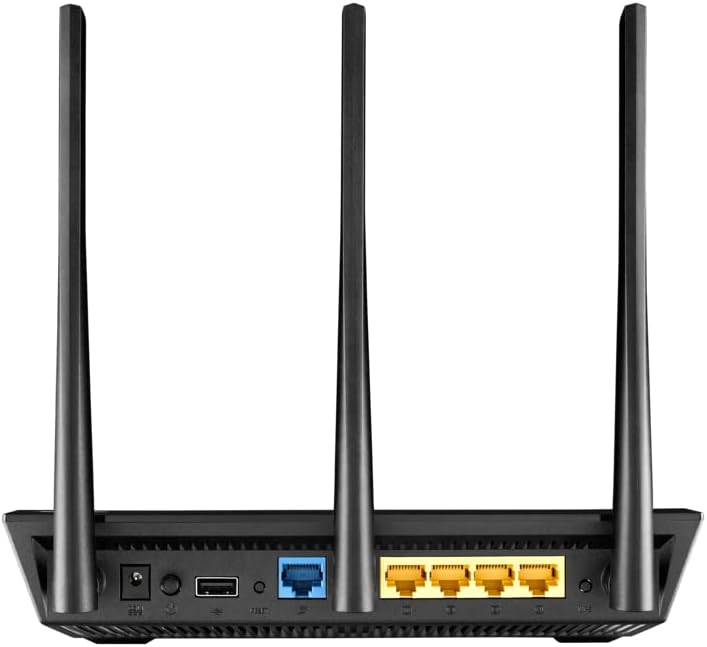
Εικόνα 3: Πίσω view of the ASUS RT-AC66U router, showing the WAN, LAN, USB ports, and power input.
3. Ρύθμιση
Follow these steps to set up your ASUS RT-AC66U router and establish an internet connection.
3.1 Σύνδεση υλικού
- Τοποθετήστε το δρομολογητή: Place the router in a central location for optimal Wi-Fi coverage. Ensure antennas are oriented vertically for best signal.
- Συνδέστε το μόντεμ: Power off your modem. If it has a backup battery, remove it.
- Σύνδεση θύρας WAN: Connect one end of an Ethernet cable to your modem's LAN port and the other end to the blue WAN port on the ASUS RT-AC66U router.
- Σύνδεση τροφοδοσίας: Συνδέστε τον προσαρμογέα ρεύματος στην είσοδο ρεύματος του δρομολογητή και, στη συνέχεια, σε μια πρίζα.
- Ενεργοποίηση: Turn on your modem, then turn on the ASUS RT-AC66U router. Wait for the LED indicators to stabilize.
Video: How to set up ASUS WiFi Router via Quick Internet Setup. This video demonstrates the physical connections and initial configuration steps for your ASUS router.
3.2 Initial Configuration (ASUSWRT)
- Σύνδεση στο δρομολογητή: Connect your computer to the router either wirelessly (using the default Wi-Fi name and password found on the router's label) or via an Ethernet cable to one of the yellow LAN ports.
- Σελίδα ρύθμισης πρόσβασης: Ανοίξτε α web πρόγραμμα περιήγησης και εισάγετε router.asus.com or 192.168.1.1 στη γραμμή διευθύνσεων.
- Ακολουθήστε τις οδηγίες επί της οθόνης: The ASUSWRT dashboard UI will guide you through a 3-step setup process to configure your internet connection, Wi-Fi network name (SSID), and password.
- Confirm Internet Status: After completing the setup, check the "Network Map" section to ensure the Internet status shows "Connected".
Video: How to enter the ASUS Router Setting page. This video guides you on accessing the router's web διεπαφή για διαμόρφωση.
4. Λειτουργία του δρομολογητή
Once your router is set up, you can manage its various functions through the ASUSWRT interface or the ASUS Router app.
4.1 Διαχείριση ασύρματου δικτύου
- Λειτουργία διπλής ζώνης: The RT-AC66U operates on both 2.4GHz and 5GHz frequencies. You can configure separate SSIDs for each band or use Smart Connect to allow devices to automatically choose the best band.
- Δίκτυο επισκεπτών: Create up to three separate guest networks for visitors, providing internet access while isolating your main network for security.
- AiRadar Beamforming: This technology automatically detects the location of Wi-Fi devices and directs stronger signals towards them, improving range and stability.
4.2 USB Applications
The two USB 2.0 ports on the router offer versatile functionalities:
- AiDisk (File Sharing): Connect a USB storage device to create a personal cloud server for file sharing and streaming.
- Διακομιστής εκτυπωτή: Connect a USB printer to share it across your network.
- 3G/4G Sharing: Connect a compatible 3G/4G USB dongle to use as a primary or backup internet connection.
4.3 Network Security and Control
- Προστασία Ai: Provides network security features, including malicious site blocking, vulnerability protection, and infected device prevention and blocking.
- Προσαρμοστικό QoS: Prioritizes network traffic for specific applications (e.g., gaming, streaming) to ensure smooth performance.
- Γονικός έλεγχος: Manage and schedule internet access for connected devices.
- Διακομιστής VPN: Set up a Virtual Private Network (VPN) server to securely access your home network from anywhere.
5. Συντήρηση
Regular maintenance ensures your router operates efficiently and securely.
5.1 Ενημέρωση υλικολογισμικού
Keeping your router's firmware up to date is crucial for performance, security, and new features. You can update the firmware via the ASUSWRT interface.
- Access ASUSWRT: Συνδεθείτε στον δρομολογητή web interface (router.asus.com).
- Navigate to Firmware Upgrade: Μεταβείτε στο Administration > Firmware Upgrade.
- Ελέγξτε για ενημερώσεις: Click "Check" to see if a new firmware version is available.
- Εκτέλεση ενημέρωσης: If an update is available, follow the on-screen instructions to download and install it. The router will reboot automatically after the update.
Video: How to update the firmware of ASUS WiFi Router. This video provides a step-by-step guide on updating your router's firmware.
5.2 Regular Reboot
Η περιοδική επανεκκίνηση του δρομολογητή σας (π.χ., μία φορά το μήνα) μπορεί να βοηθήσει στην εκκαθάριση της μνήμης του, στην επίλυση μικρών προβλημάτων δικτύου και στη βελτίωση της συνολικής απόδοσης.
- Μαλακή επανεκκίνηση: Log in to ASUSWRT and click the "Reboot" button at the top of the page.
- Hard Reboot: Unplug the power adapter from the router, wait 10-15 seconds, then plug it back in.
6. Αντιμετώπιση Προβλημάτων
If you encounter issues with your ASUS RT-AC66U router, refer to the following common troubleshooting steps.
6.1 Χωρίς σύνδεση στο Διαδίκτυο
- Ελέγξτε τις ενδείξεις LED: Ensure the Power, Wi-Fi, and Internet LEDs are solid blue. If the Internet LED is off or orange, there might be an issue with your modem or ISP connection.
- Επαληθεύστε τις συνδέσεις καλωδίων: Ensure all Ethernet cables (WAN, LAN) are securely connected to the correct ports on the router and modem.
- Συσκευές κύκλου ισχύος: Power off your modem and router. Wait 30 seconds, then power on the modem first. Once the modem is fully online (all its indicator lights are stable), power on the router.
- Ελέγξτε τις ρυθμίσεις WAN: Log in to ASUSWRT and navigate to WAN > Internet Connection. Verify that your WAN connection type (e.g., PPPoE, Static IP, Automatic IP) and account settings are correct as provided by your Internet Service Provider (ISP).
- ISP Contact: If the issue persists, contact your ISP to confirm your account status and connection details.
Video: Troubleshooting Internet Connection on ASUS Router. This video provides steps to diagnose and resolve internet connectivity issues.
6.2 Poor Wi-Fi Signal or Coverage
- Τοποθέτηση δρομολογητή: Move the router to a central location, away from obstructions (thick walls, metal objects) and interference sources (microwaves, cordless phones).
- Προσανατολισμός κεραίας: Adjust the router's external antennas for optimal signal reception.
- Παρέμβαση: Change the Wi-Fi channel in ASUSWRT (Wireless > General) to avoid interference from neighboring networks. Use a Wi-Fi analyzer app to find less congested channels.
- Ενημέρωση υλικολογισμικού: Ensure your router's firmware is up to date (refer to Section 5.1).
Video: How to improve WiFi signal. This video offers tips and techniques to enhance your wireless network's performance and range.
6.3 Restoring to Factory Default Settings
If you experience persistent issues or forget your router's login credentials, you can restore it to its factory default settings. This will erase all custom configurations.
- Via ASUSWRT: Μεταβείτε στο Administration > Restore/Save/Upload Setting και κάντε κλικ στην επιλογή "Επαναφορά".
- Επαναφορά υλικού: With the router powered on, press and hold the "Reset" button (usually a small pinhole button on the back) for about 5-10 seconds until the Power LED starts blinking. Release the button and wait for the router to reboot.
Video: How to restore the ASUS router to default setting. This video demonstrates the process of resetting your router to its original factory configuration.
7. Προδιαγραφές
| Χαρακτηριστικό | Λεπτομέρεια |
|---|---|
| Μάρκα | ASUS |
| Όνομα μοντέλου | RT-AC66U |
| Ασύρματος τύπος | 802.11ac |
| Κατηγορία ζώνης συχνοτήτων | Διπλή ζώνη (2.4 GHz / 5 GHz) |
| Ρυθμός δεδομένων | Έως 1750 Mbps |
| Θύρες Ethernet | 4 x Gigabit LAN, 1 x Gigabit WAN |
| Θύρες USB | 2 x θύρες USB 2.0 |
| Κεραίες | 3 x Detachable R-SMA type antennas |
| Διαστάσεις προϊόντος | 8.14 x 5.86 x 1.4 ίντσες |
| Βάρος αντικειμένου | 1.75 λίρες |
| Υποστήριξη Λειτουργικού Συστήματος | Windows 7, Mac OS |
| Ειδικά Χαρακτηριστικά | WPS, AiRadar, AiCloud, ASUSWRT, VPN Server, IPv6 |
8. Εγγύηση και υποστήριξη
For warranty information, technical support, or further assistance, please visit the official ASUS support webιστοσελίδα ή επικοινωνήστε με την εξυπηρέτηση πελατών τους.
- Υποστήριξη ASUS Webτοποθεσία: www.asus.com/support/
- Σελίδα προϊόντος: Επισκεφθείτε το κατάστημα ASUS στο Amazon
Σχετικά Έγγραφα - RT-AC66U
 |
Οδηγός χρήστη για δρομολογητή Gigabit ASUS RT-AC66U Dual Band 802.11AC Πλήρης οδηγός χρήστη για τον δρομολογητή Gigabit ASUS RT-AC66U Dual Band 3x3 802.11AC, που καλύπτει την εγκατάσταση, τη διαμόρφωση, τις προηγμένες ρυθμίσεις και την αντιμετώπιση προβλημάτων. |
 |
ASUS RT-AC66U B1 Quick Start Guide: Setup and Usage Get started with your ASUS RT-AC66U B1 Wireless-AC1750 Dual Band Gigabit Router. This guide provides essential setup, placement, and troubleshooting information for optimal network performance. |
 |
ASUS RT-AC66U B1 無線路由器 使用手冊 本使用手冊提供 ASUS RT-AC66U B1無線路由器的詳細設定、操作指南與疑難排解資訊,協助使用者快速上手並充分利用其功能。 |
 |
Δρομολογητής WiFi διπλής ζώνης AC ASUS RT-AC65: Οδηγός γρήγορης εκκίνησης Ξεκινήστε γρήγορα με τον δρομολογητή WiFi διπλής ζώνης AC ASUS RT-AC65. Αυτός ο οδηγός καλύπτει τα περιεχόμενα της συσκευασίας, την ενσύρματη και ασύρματη εγκατάσταση και βασικές συχνές ερωτήσεις. |
 |
Οδηγός χρήστη ASUS RT-AC86U: Ρύθμιση, διαμόρφωση και χαρακτηριστικά Πλήρης οδηγός χρήσης για τον δρομολογητή διπλής ζώνης Gigabit ASUS RT-AC86U Wireless-AC 2900. Μάθετε για την εγκατάσταση, τις προηγμένες διαμορφώσεις, τις λειτουργίες ασφαλείας όπως το AiProtection, το QoS, το AiCloud και την αντιμετώπιση προβλημάτων. |
 |
Οδηγός γρήγορης εκκίνησης για δρομολογητή WiFi διπλής ζώνης ASUS RT-BE86U Ένας συνοπτικός οδηγός για τη ρύθμιση του δρομολογητή WiFi διπλής ζώνης ASUS RT-BE86U BE6800. Μάθετε για τις δυνατότητες υλικού, την βήμα προς βήμα εγκατάσταση μέσω εφαρμογής ή web πρόγραμμα περιήγησης και σημαντικές πληροφορίες ασφαλείας. |